
Welcome and announcements
The bot tells the server when someone joins or leaves, when a news post goes out and when someone buys. All these messages use the same visual editor.
Build the message
On the welcome, news and purchases screens, the editor shows the message as it looks on Discord.
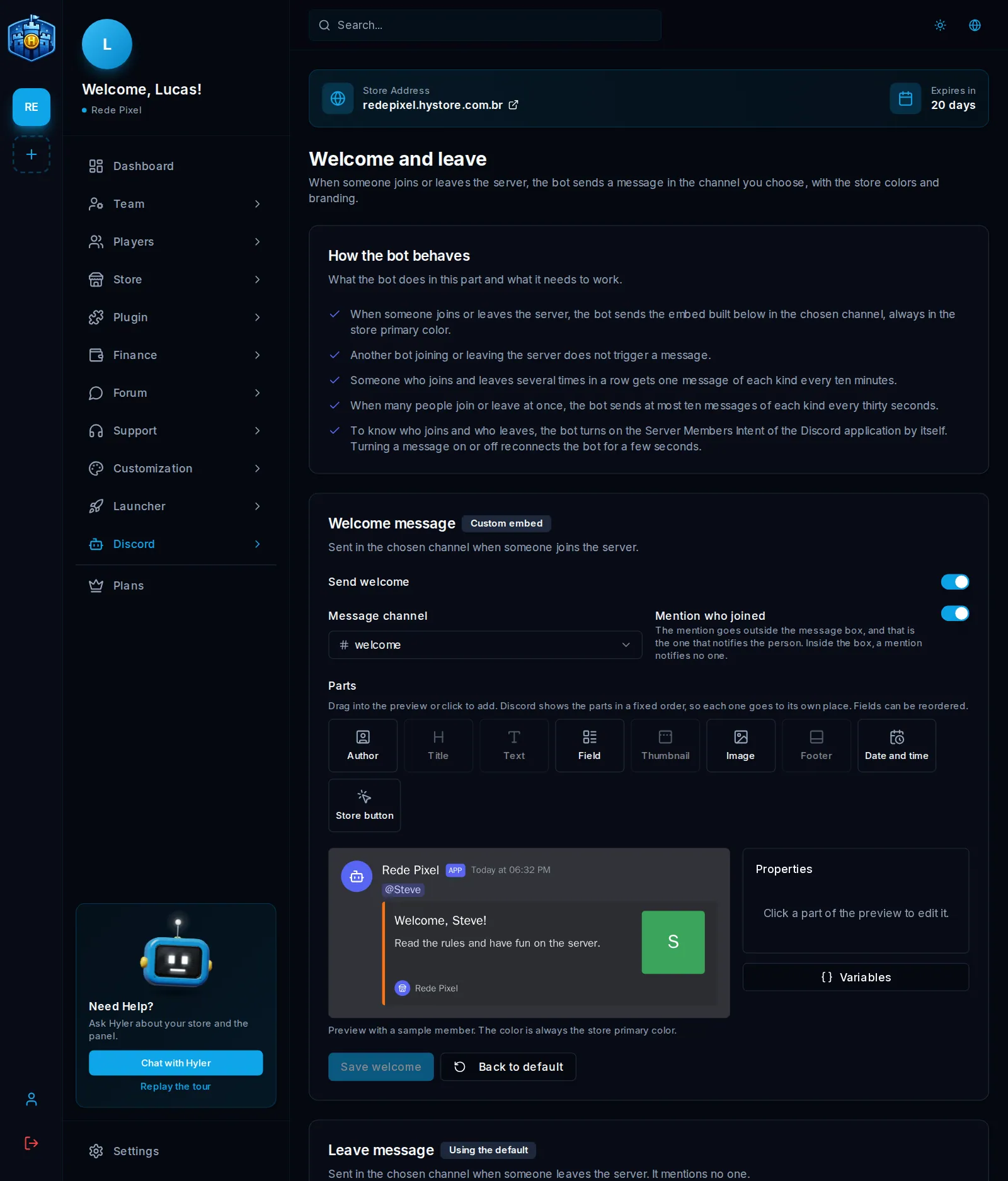
- In Parts, drag a part to the preview, or click to add: Author, Title, Text, Field, Thumbnail, Image, Footer, Date and time.
- Click a part of the preview to edit it on the right.
- Use Variables to insert data that changes, like the name of who joined or the product bought.
- Save. Back to default undoes everything.
The preview uses sample data. The box color is the store's primary color, set in Appearance.
Welcome and leave
In Discord > Welcome and leave, joining and leaving have separate messages.
- Turn on Send welcome, or Send leave message.
- Pick the Message channel.
- Build the message and save.
Mention who joined puts the mention outside the box. That is what notifies the person: inside the box, the mention notifies nobody.
News with /news
Whoever has permission publishes from Discord itself: the bot posts in the channel and the post goes on the website at the same time.
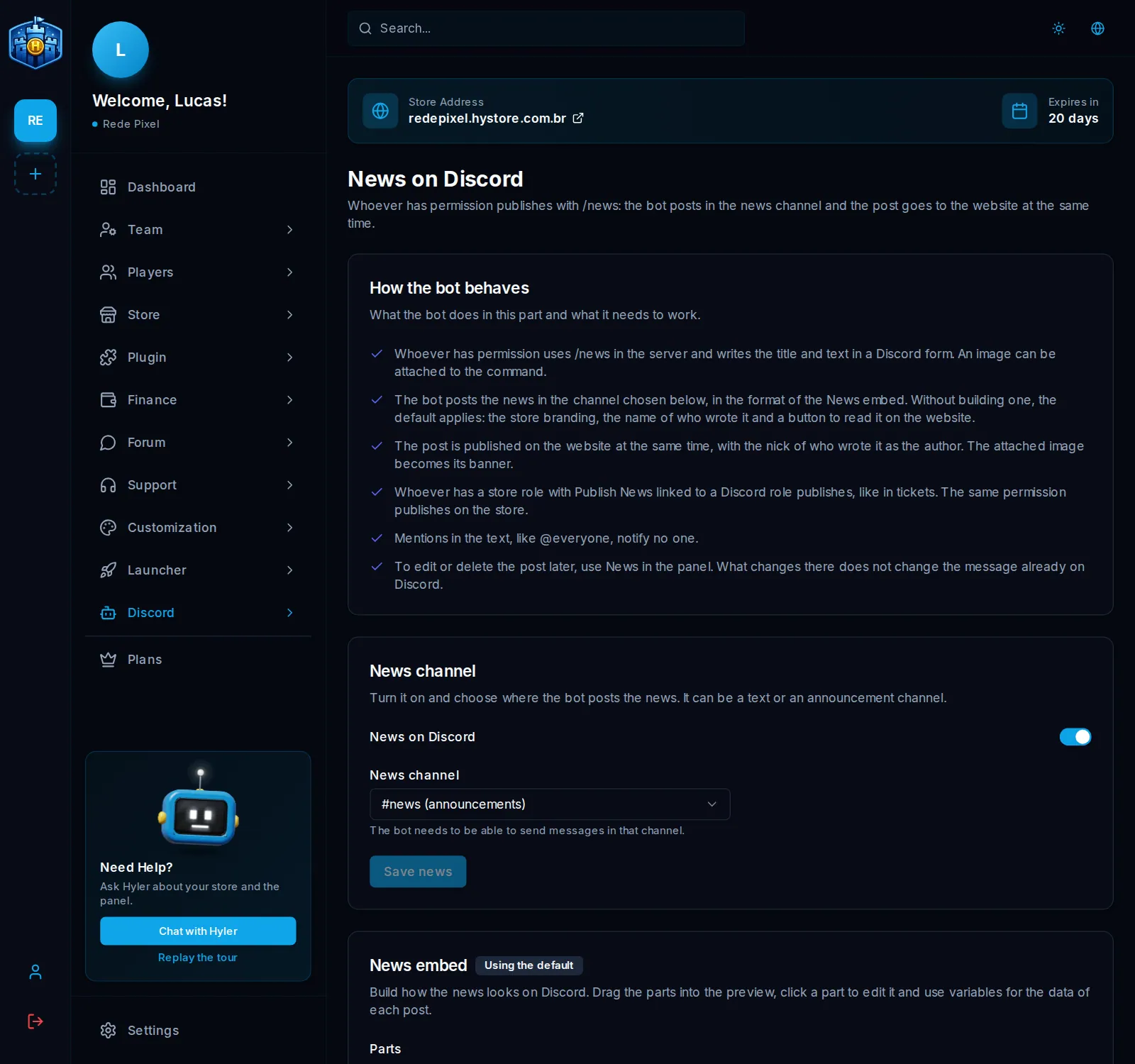
- In Discord > News, turn on News on Discord.
- Pick the News channel, text or announcement. The bot must be able to send messages in it.
- Click Save news.
On the server, whoever has permission types /news, writes the title and text in a Discord form and can attach an image. It becomes
the post's banner on the website, with the writer's nick as the author.
Whoever has a store role with Publish News, linked to a Discord role, publishes. The Who publishes on Discord card shows who can.
Purchase announcement
Each paid order can become an announcement in the channel.
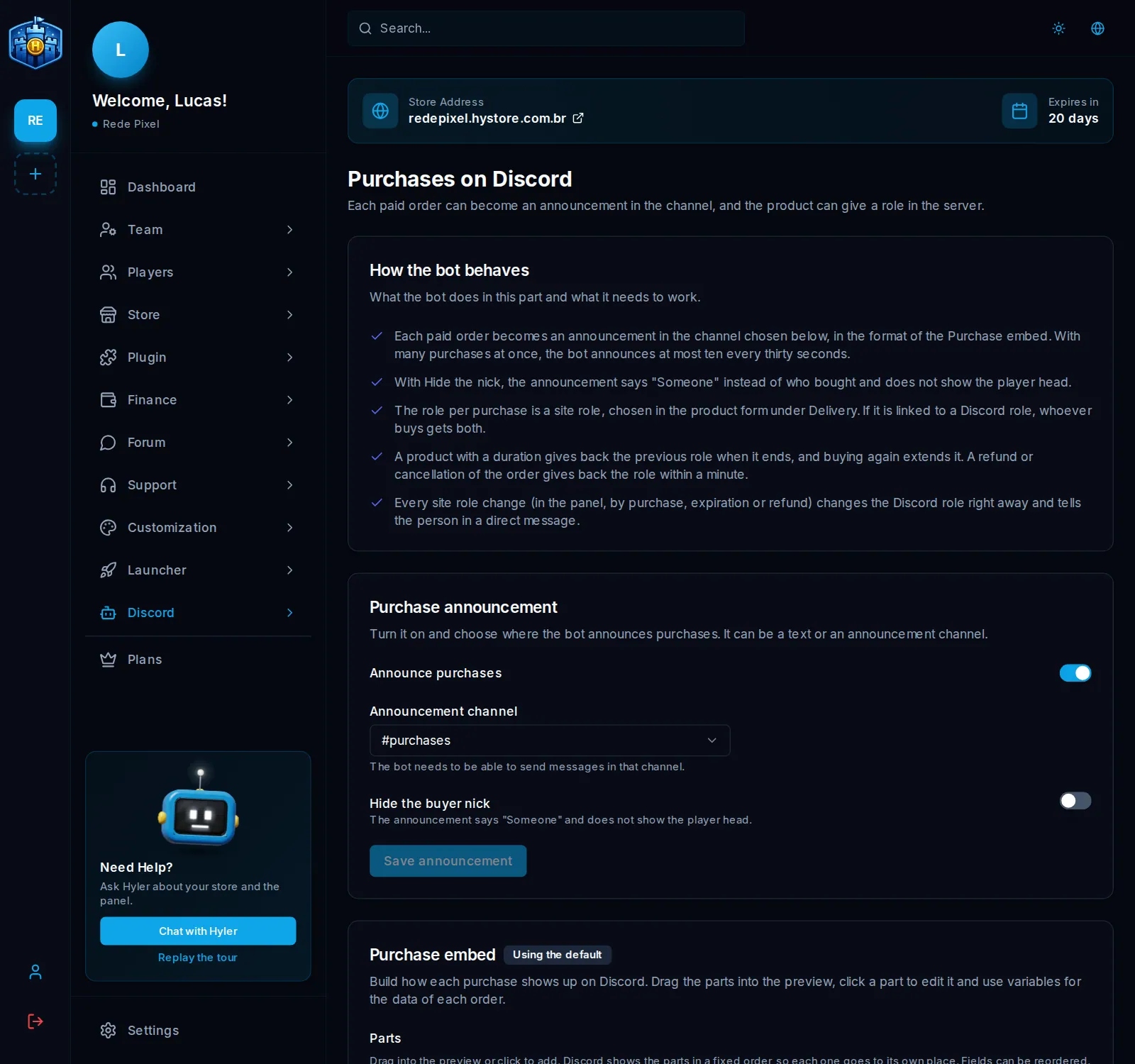
- In Discord > Purchases, turn on Announce purchases.
- Pick the Announcement channel.
- Click Save announcement.
Hide the buyer nick makes the announcement say "Someone" and not show the player's head. With many purchases at once, the bot announces at most ten every thirty seconds.
Role per purchase
The role per purchase is a website role, chosen when registering the product, under Delivery. If it is linked to a Discord role, the buyer gets both.
A product with a duration gives back the previous role when it ends, and buying again extends it. A refund or order cancellation gives back the role within a minute.
