
Products
A product is what a player buys in your store: a VIP, a kit, cash, an unban. Each product has a name, a picture, a price, a category and, in a game store, the commands the plugin runs on the server when the payment is approved.
Everything is in Store > Products.
Create a product
- In Store > Products, click Create Product.
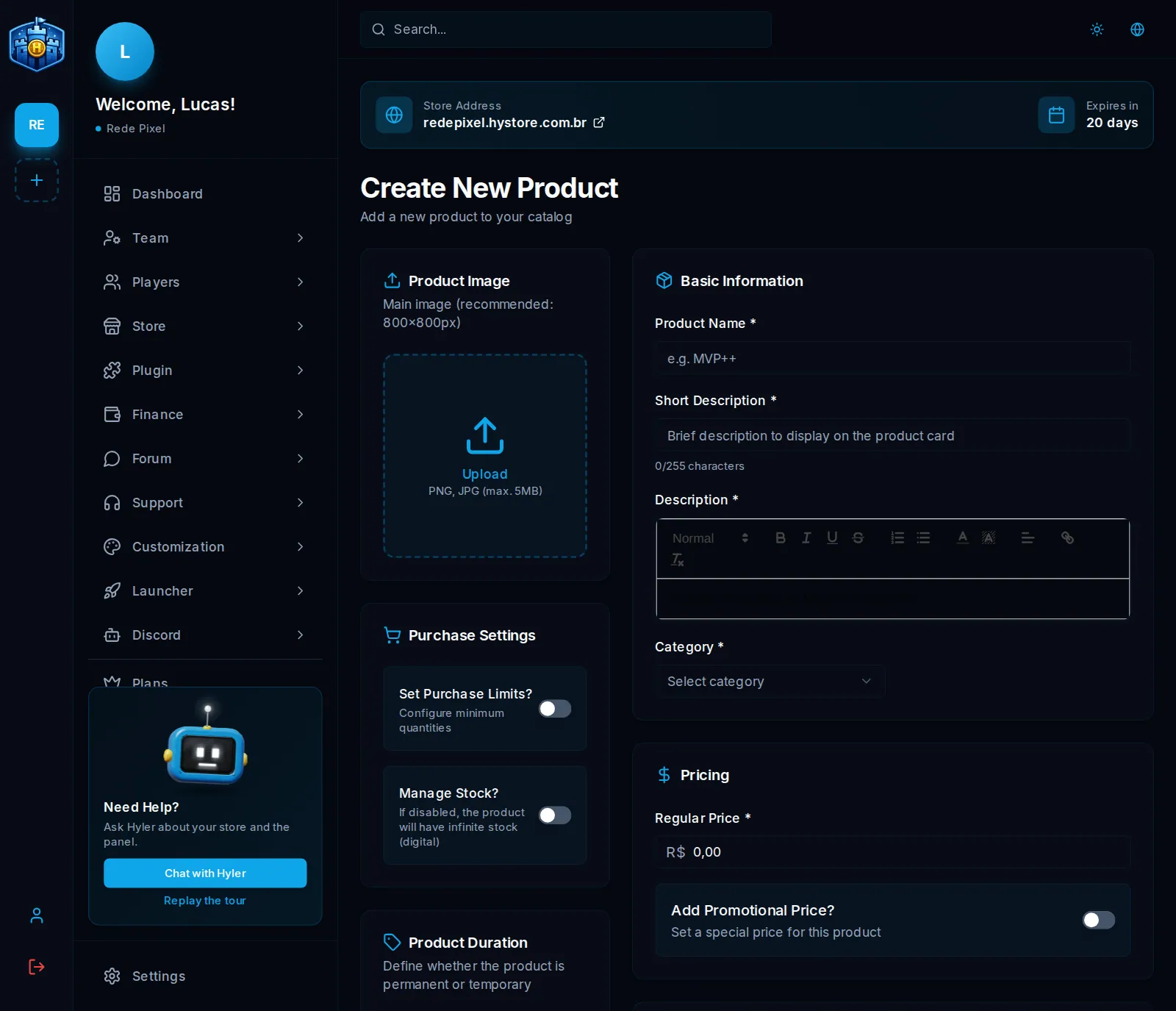
- In Basic Information, fill in the Product Name, the Short Description (it shows on the product card, up to 255 characters), the full Description and the Category (and the Subcategory, if there is one).
- In Product Image, upload the picture. 800x800 px is recommended, PNG or JPG up to 5 MB.
- In Pricing, enter the Regular Price. For a sale, turn on Add Promotional Price? and enter the Promotional Price and, if you like, the Promotion Quantity Limit.
- Set up the delivery (see below) and click Create Product.
Purchase settings
- Set Purchase Limits?: turn it on to require a Minimum Quantity per order and a limit per player.
- Manage Stock?: off, the stock is endless. On, enter the Stock Quantity. Each order takes its units right when it is placed, an order that expires unpaid gives them back, and with stock at zero the store shows Sold out and does not let anyone buy more than there is.
Product duration
With Permanent Product? on, the purchase lasts forever. Turn it off to sell something that expires and enter the Duration (in days), for example a 30-day VIP.
Server delivery
In Server Delivery, pick the Delivery Server and say what the plugin should do when the payment is approved. How this product is delivered has two options:
- Delivery commands: the commands run on the server after the payment, one
per line, in order. Use
{player}where the buyer's nick goes. - VIP system: the plugin handles the whole VIP (it starts, counts the time and ends on its own). See VIP on the product.
Examples of delivery commands:
give {player} diamond_sword 1
eco give {player} 1000
broadcast &a{player} bought the Legendary sword kit!
With no server added, the list shows the shortcut to Store → Servers. See Install the plugin.
Site role
In Site role, the product can give a player role to the buyer, like "Gold" or "Diamond". With a duration, the role lasts the same days and then the previous one comes back; buying again extends it. A staff role is never replaced, and whoever already has a higher-priority role keeps it. See Players and roles.
Product order
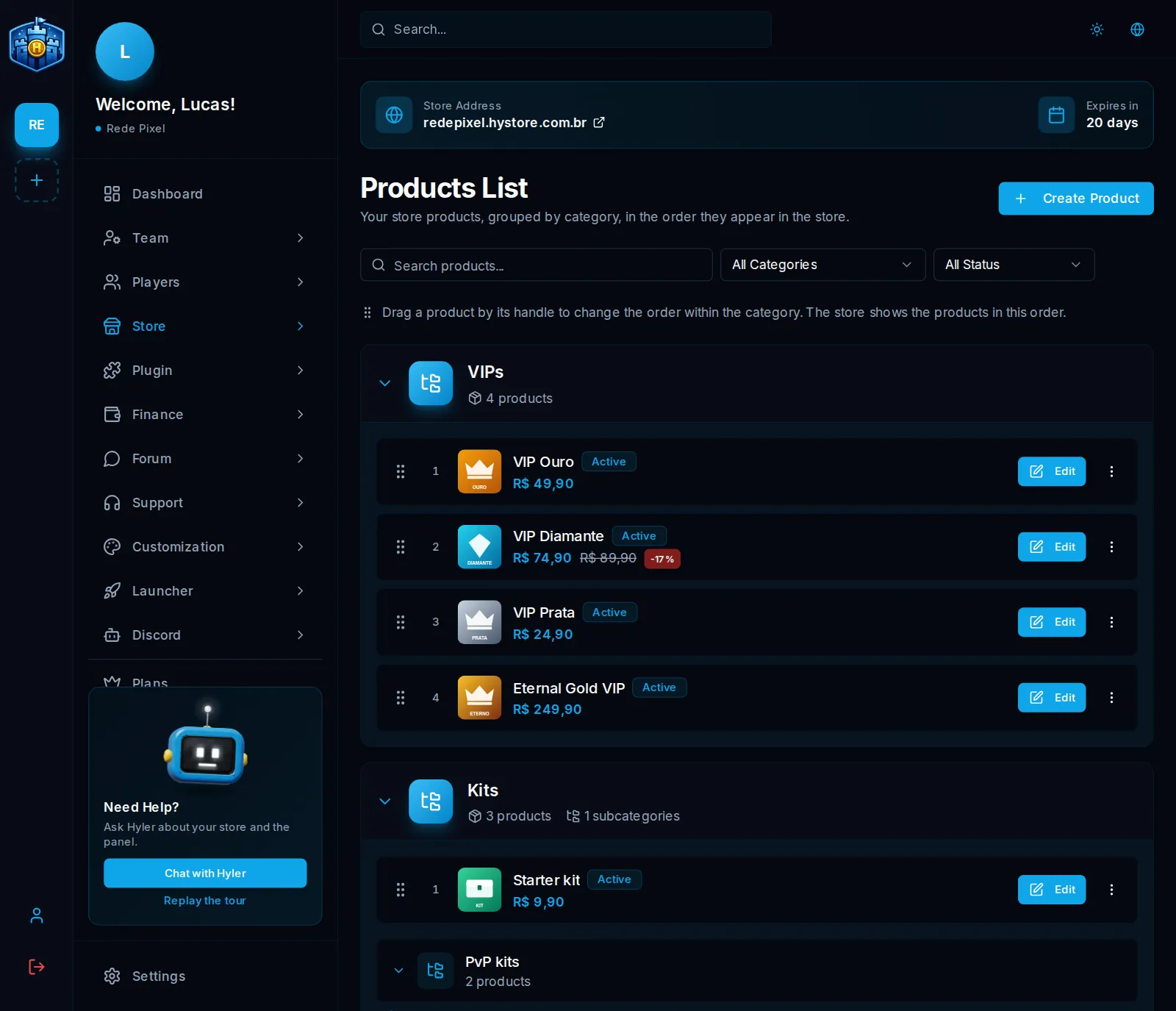
In the list, each category is a card with its subcategories inside, and the products show in store order (the number next to them is the position).
- Drag the product by the handle on the left.
- Drop it in the new spot. The order is saved when you drop it and applies to
the store and to
/lojainside the game.
With the keyboard: Tab to the handle, space to pick it up, the arrow keys up and down, space to drop it, Esc cancels.
The order is within the category: to move a product to another one, change the category in the form, and it goes to the start of the new one. A new product also goes to the start. With a search or a status filter on, the handle goes away, because the list is not complete.
Edit, deactivate and delete
- Edit opens the same form, all filled in.
- In the three-dot menu, Deactivate takes the product out of the storefront without deleting anything; Activate brings it back.
- Delete is final: the product leaves the store and does not come back.
Going further
- VIP on the product: the VIP that starts and ends on its own.
- Digital products: file, key or content.
- Coupons and Gifts: discounts and redeem codes.
