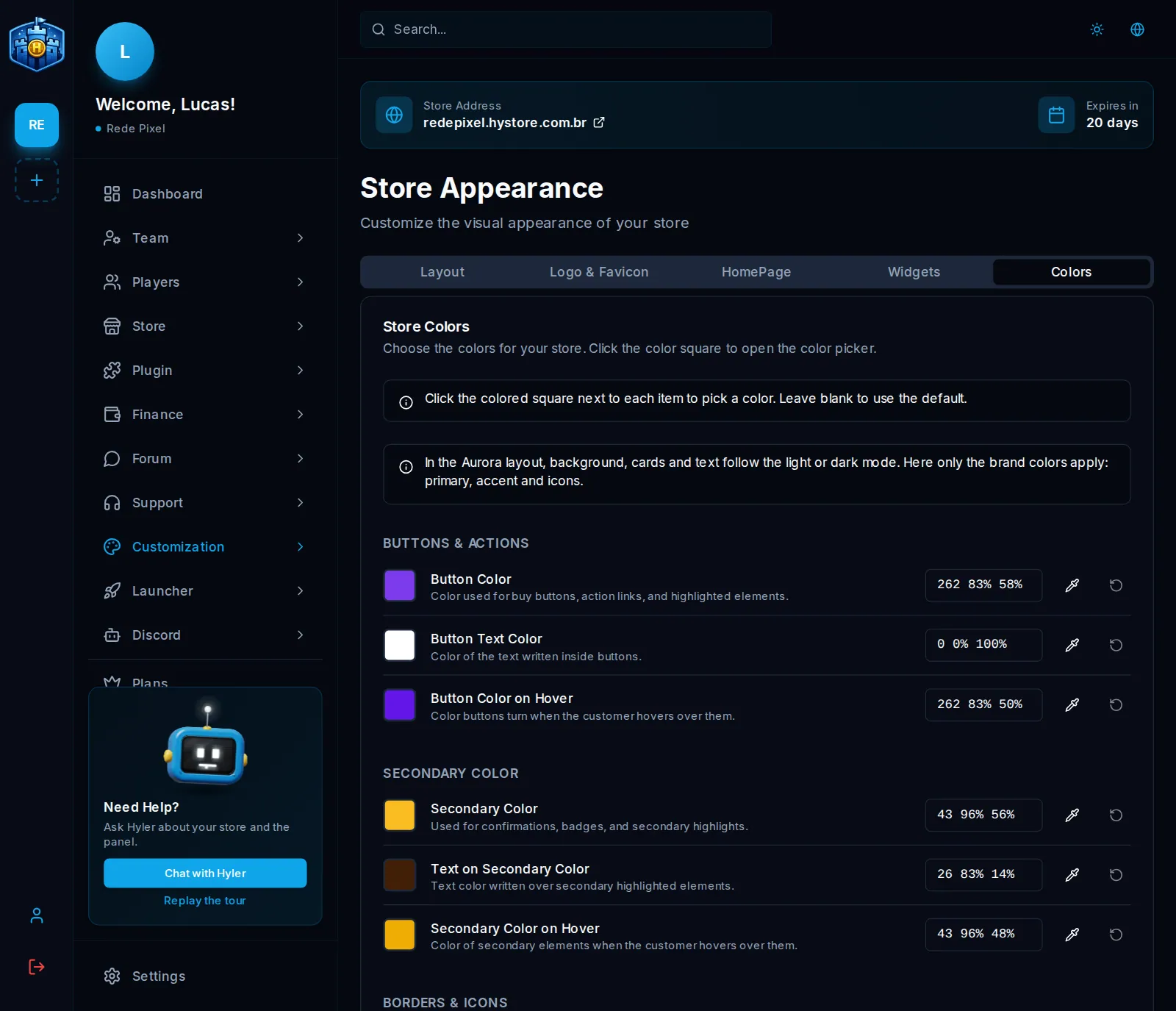
Layout and colors
In Customization > Store Appearance you decide how the store looks to players: the layout, the logo, the home page, the widgets and the colors. Changing the layout does not touch products, orders or texts, so you can try things freely.
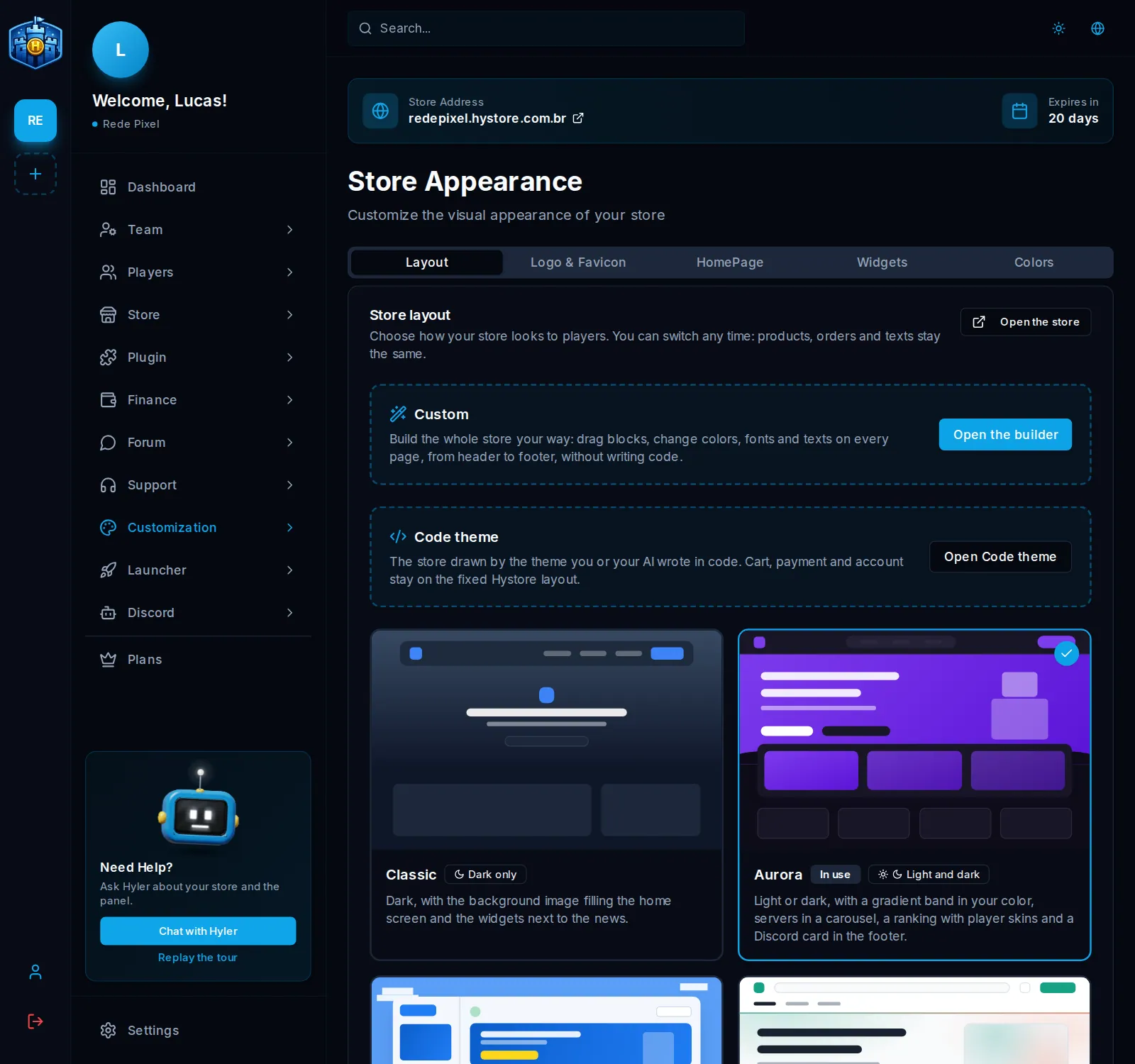
The four ready layouts
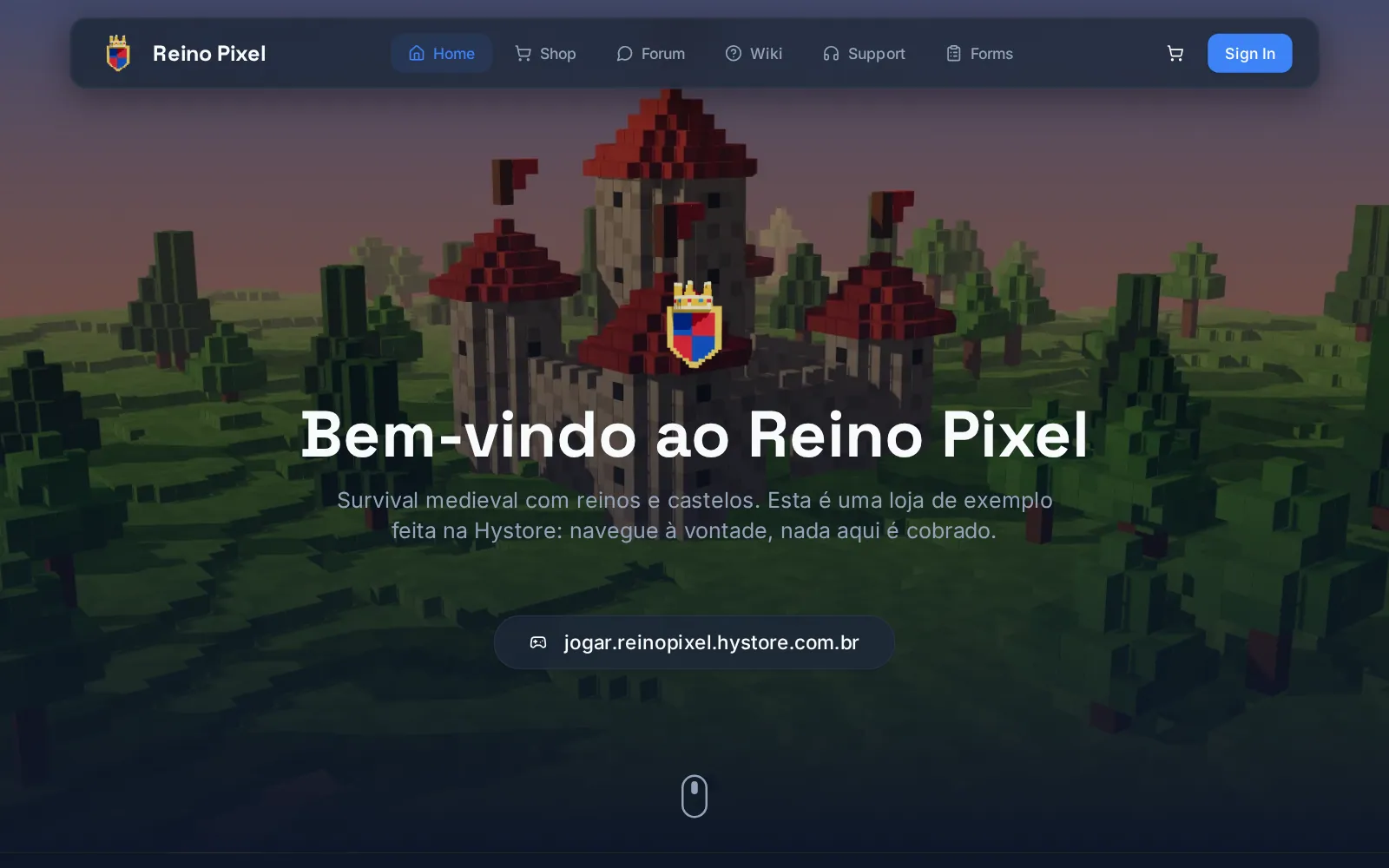
All of them are live on example stores. Open them and browse to see how they look.
Classic
Dark, with the background image filling the opening screen and the widgets next to the news. See it at reinopixel.hystore.com.br.
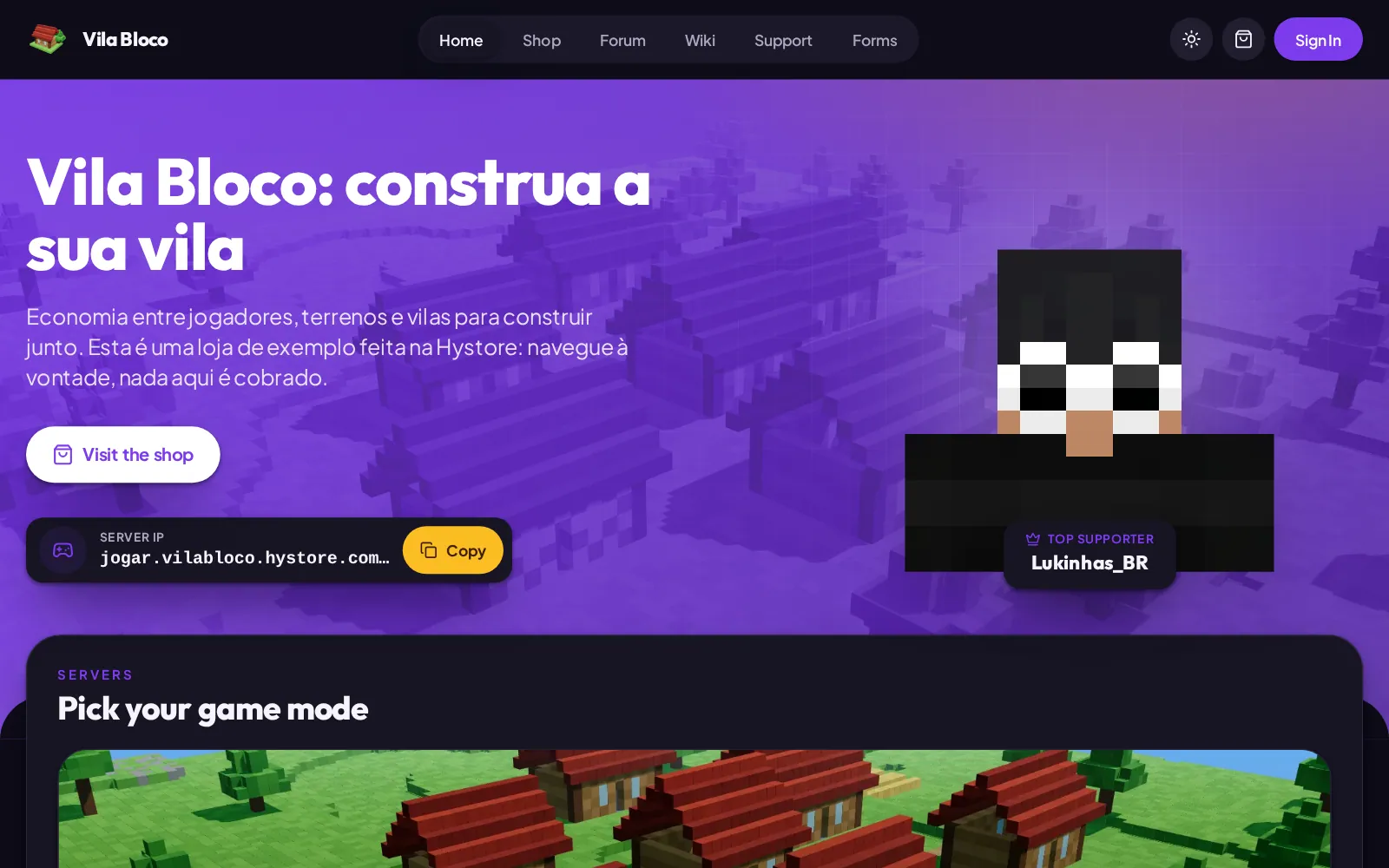
Aurora
Light or dark, with a gradient band in your color, servers in a carousel, a ranking with player skins and a Discord card in the footer. See it at vilabloco.hystore.com.br.
Celeste
Light or dark, with a side menu over a sky of pixel clouds, a rotating offers banner, server and category tabs, product search and raised buttons. See it at ilhasdoceu.hystore.com.br.
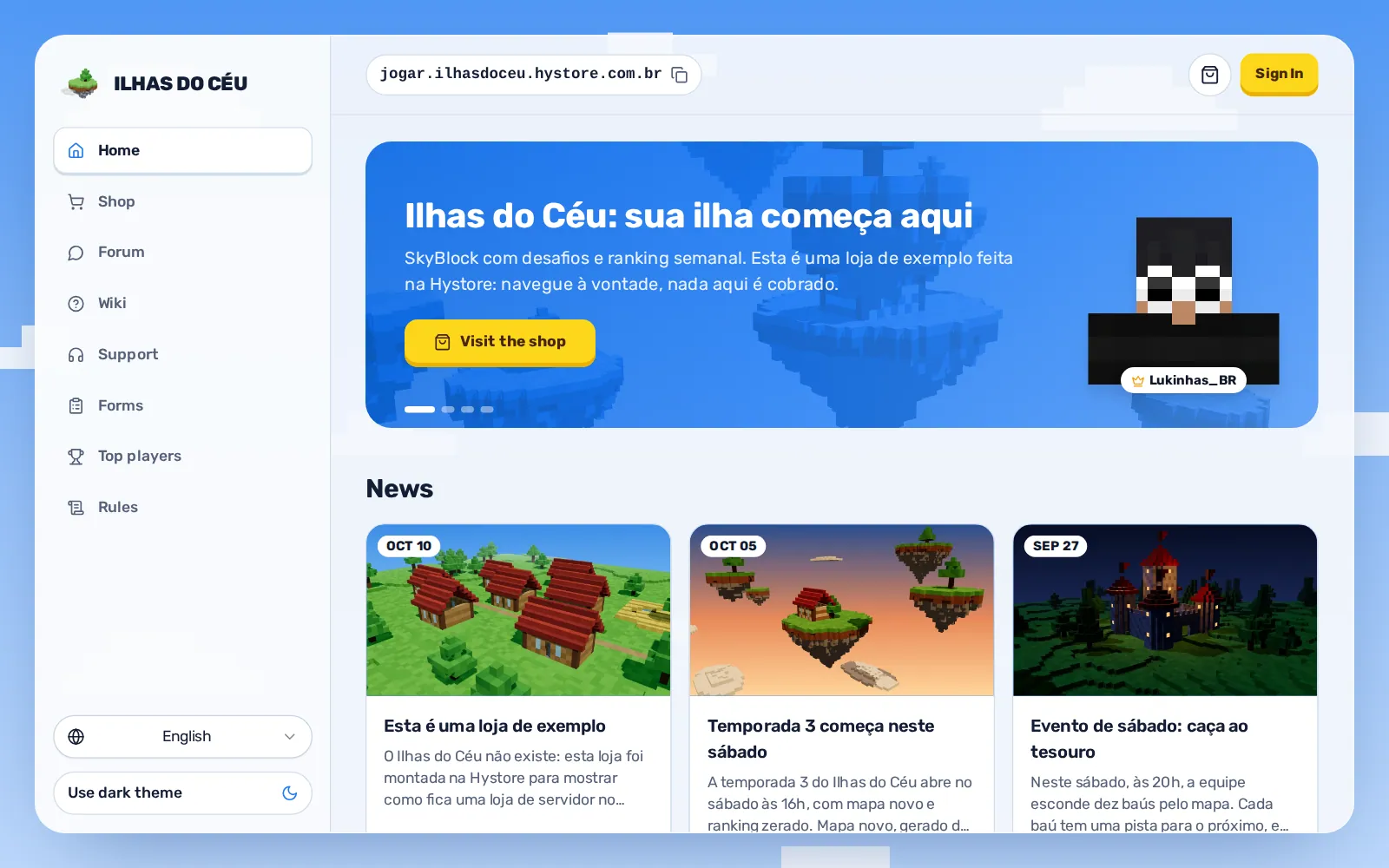
On Celeste you can change the background around the store, on the Layout background card: Brand color (the sky follows the primary color), Custom color or Image (JPG, PNG or WebP up to 5 MB, 1920x1080 recommended). The Pixel clouds switch turns the clouds on or off. On a phone, the store fills the screen and the background does not show.
Prisma
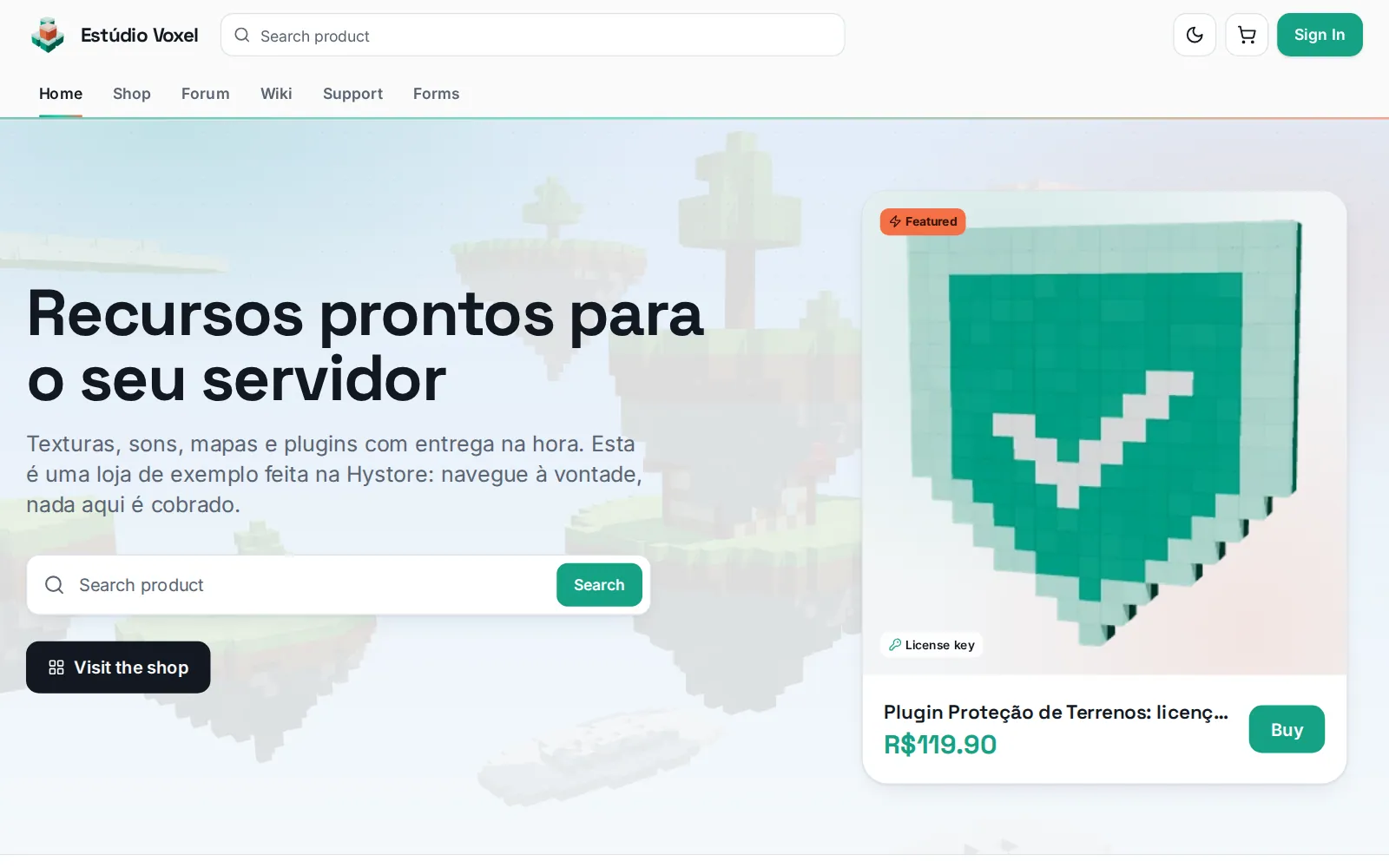
Light or dark, with the look of a digital product store: a prominent search, a featured product on the side, a guarantees strip, big covers, a catalog with side filters and a fixed purchase card on the product page. It also works for game stores. See it at estudiovoxel.hystore.com.br.
Change the layout
- In Customization > Store Appearance, open the Layout tab.
- Click the layout you want. Check Use the colors suggested by this layout so the primary, accent and icon colors become its own.
- On Aurora, Celeste and Prisma, pick whether the store opens in light or dark mode. The player can switch with the sun and moon button, and their choice is kept in the browser.
- Click Save layout.
Logo and favicon
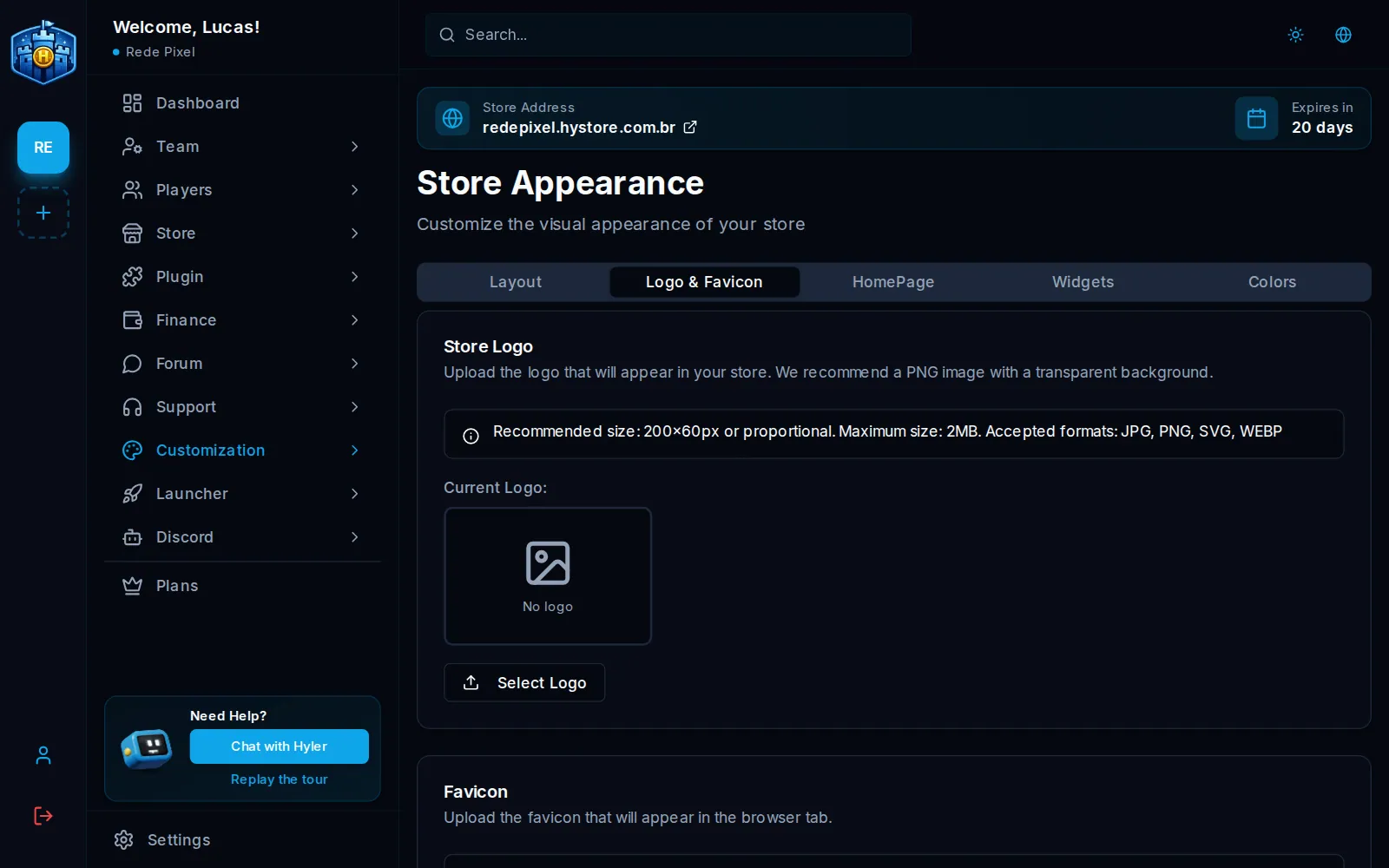
On the Logo & Favicon tab, upload:
- the logo: PNG with a transparent background, around 200x60 px, up to 2 MB;
- the favicon, the browser tab icon: 32x32 or 64x64 px, up to 512 KB.
Home page
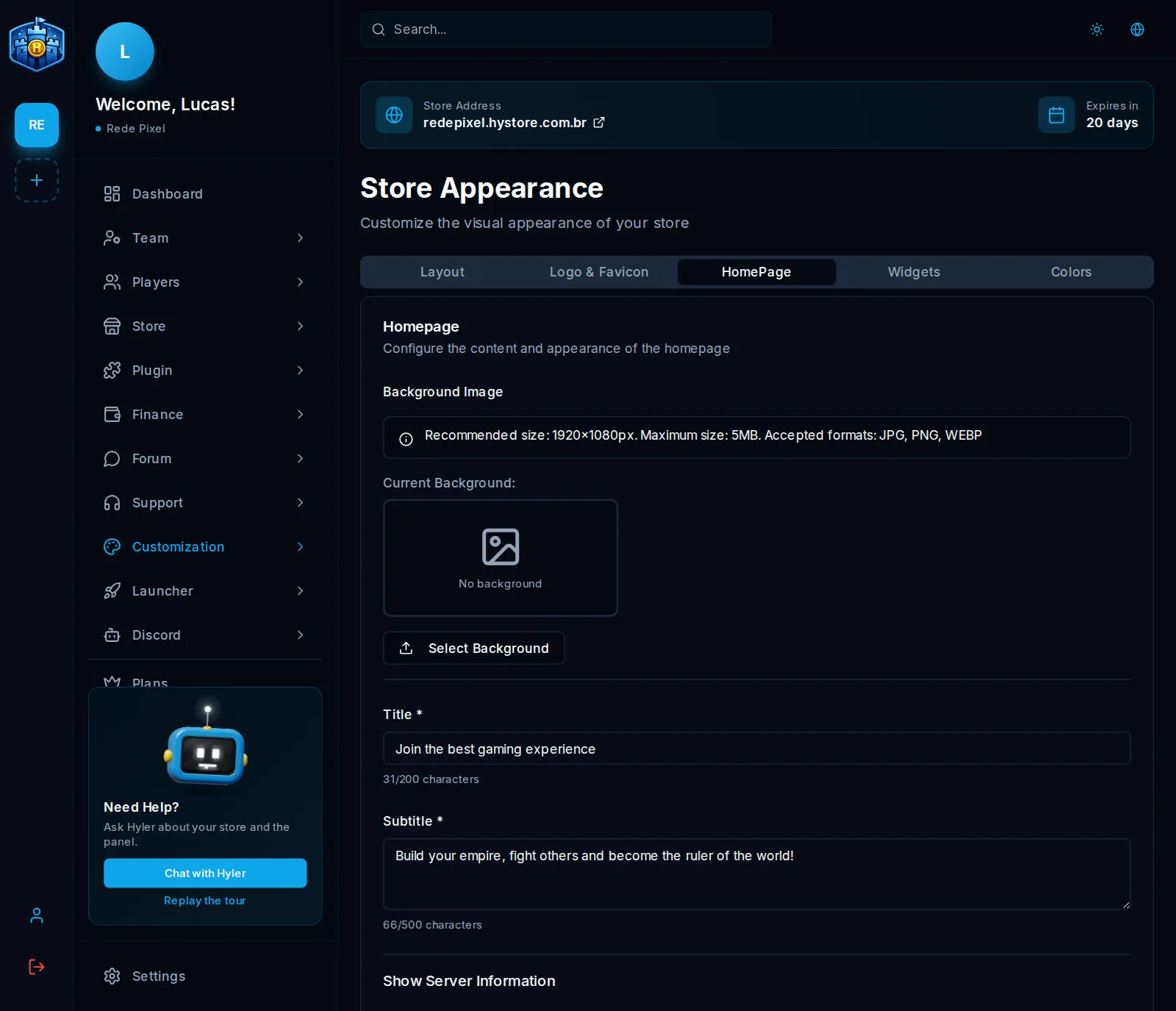
The HomePage tab holds the title, the subtitle, the background image (1920x1080, up to 5 MB), the server IP and what to show: status, IP, players online and top buyer.
Page widgets
The Widgets tab holds the Discord widget (with the server ID) and the buyer rankings. Analytics, advertising and support tools are on another screen; see Widgets.
Colors
On the Colors tab, click the square of each item to pick its color; blank uses the default color. On Aurora, Celeste and Prisma, the tab shows only the brand colors, because background, cards and text follow light or dark mode.