
News
In Support > News you post updates for players: a server update, maintenance, the start of a season. The same post can show on the store, on the launcher and in the server chat.
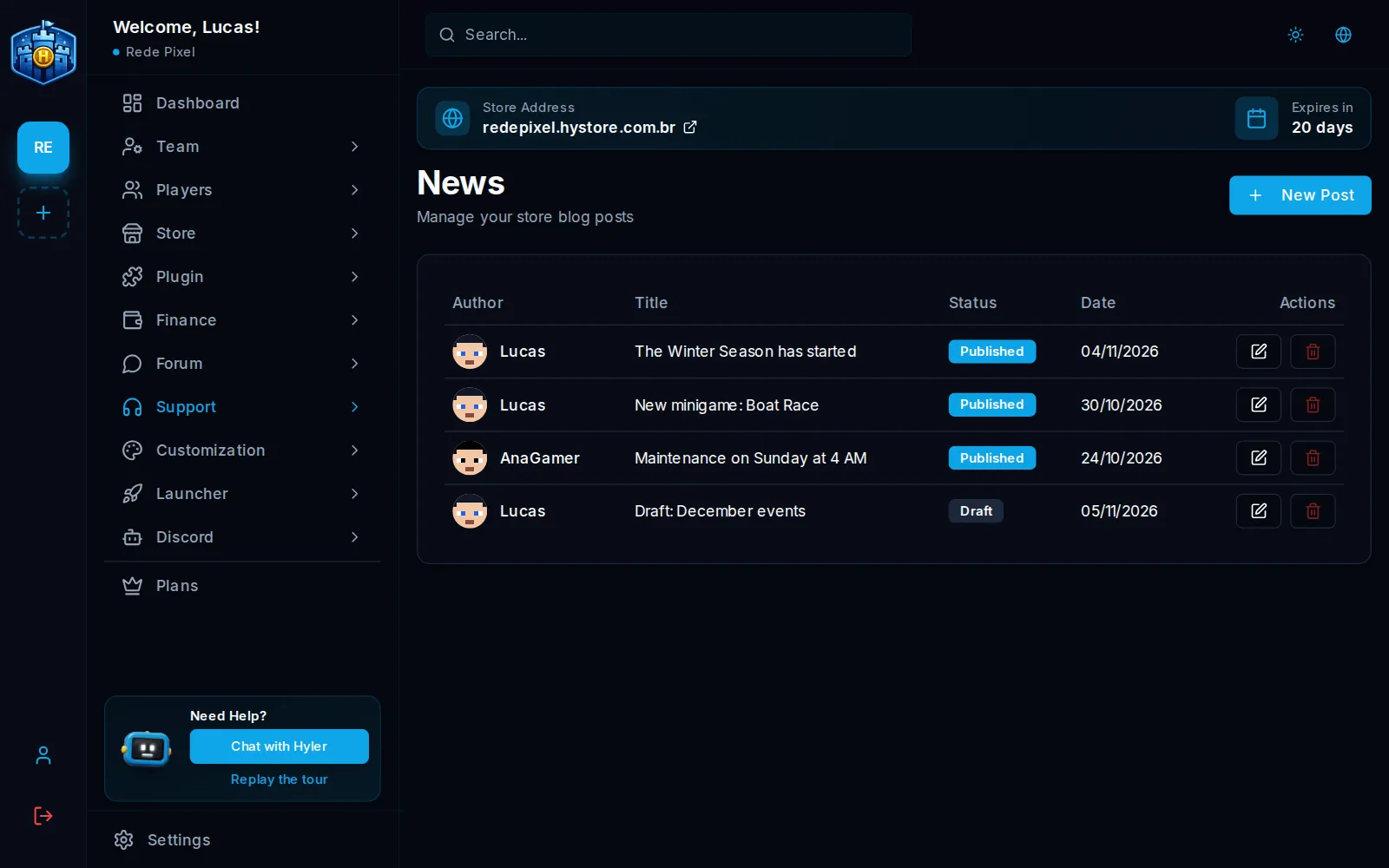
Publish a post
- In Support > News, click New Post.
- Fill in Title, Author Nick and Content. The nick shows the player's head next to the post.
- Upload the Post Banner: 1200x600 px, up to 5 MB. It is optional.
- Pick where it shows under Post Settings (see below).
- Click Save Post.
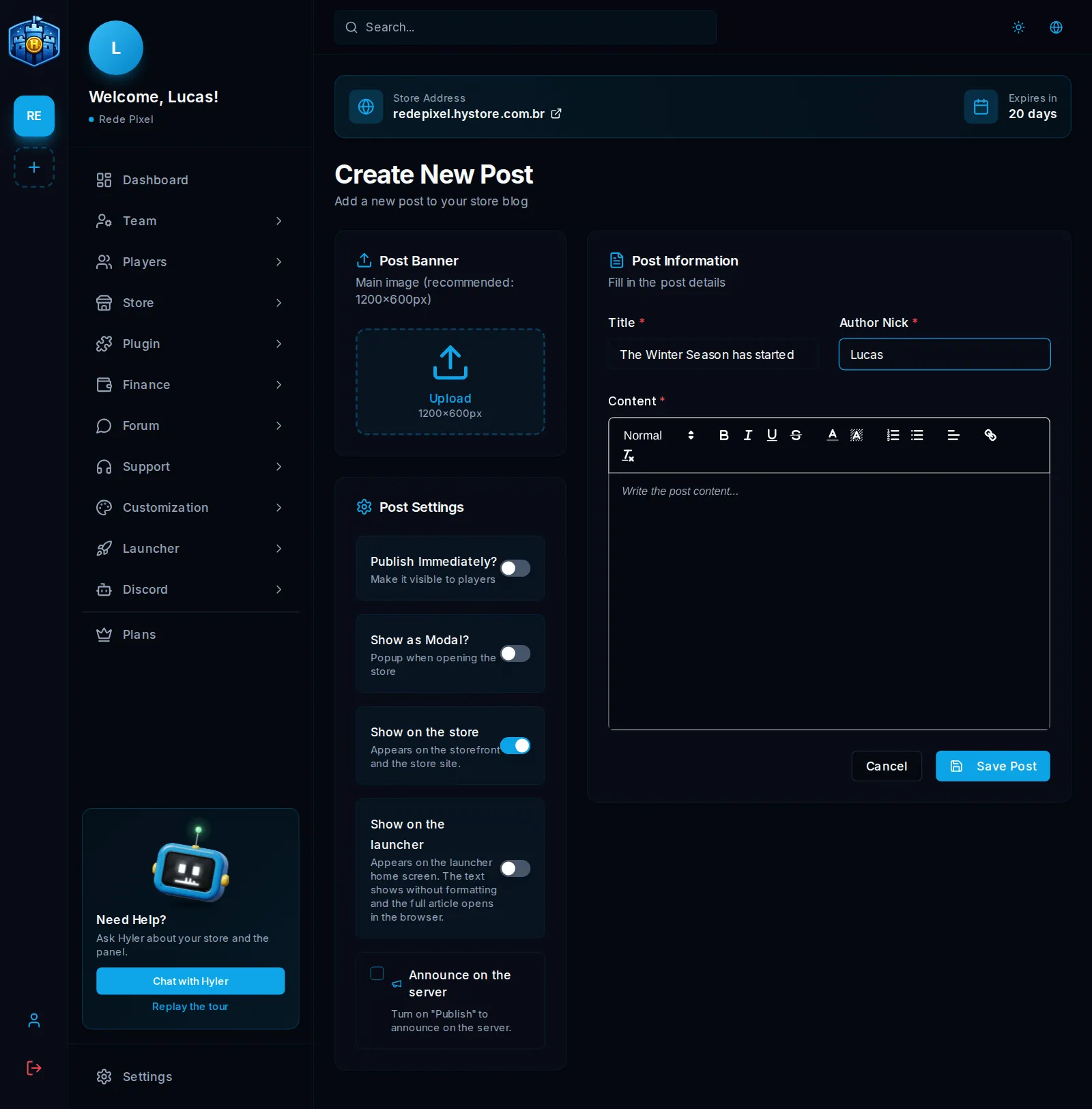
Title: The Winter Season has started
Author Nick: Lucas
Content: The new season is live. New map, ranking reset and a welcome kit for
anyone who joins by Sunday.
The post options
| Option | What it does |
|---|---|
| Publish Immediately? | On, players see it. Off, it stays as a draft |
| Show as Modal? | Opens the post in a popup when the player enters the store |
| Show on the store | Appears on the storefront and the store site |
| Show on the launcher | Appears on the launcher home screen. The text shows without formatting and the full article opens in the browser. Only available if your plan includes the launcher |
| Announce on the server | When saving, players online see the post title in the chat with the link to read it |
| Also as a title on screen | Besides the chat, shows the big title on the screen of players online |
Publish from Discord or the store
Players with a team role that has the Publish News permission can also publish from
the store itself and with the bot's /news command. See
Player roles and Bot messages.
Edit or delete
In the list, the buttons to the right of each post edit or delete it. Deleting cannot be undone. To take a post down and keep the text, edit it and turn off Publish Immediately?.
