
First steps on Hystore
Hystore is the platform to build the store of your game server (Minecraft or Hytale) or your digital product store. You take care of the products and the server; Hystore takes care of the storefront, the payment, the automatic delivery and the dashboard where everything comes together.
This guide shows the shortest path from sign-up to the first sale. Each step points to the page that explains the screen in detail.
The path to the first sale
- Create the account and the store. Hyler, the Hystore robot, signs you up in a chat: account, email code, store and plan. See Create the account and the store.
- Create the categories. In Store > Categories you group the products, for example VIPs, Kits and Cash. See Categories.
- Connect the game server. In Store > Servers you add the server and install the Hystore plugin with its token. The plugin is what delivers the purchases in the game. See Install the plugin.
- Add the products. Each product has a price, a picture and the commands the plugin runs when the purchase is approved. See Products.
- Turn on a payment method. In Settings > Payments you connect Mercado Pago, Stripe, PayPal or PicPay. The money from sales goes straight to your account. See Payment methods.
- Make the store yours. In Customization > Store Appearance you pick the layout, the colors, the logo and the home page. See Layout and colors.
Game store or digital product store
The store type comes from the plan chosen when the store is created, and it does not change later:
| Type | For whom | What changes in the dashboard |
|---|---|---|
| Minecraft | Minecraft servers | Servers, plugin, in-game delivery, VIP and launcher |
| Hytale | Hytale servers | Servers, plugin and in-game delivery |
| Digital products | Whoever sells files, keys or access | File, key or content delivery, no server |
In a digital product store, the Players menu becomes Customers, and the server and plugin groups go away. See Digital products.
Where to go next
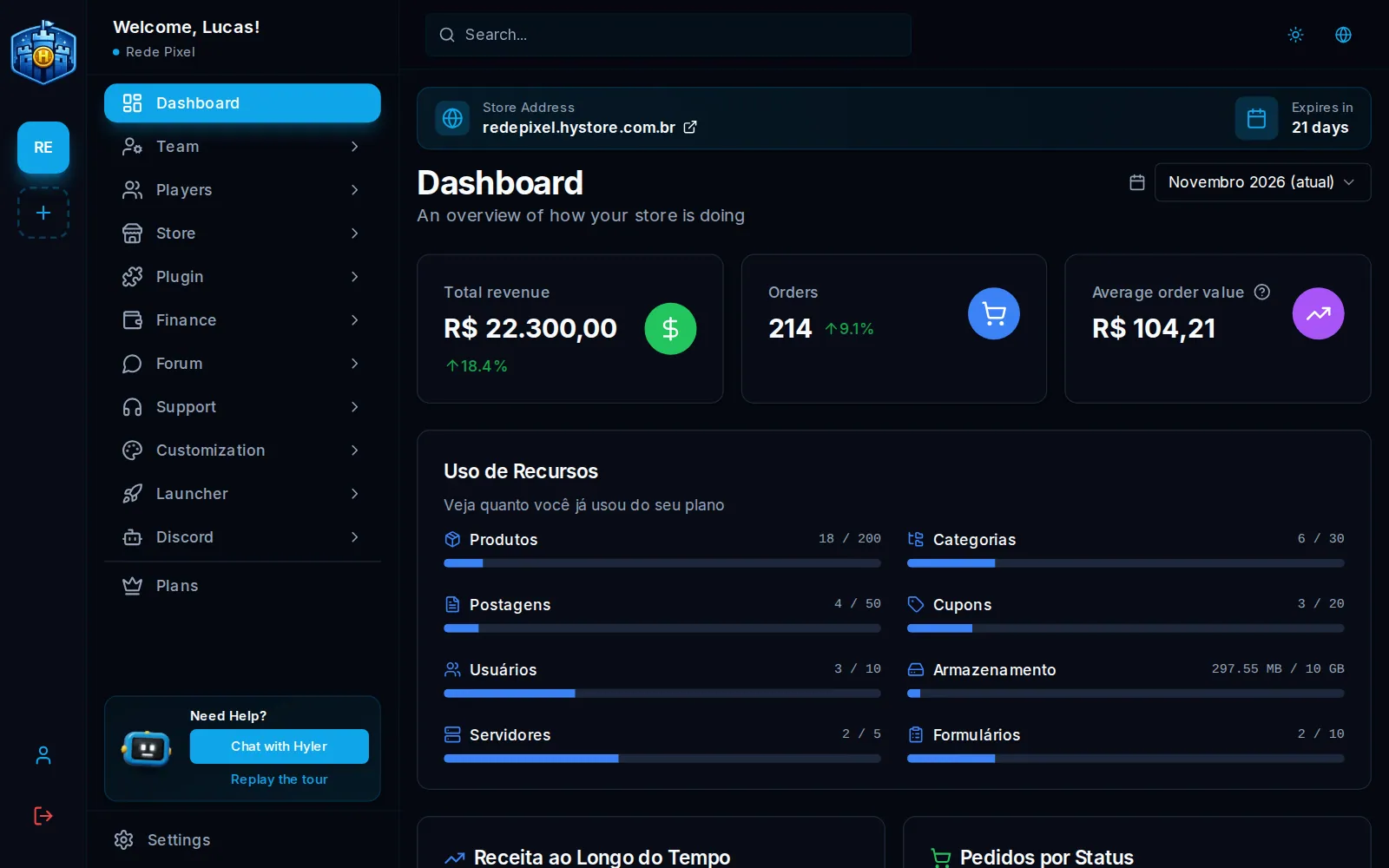
- Get to know the dashboard: the menu, the store bar, the language and Hyler.
- Store settings: name, contact, time zone, terms and modules.
- Address and custom domain: change the subdomain and connect your own domain.
- Team and access roles: bring your team in with the right permissions.
