
Connect the bot
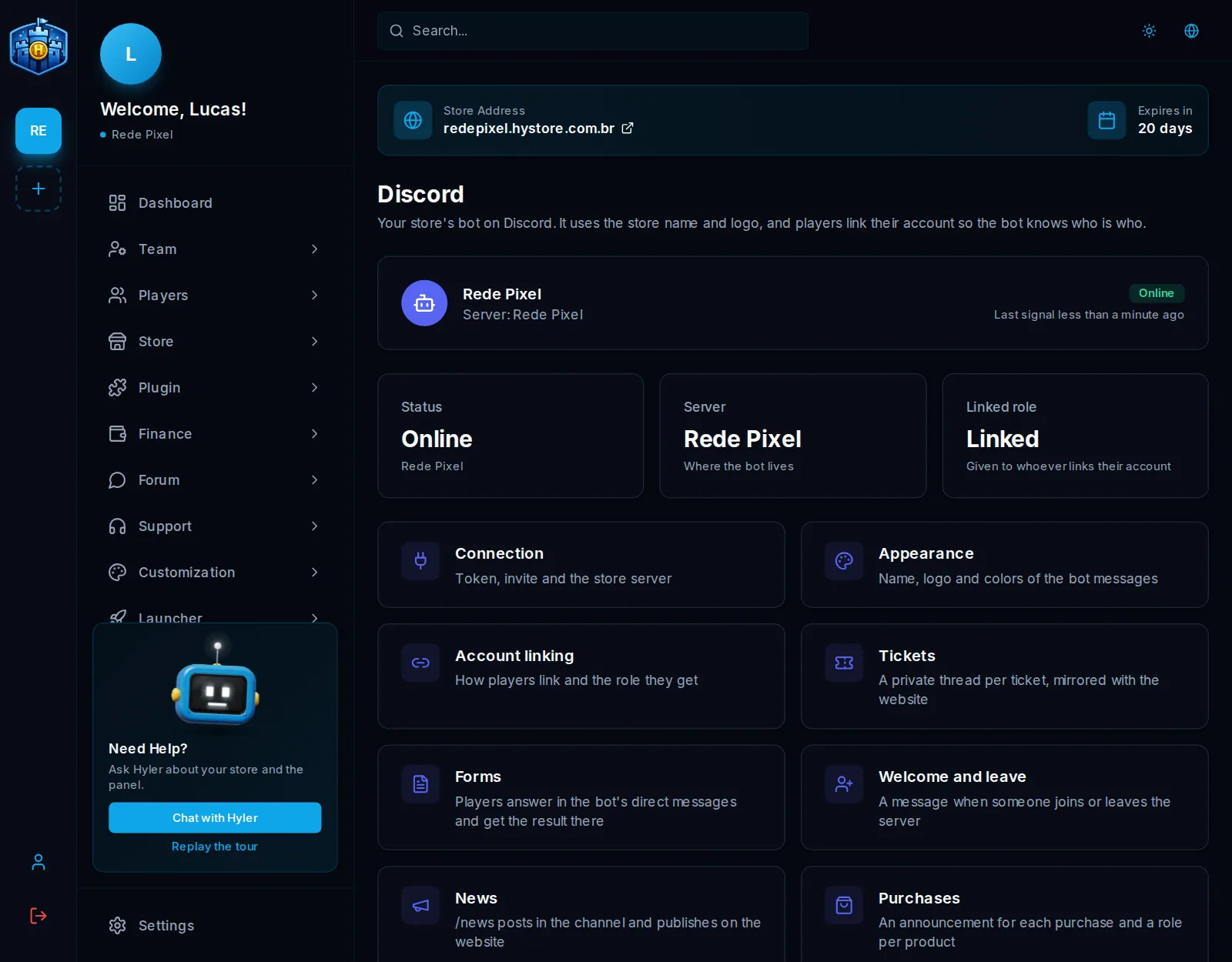
The bot is your own Discord application, with your store's name and logo. With it on the server, you unlock account
linking, tickets, forms, welcome messages, news with /news and purchase announcements.
Step by step
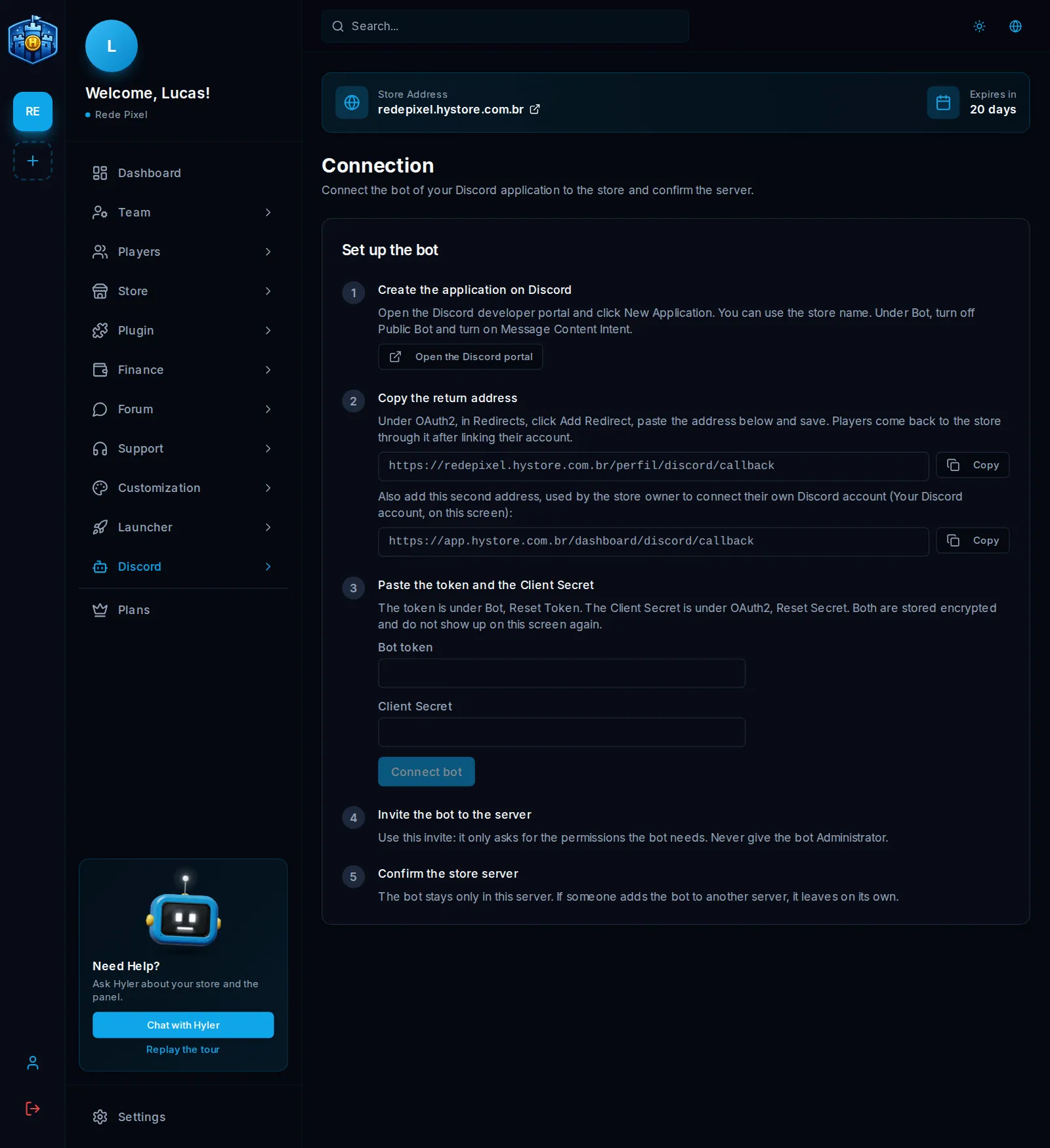
The Discord > Connection screen guides each step. You will use the Discord developer portal.
1. Create the application
- On the portal, click New Application. You can use the store's name.
- Under Bot, turn off Public Bot, so only you can add the bot.
- Still under Bot, turn on Message Content Intent. Also turn on Server Members Intent, for welcome and leave messages.
2. Copy the return addresses
- On the portal, open OAuth2, in the Redirects part.
- Click Add Redirect, paste the first address shown on the screen and save. Players come back to the store through it after linking.
- Also add the second address, through which you connect your account.
3. Paste the token and the Client Secret
- Under Bot, use Reset Token and copy the token.
- Under OAuth2, use Reset Secret and copy the Client Secret.
- Paste them in Bot token and Client Secret, and click Connect bot.
4. Invite the bot
Click Invite the bot and pick your server. The invite already asks only for the permissions the bot needs. Never give it Administrator. The screen updates on its own when the bot shows up.
5. Confirm the server
Click Confirm server. The bot stays only on this server: if someone adds it to another, it leaves on its own.
Done. Last signal shows when the bot talked to the store.
Your Discord account
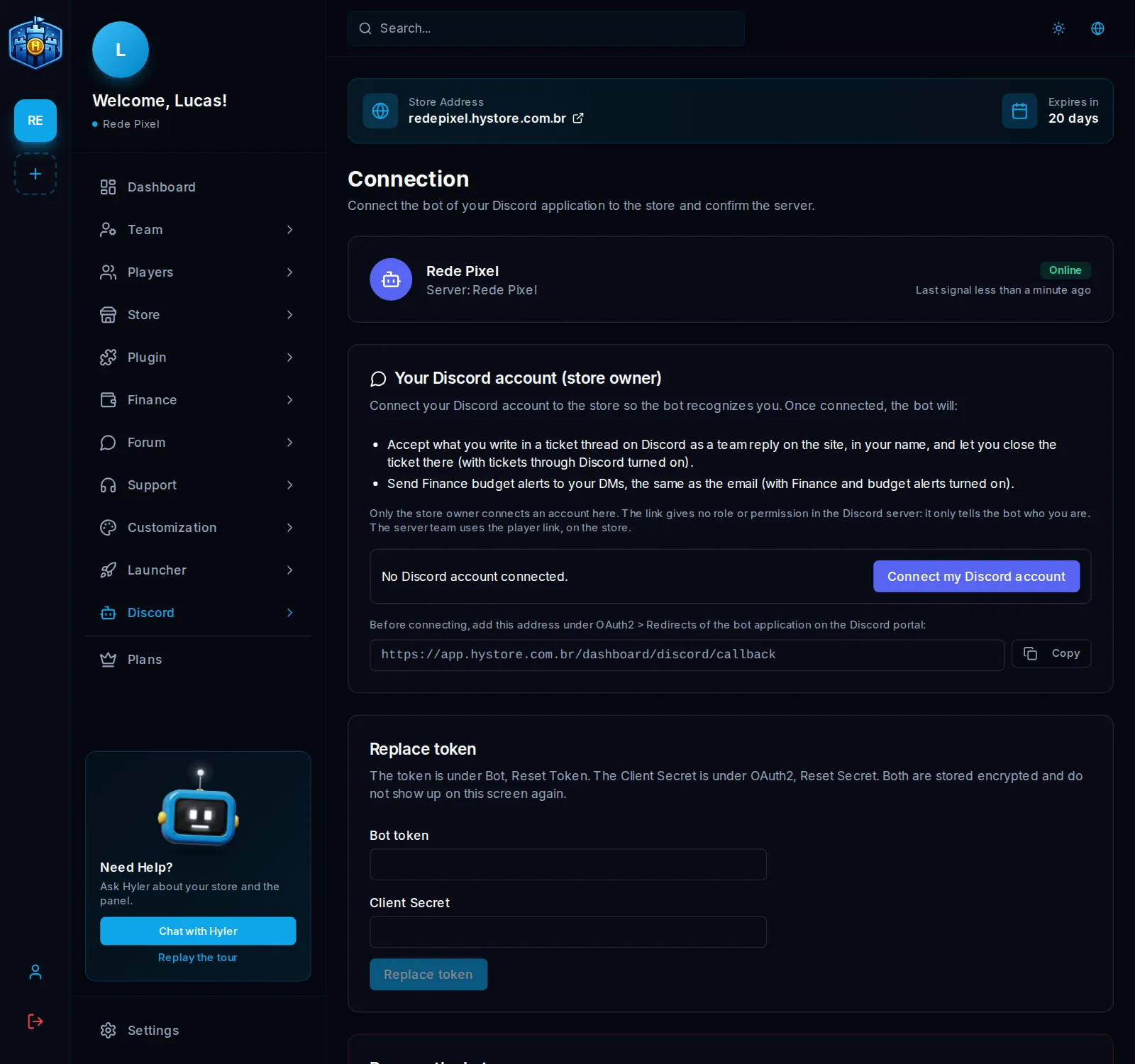
On the Your Discord account (store owner) card, click Connect my Discord account and authorize. With the account connected, the bot:
- takes what you write in a ticket thread as a team reply on the website, in your name, and lets you close the ticket there;
- sends to your direct messages the budget alerts from Finance, the same as the email.
Appearance
In Discord > Appearance:
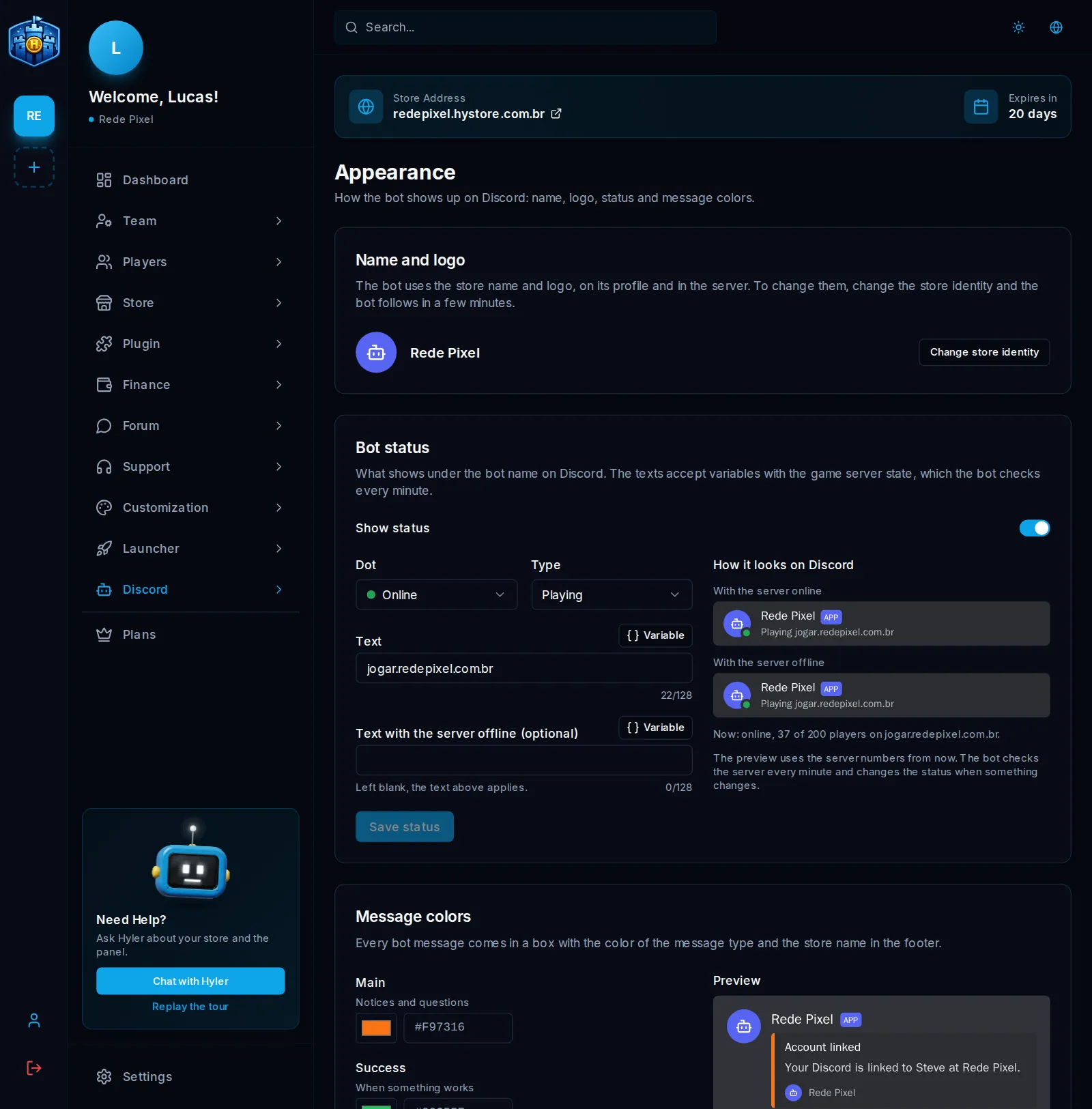
- Name and logo: they are the store's. To change them, use Change store identity, and the bot follows in a few minutes.
- Bot status: what shows under its name. Pick the Dot, the Type and the Text. The text takes variables with the state of the game server, which the bot checks every minute. Text with the server offline left blank uses the regular text.
- Message colors: every bot message goes out in a box with the color of the message type and the store's name in the footer.
Continue in Linking and roles.
