
Payment methods
On Hystore, each store gets paid through its own account at the payment provider (the gateway). The money from sales goes straight to your Mercado Pago, Stripe, PayPal or PicPay account: Hystore does not receive, hold or pass on the money from sales.
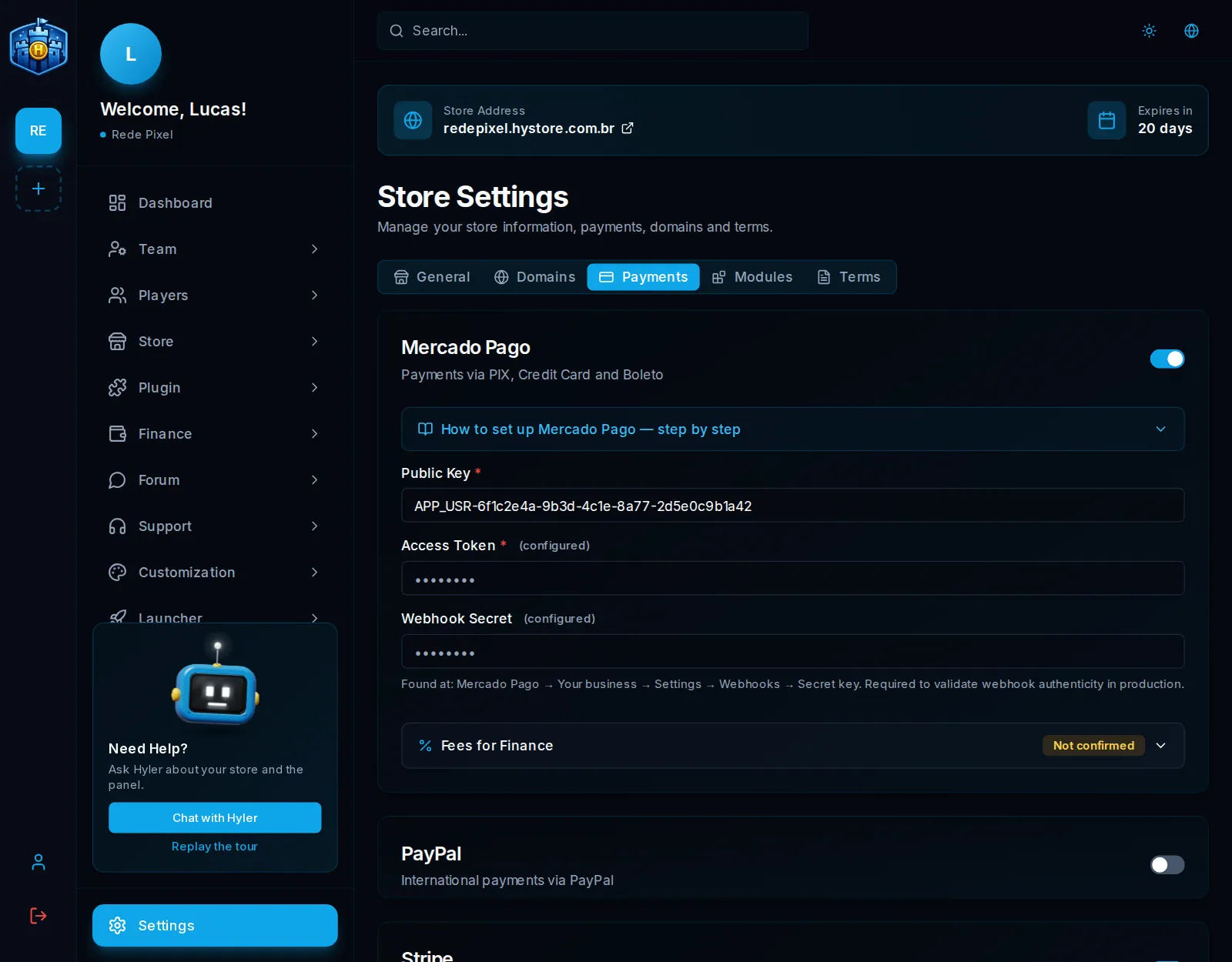
Everything is in Settings > Payments.
Which gateway to pick
| Gateway | Payment methods | Good for |
|---|---|---|
| Mercado Pago | Pix, card and boleto | Stores in Brazil: Pix is the method that sells the most |
| Stripe | Cards from all over the world | Players outside Brazil, international cards |
| PayPal | PayPal account and card | Players from other countries who prefer PayPal |
| PicPay | Pix, card and PicPay balance | Whoever already uses PicPay to get paid |
You can turn on more than one at the same time: the player picks at checkout.
How to connect a gateway
Each card on the tab has a step by step inside the screen itself. The path is always the same:
- Create the application (or app) on the gateway's site, with your account.
- Copy the credentials (keys and tokens) and paste them into the card's fields.
- Register on the gateway's site the webhook address the screen shows, with the Copy URL button.
- Turn on the gateway's switch and save.
Once saved, the secrets you paste (Access Token, secret key, Client Secret) do not come back to the screen: it shows (configured) instead of the value.
Payment guide in the store wiki
On the Mercado Pago and PayPal cards, the Add payment guide to store Wiki button creates an article in your store's wiki explaining to players how to pay (Pix, card or PayPal). See Store wiki.
Store balance (credits)
Besides the gateways, a player can have balance in the store: credits they buy, get as a gift or receive from the team, and use to pay for orders. The balance is a record of your store, not money held by Hystore.
Fees and Finance
With the Finance module on, each active gateway has the Fees for Finance block, where you confirm the fees Finance takes off each sale. See Gateway fees.
