
Create the account and the store
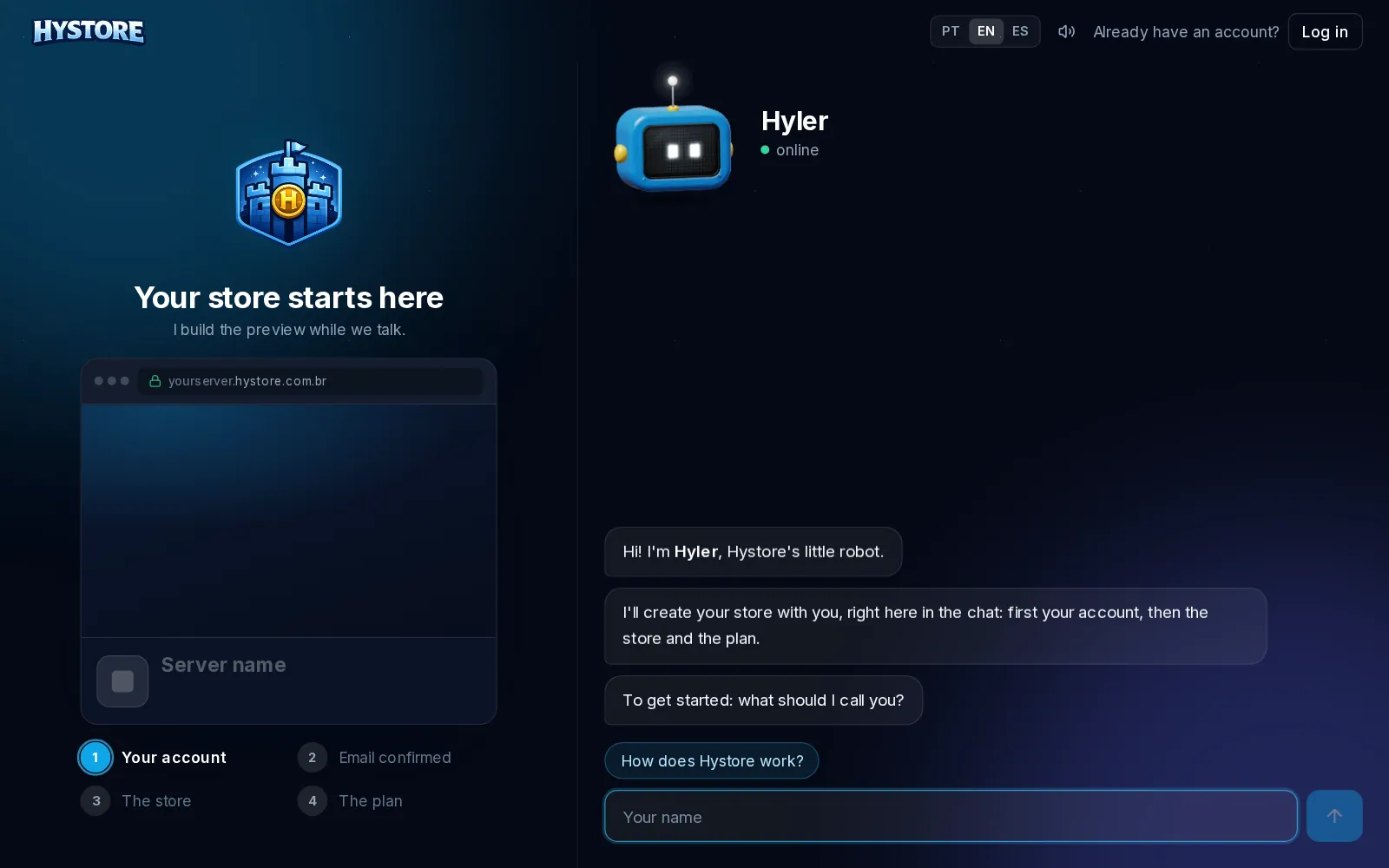
Signing up on Hystore is a chat with Hyler. He asks one thing at a time and, while you answer, builds a preview of the store on the side with the name, the address and the layout you chose. At the end, the store is already live.
Before you start
Have at hand:
- an email you can open now (a 6-digit code arrives);
- the name of the server or the store;
- the server IP, if you already have one (you can skip it and add it later);
- your own domain, if you want to use one (you can skip it too).
Step by step
- Open app.hystore.com.br/register. At the top you pick the language of the chat (PT, EN or ES).
- Your account. Tell Hyler what to call you, then your email and a password. The password needs 8 to 128 characters, with an uppercase letter, a lowercase letter, a number and a symbol; Hyler checks each rule as you type, and the eye next to the field shows what you typed. Then pass the anti-bot check.
- Email confirmed. Type the 6-digit code that arrived by email. If it did not arrive, check the spam folder. The resend button has a wait time that grows with each request.
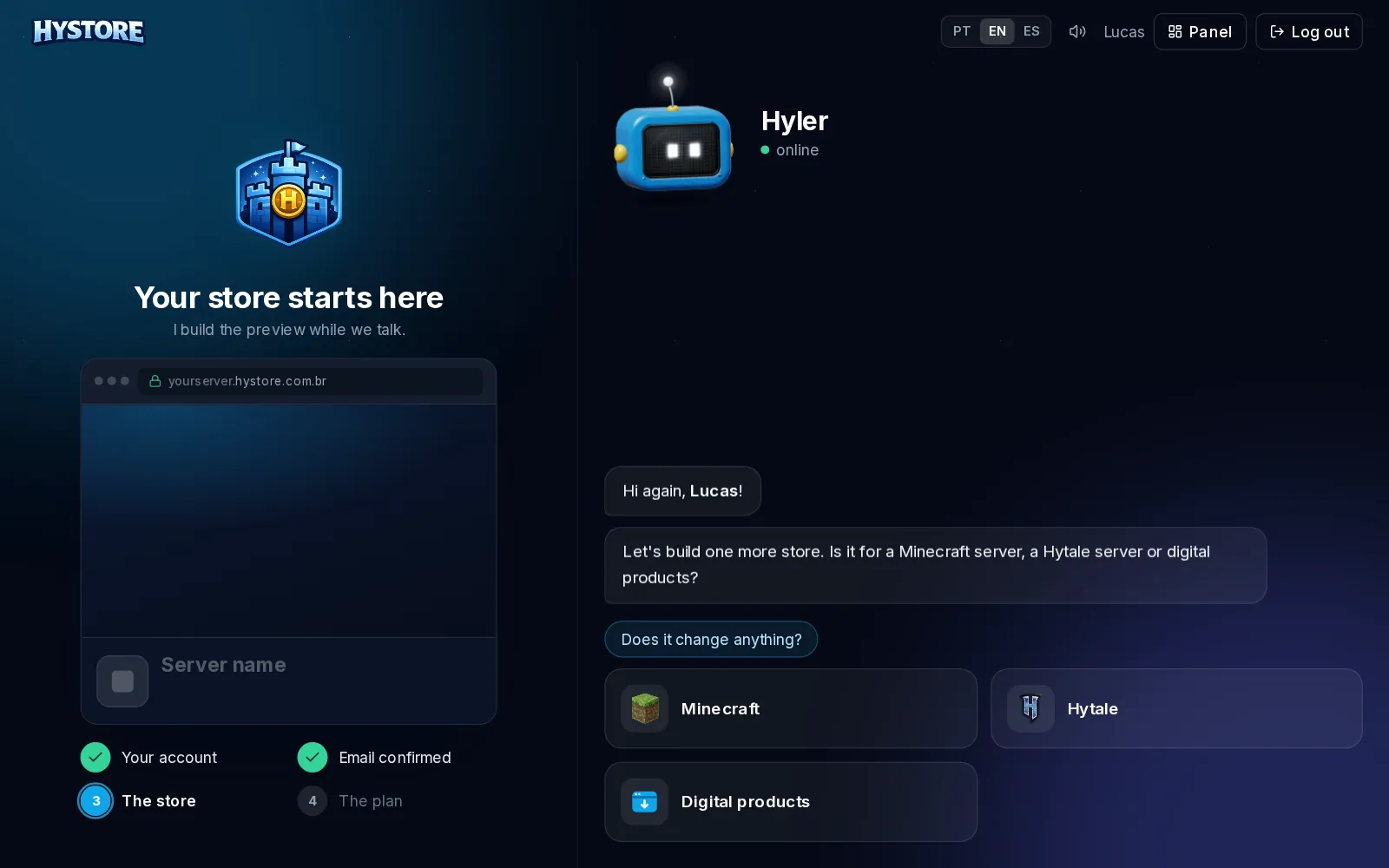
- The store. Pick the game (Minecraft, Hytale or digital products), the
server name and the store address. Hyler checks right away whether
yourserver.hystore.com.bris free. - Two optional steps: your own domain (Hyler shows the DNS records to set up) and the server IP. Tap Not now or I don't have it yet to skip.
- Pick the currency and the storefront layout. The layout can change later, in Customization > Store Appearance.
- The plan. Only the plans of the chosen store type show up. Hyler shows the price and whether the plan has a free trial.
- Check the summary. If you have a Hystore coupon, type it in Got a coupon? Type it here and tap Apply to see the discounted price.
- Payment. With a free trial, the store is created without any charge. Without one, the payment happens right there, in the chat, and the store is released once it is approved.
Create another store on the same account
One account can have many stores, each with its own plan.
- In the dashboard, click the + on the store bar, the thin column on the left.
- The same chat opens, already knowing who you are: Hyler skips the account part and goes straight to the game, the name and the address.
- Pick the plan and create. The new store shows up on the store bar, with the initials of its name.
Addresses that cannot be used
Some subdomains belong to the platform and are refused, like api, painel,
app, webhooks, cdn, checkout, suporte and hyler, plus any address
with hystore or hyler in it. Pick your server's name, like redepixel or
skyblock-world.
After creating
- Open the dashboard and follow the order in First steps.
- The plan and the charges are in Plan and subscription.
