
Emails
In Customization > Emails you customize the emails players receive: drag blocks, write in the languages you want and publish when it is ready.
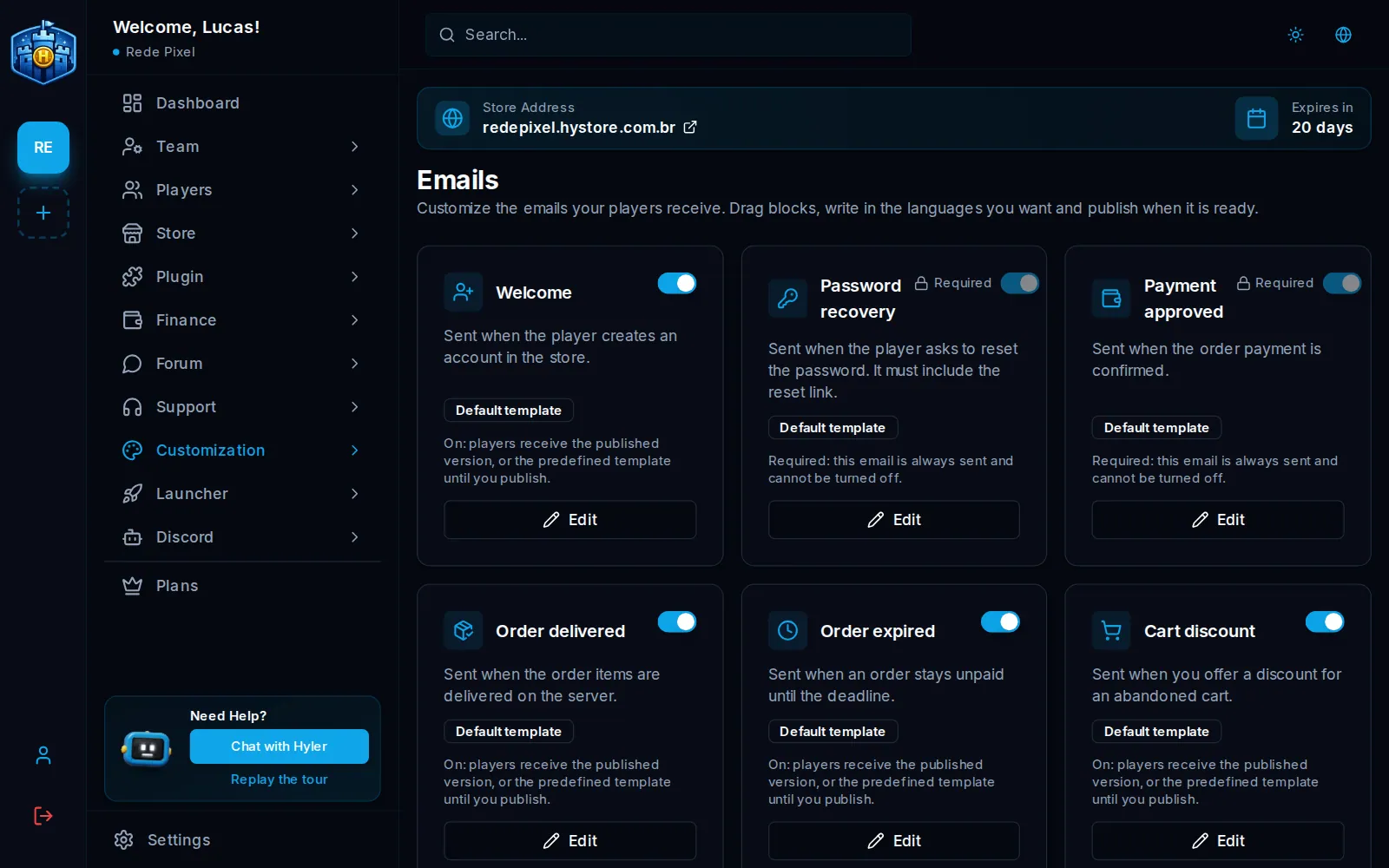
The store's emails
| When it goes out | Can it be turned off? | |
|---|---|---|
| Welcome | When the player creates an account in the store | Yes |
| Password recovery | When the player asks to reset the password (it must include the reset link) | No |
| Payment approved | When the order payment is confirmed | No |
| Order delivered | When the order items are delivered on the server | Yes |
| Order expired | When an order stays unpaid until the deadline | Yes |
| Cart discount | When you offer a discount for an abandoned cart | Yes |
Every email starts on. Until you publish your own, it goes out with the predefined template. Turned off with the switch in the list, it is not sent. Password recovery and payment approved are required: the switch is locked and they always go out.
In a digital product store, the templates talk about My purchases instead of the server, and Order delivered becomes Order released.
Edit an email
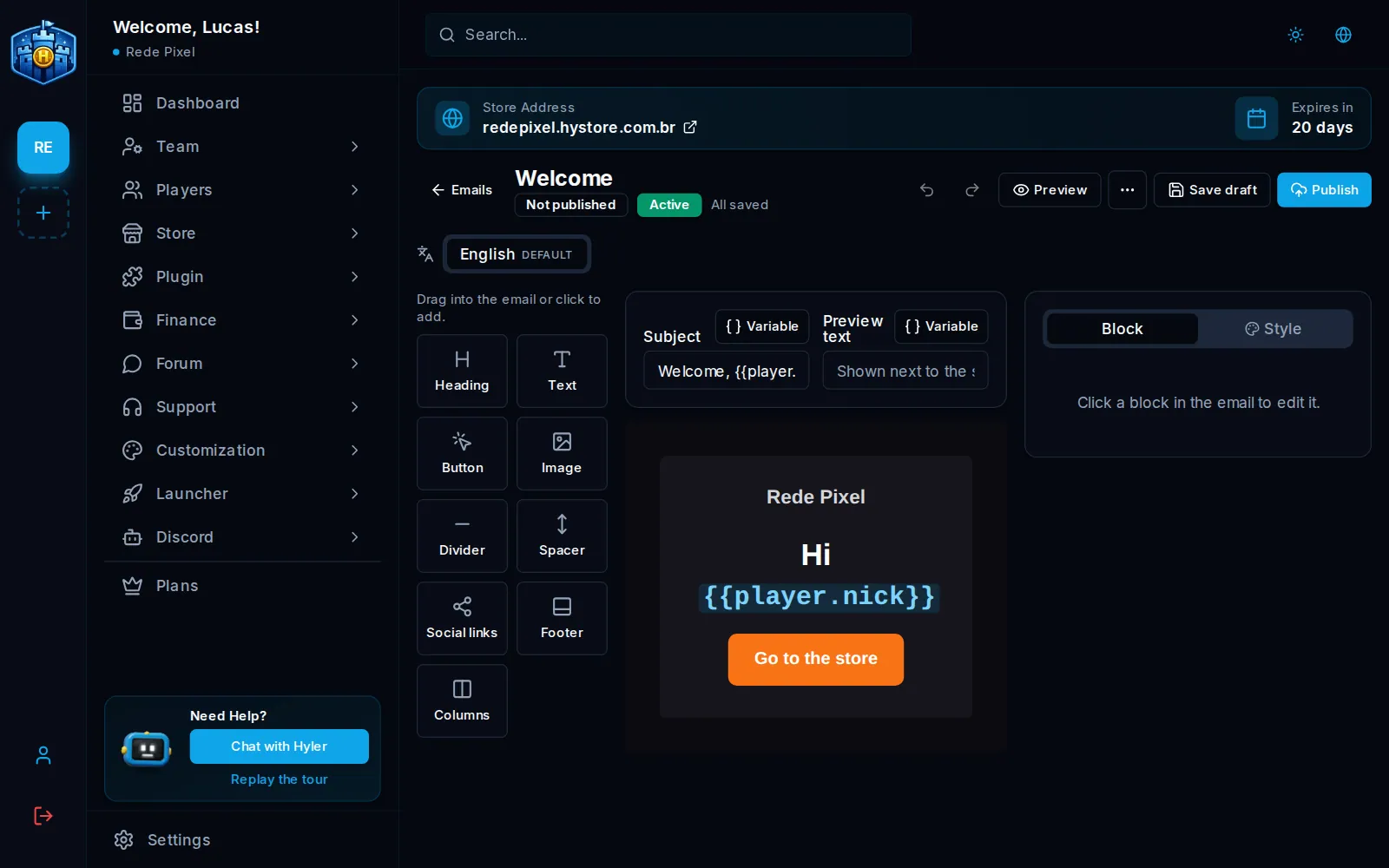
- In the list, click the email.
- Fill in the Subject and the Preview text, which shows next to the subject in the inbox. The Variable button inserts data like the player's nick.
- Drag blocks to the email, or click to add: Heading, Text, Button, Image, Divider, Spacer, Social links, Footer and Columns.
- Click a block to edit it. The Style tab changes the colors and the look.
- Use Preview to see how it looks, and Send me a test to get a real one.
- Click Publish. The published version becomes the one that is sent.
Welcome, {{player.nick}}!
Languages
At the top of the editor, the tabs show the email's languages. Each player gets the email in their language when it exists; otherwise, in the default language. Every email needs the default language to be published.
Sending settings
In Sending settings, which apply to every custom email in the store:
- Languages and Default language;
- Sender name, shown in the inbox (empty uses the store name);
- Reply to: the address that gets players' replies (optional).
