
Widgets
In Customization > Widgets you turn on analytics, advertising and support tools in the store, with no code. Each widget says where to find the ID in the service: paste it and turn it on.
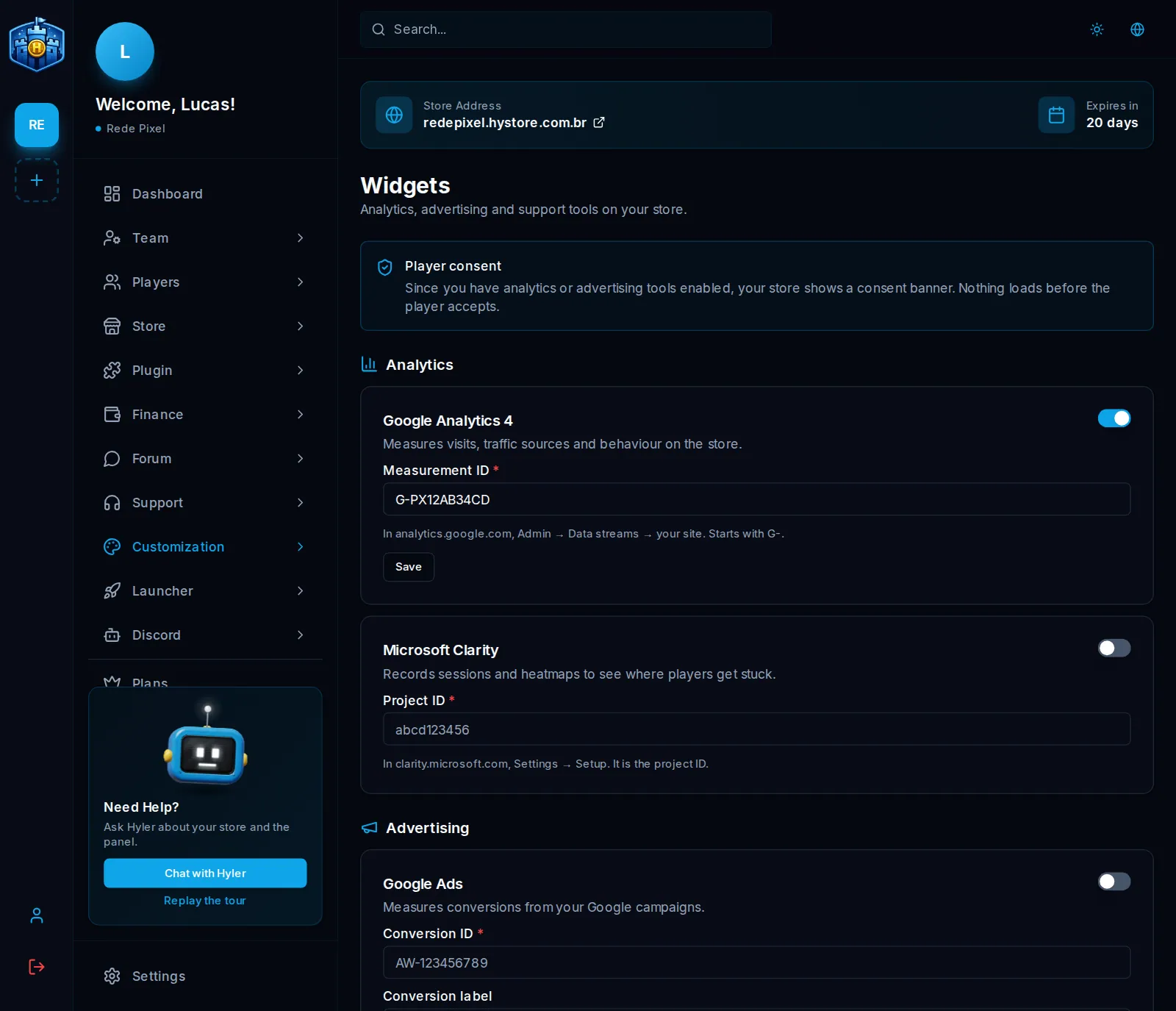
The tools
| Type | Tool | What it is for |
|---|---|---|
| Analytics | Google Analytics 4 | How many people visit the store and where they come from |
| Analytics | Microsoft Clarity | Heatmaps and session recordings |
| Advertising | Google Ads | Measure the sales from Google ads |
| Advertising | Meta Pixel | Measure Facebook and Instagram ads |
| Advertising | TikTok Pixel | Measure TikTok ads |
| Advertising | OpenAI Ads | Measure OpenAI ads |
| Advertising | Utmify | Track the sales of each campaign |
| Support | Crisp | Support chat in the store |
| Support | Tawk.to | Support chat in the store |
Turn on a widget
-
Find the tool on the screen.
-
Get the ID on the service's site (the screen explains where). On Google Analytics 4, for example, it is the measurement ID:
Measurement ID G-PX12AB34CD -
Paste it in the field, turn on the switch and click Save.
Player consent
With an analytics or advertising tool on, the store shows a consent banner, and nothing loads before the player accepts. Brazil's data protection law (LGPD) requires it, and it cannot be turned off separately. Support tools do not need the banner.
