
Builder
The builder is the store's drag and drop editor. With it you build the whole store your way (header, footer, every page), change colors, fonts and texts, without writing code. The result is the Custom layout.
To open it: Customization > Store Appearance, Layout tab, Open the builder button.
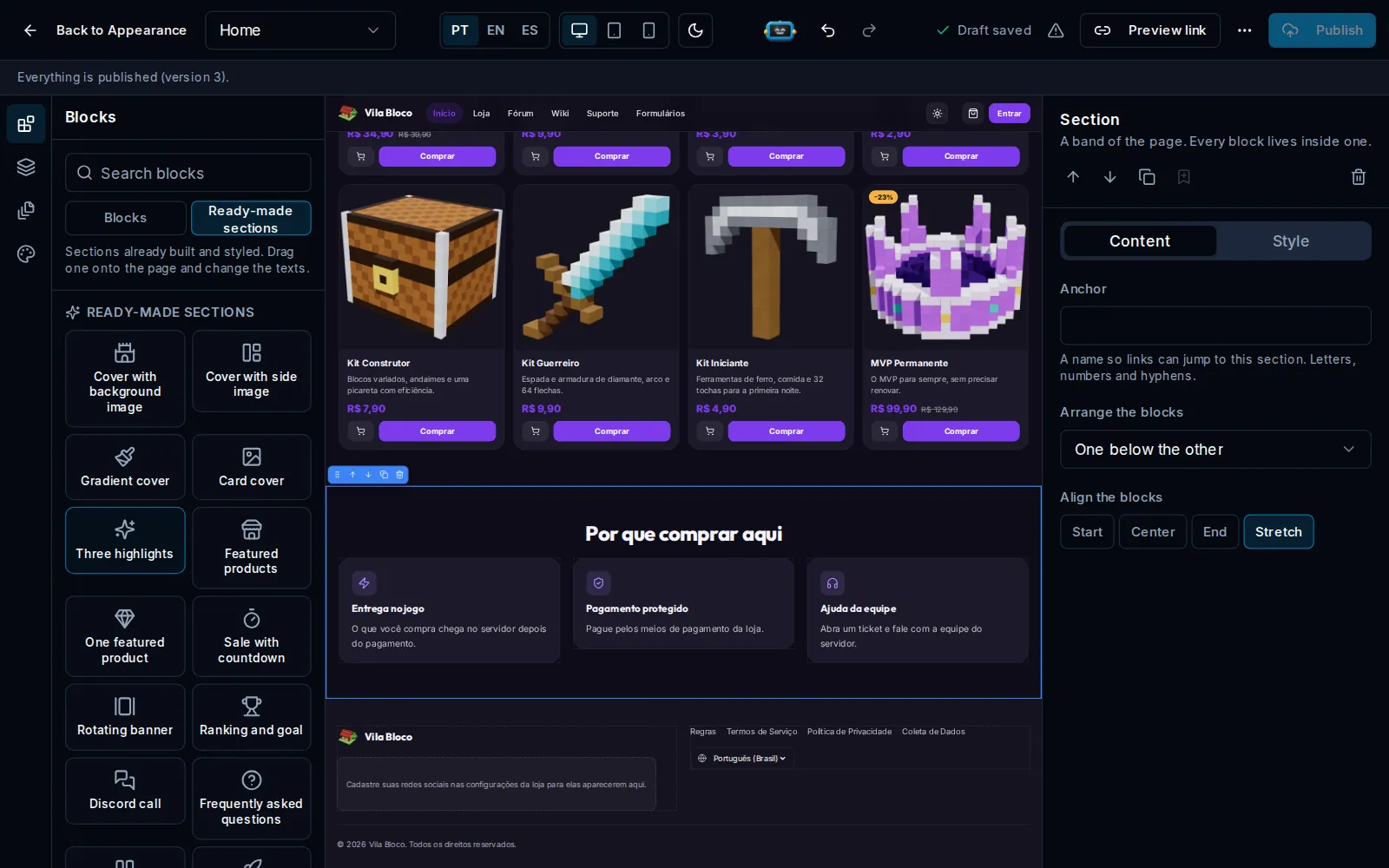
The parts of the screen
- On the left, the tools: Blocks (what you can put on the page), Layers (the page structure), Pages and Store theme.
- In the middle, your real store, in edit mode, with your products.
- On the right, the options of whatever is selected, in two tabs: Content and Style.
- At the top, the page being edited, the text language, the screen size (Desktop, Tablet or Phone), light or dark mode, undo and redo, the Preview link and Publish.
Start the site
When you open the builder for the first time, pick a template:
| Template | What it brings |
|---|---|
| Blank | Just the header and the footer. The rest is up to you |
| Showcase | Server cover, products, goal, ranking and news, already in place |
| From Classic, Aurora, Celeste or Prisma | Starts just like the ready layout, to change what you want |
Build the page
- In Blocks, drag a block to the store, or click to add it near what is selected. There are structure blocks (Section, Columns, Space, Divider) and content blocks (Title, Text, Image, Button, Icon, Video, List, Card, Gallery, Testimonial, Countdown, Questions and answers and the store ones).
- In Ready-made sections, drag a section already built and styled, like Cover with background image, Featured products, Three highlights or Discord call, and change the texts.
- Click a block to see its options on the right. Double-clicking a text takes you straight to it.
- On the Style tab, change that block's color, spacing and alignment.
Pages
Pages has the store pages (Home, Shop, Forum, Support and the others) and Your pages, which you create with New page. The address comes from the name, and Show in the menu adds the page to the menus.
The header and the footer apply to every page. Clicking the header shows where it goes: on top, on the left or on the right.
Store theme
Store theme holds the choices that apply to the whole store:
- Ready-made palettes and Brand colors;
- Light and dark: the store modes and which one it opens in;
- Fonts: for headings and text;
- Buttons, cards and fields: corners and style;
- Store background and Width and animations;
- Header and menu: where it goes, its style and whether it follows the scroll.
Texts in other languages
The PT, EN, ES picker changes the language of the texts you are editing. When texts are missing in a language, the warning says how many. Translate what is missing uses AI to translate from one language to another; review before publishing.
Publish and use it on the store
- Use the Preview link to see the draft at the store address and send it to someone. The live store stays the same.
- Click Publish. If there is a problem in the draft, the screen shows the warnings at the top.
- The first time, answer Use on the store now so the store starts opening with the site you built.
Each publication becomes a version in Published versions; Restore brings an older version back to the draft.
