
Forum
The forum is where players talk to each other: they open topics, reply and react. It is
at /forum on the store, and you set up its structure in the Forum group of the
menu.
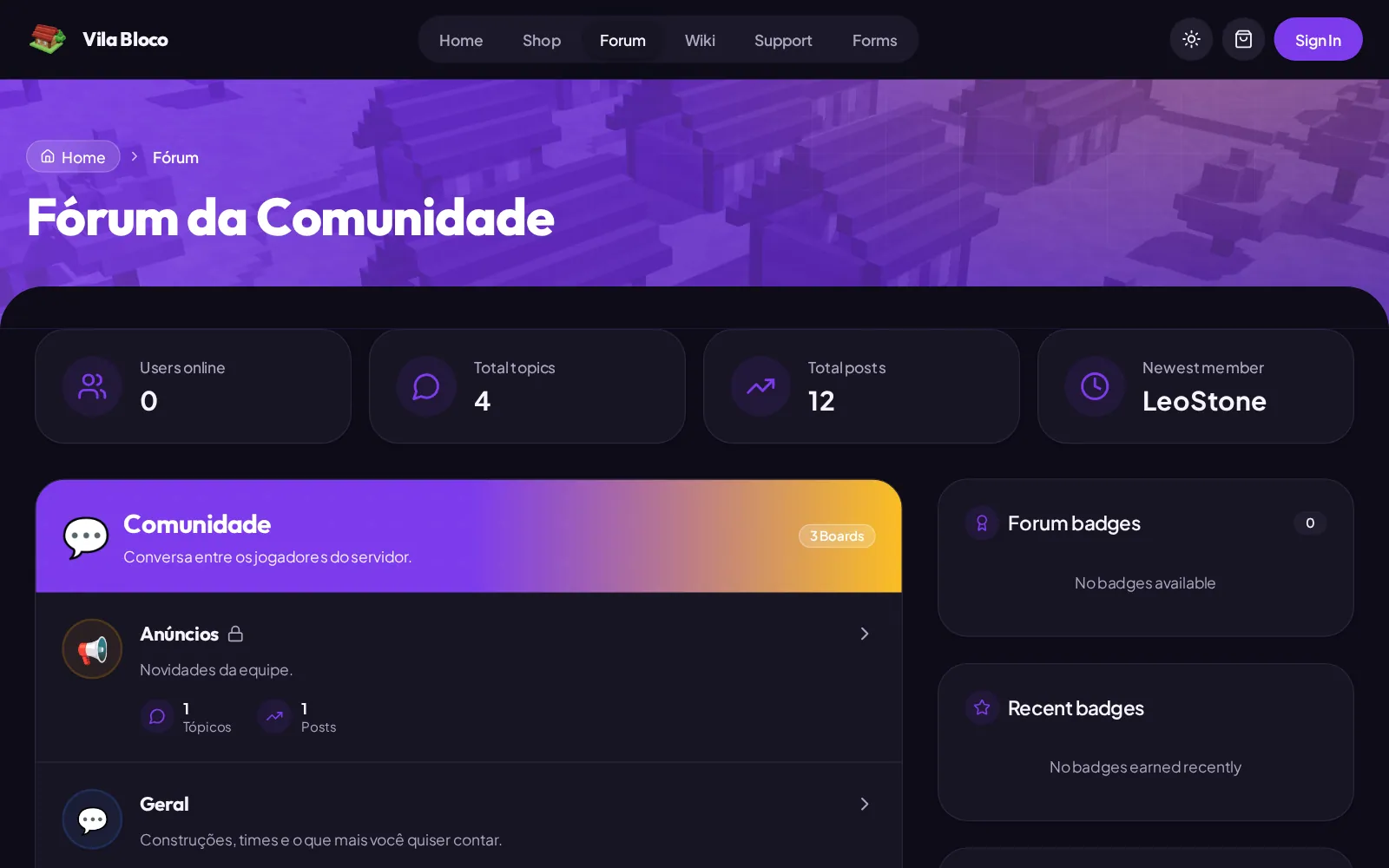
The forum has three parts. Set them up in this order, because every board needs a category:
| Part | What it is | Example |
|---|---|---|
| Categories | The groups on the forum page | General, Support, Events |
| Boards | Where players open topics | Announcements, General chat |
| Badges | Medals that members earn | Veteran: 100 posts |
Create a category
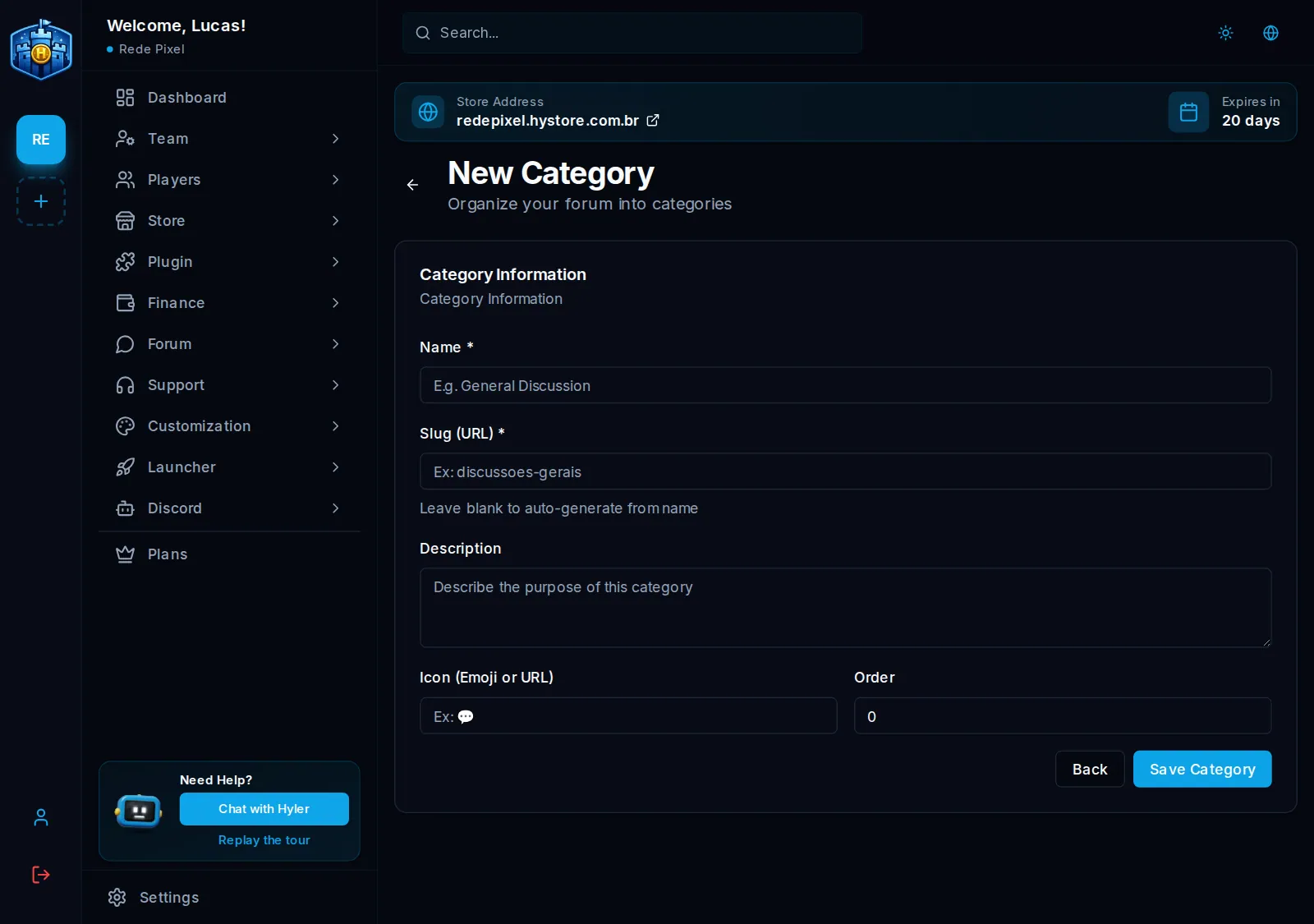
- In Forum > Categories, click New Category.
- Fill in Name and Slug, the part of the address. Blank, the slug comes from the name.
- Write the Description and pick the Icon: an emoji or the address of an image.
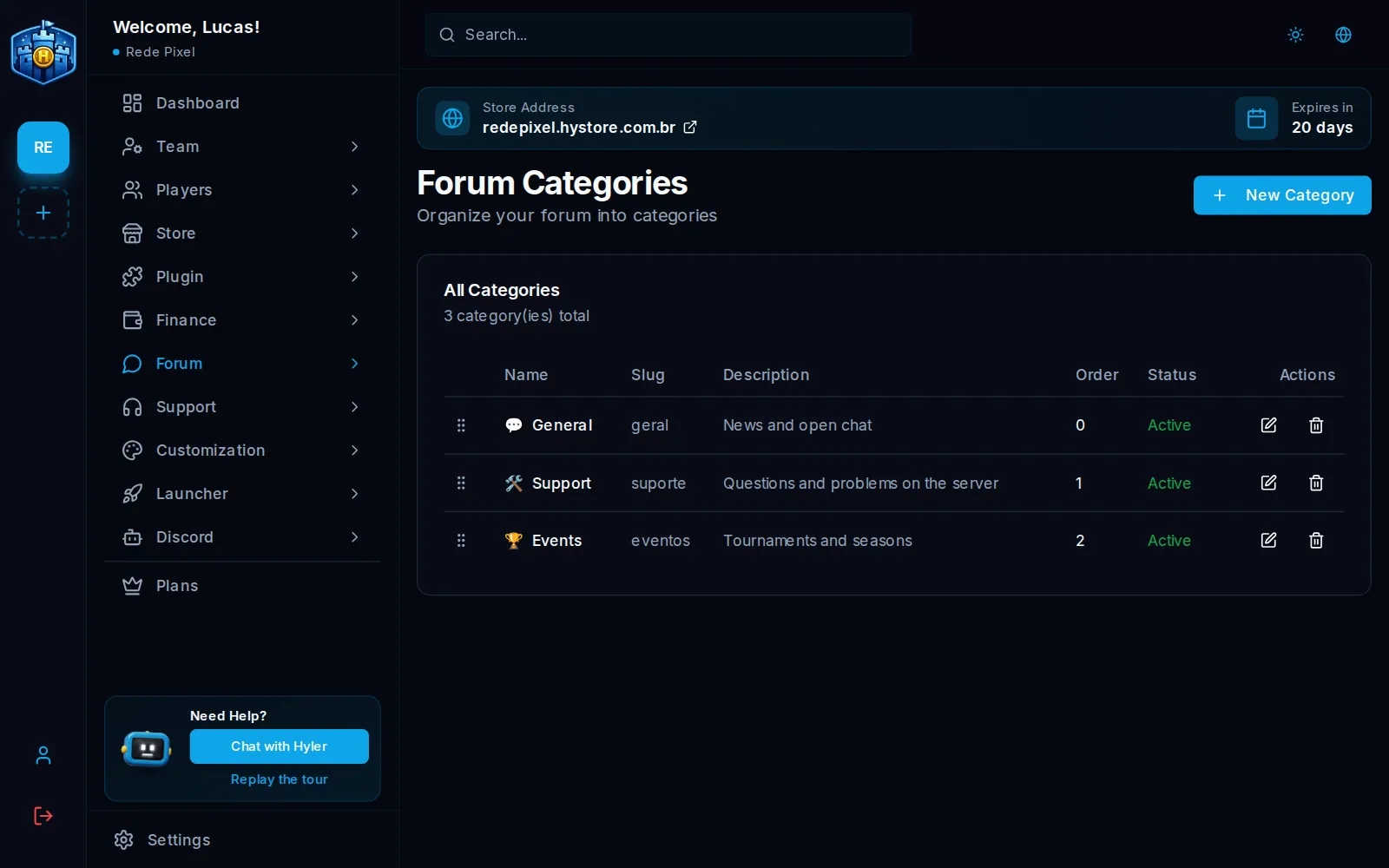
- In Order, the lower number comes first.
- Click Save Category.
To change the order later, edit the category and change the number in Order.
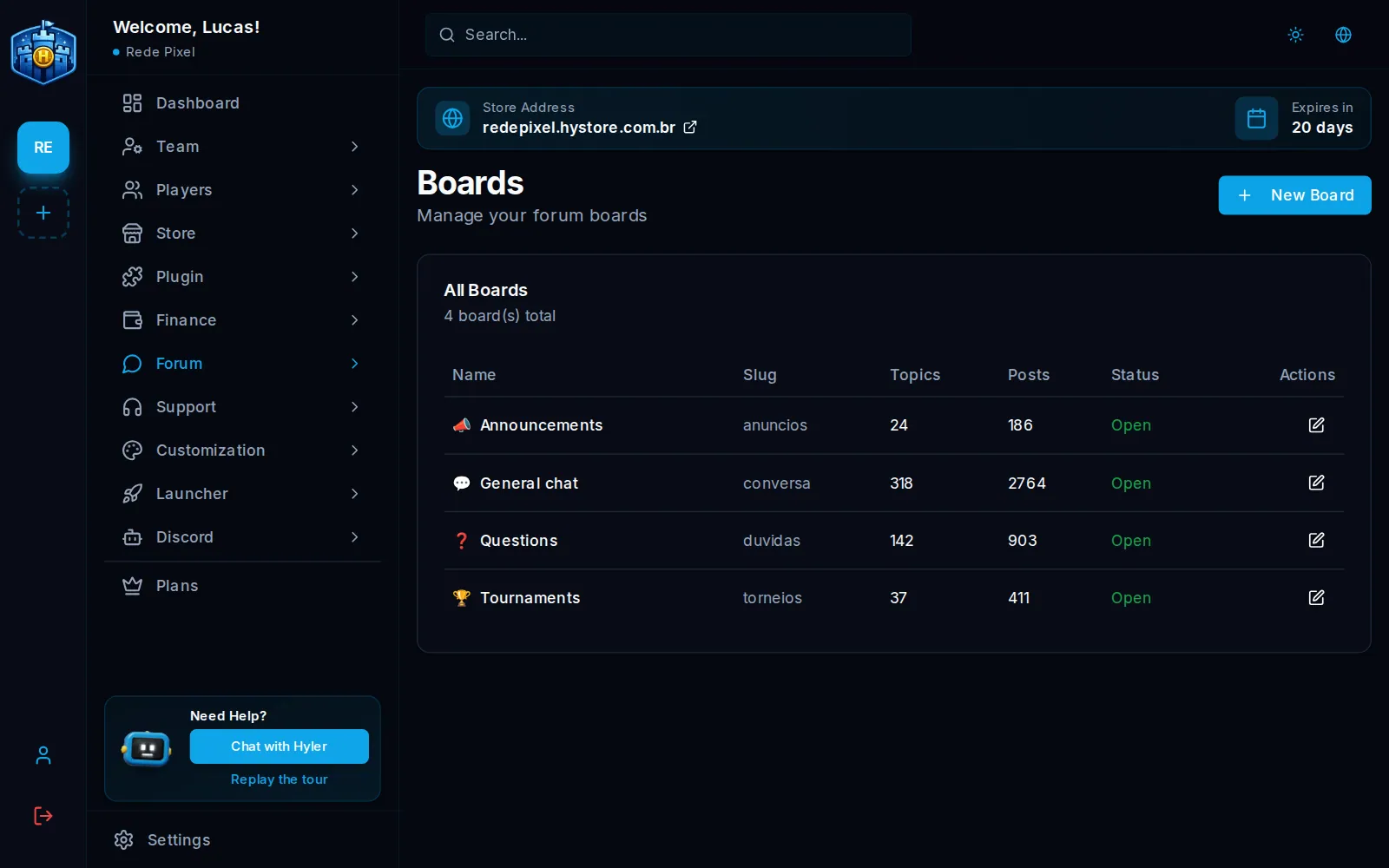
Create a board
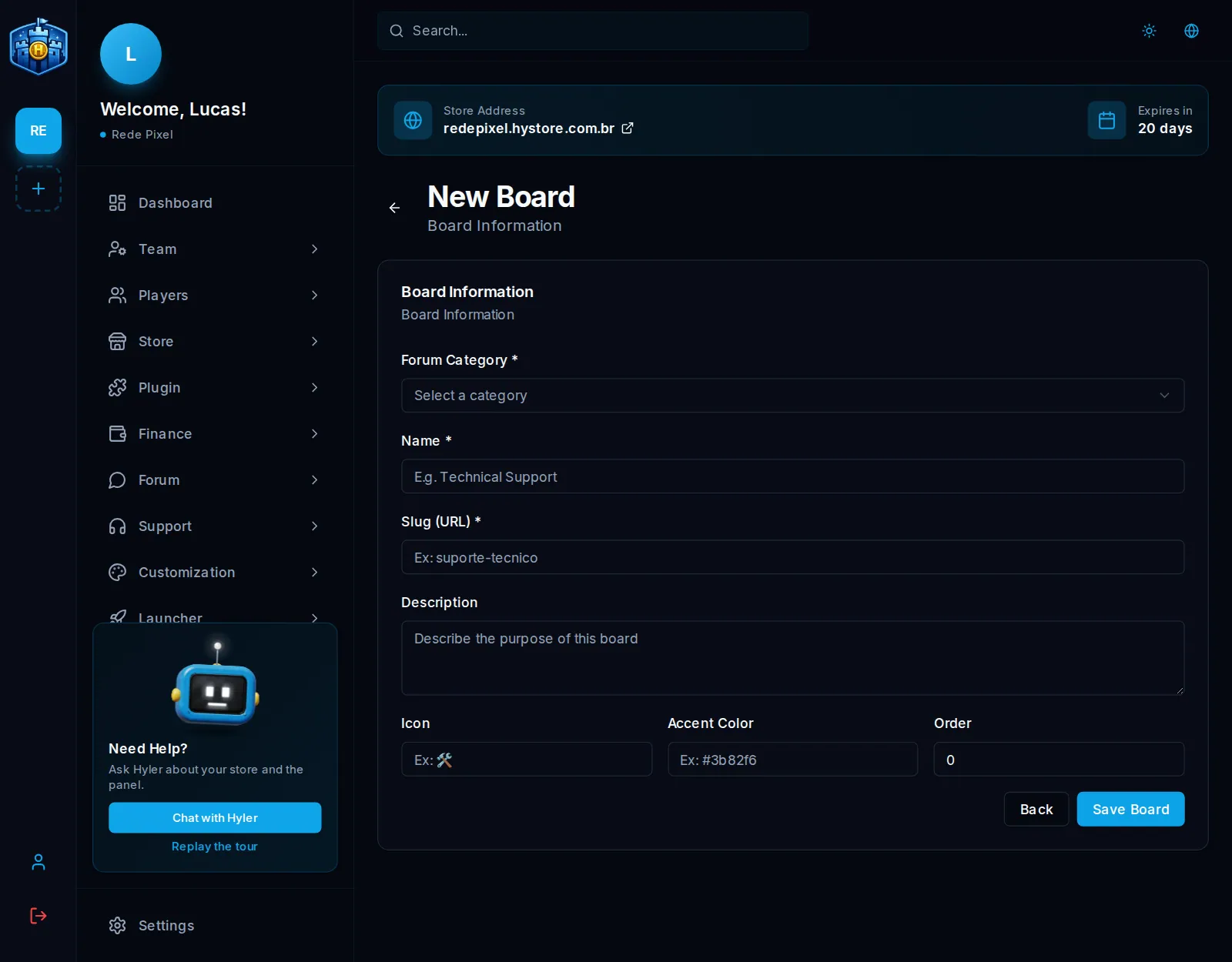
- In Forum > Boards, click New Board.
- Pick the Forum Category it belongs to.
- Fill in Name, Slug and Description.
- Pick Icon, Accent Color and Order.
- Click Save Board.
The list shows how many topics and posts each one has.
Create a badge
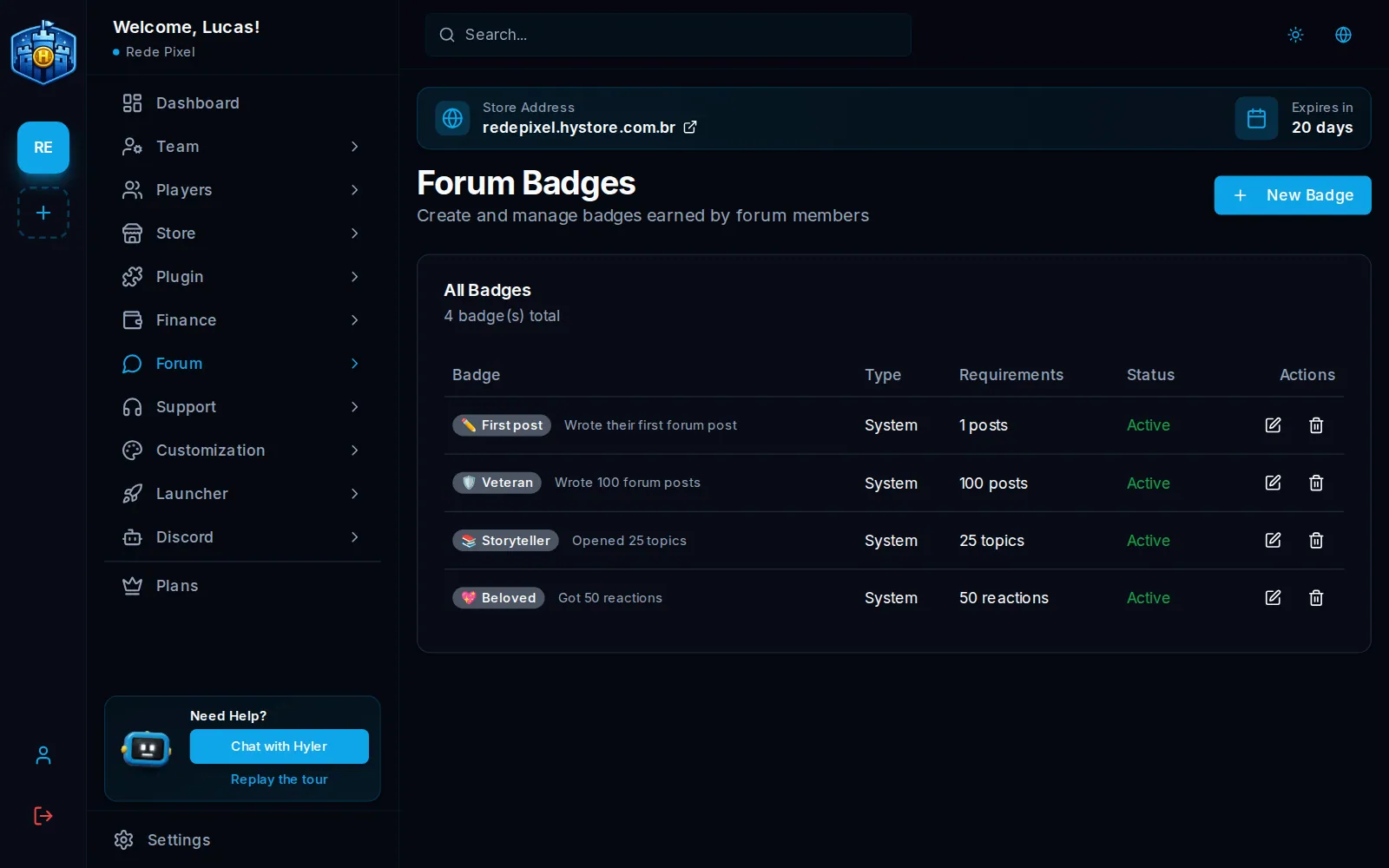
- In Forum > Badges, click New Badge.
- Fill in Name and Description.
- Under Type, choose System.
- Pick the Icon (an emoji), the Background Color, the Visual Style and the Animation. The Preview shows how it looks.
- Under Requirements for Automatic Award, fill in how many Posts, Topics or Reactions the member needs.
- Click Create Badge.
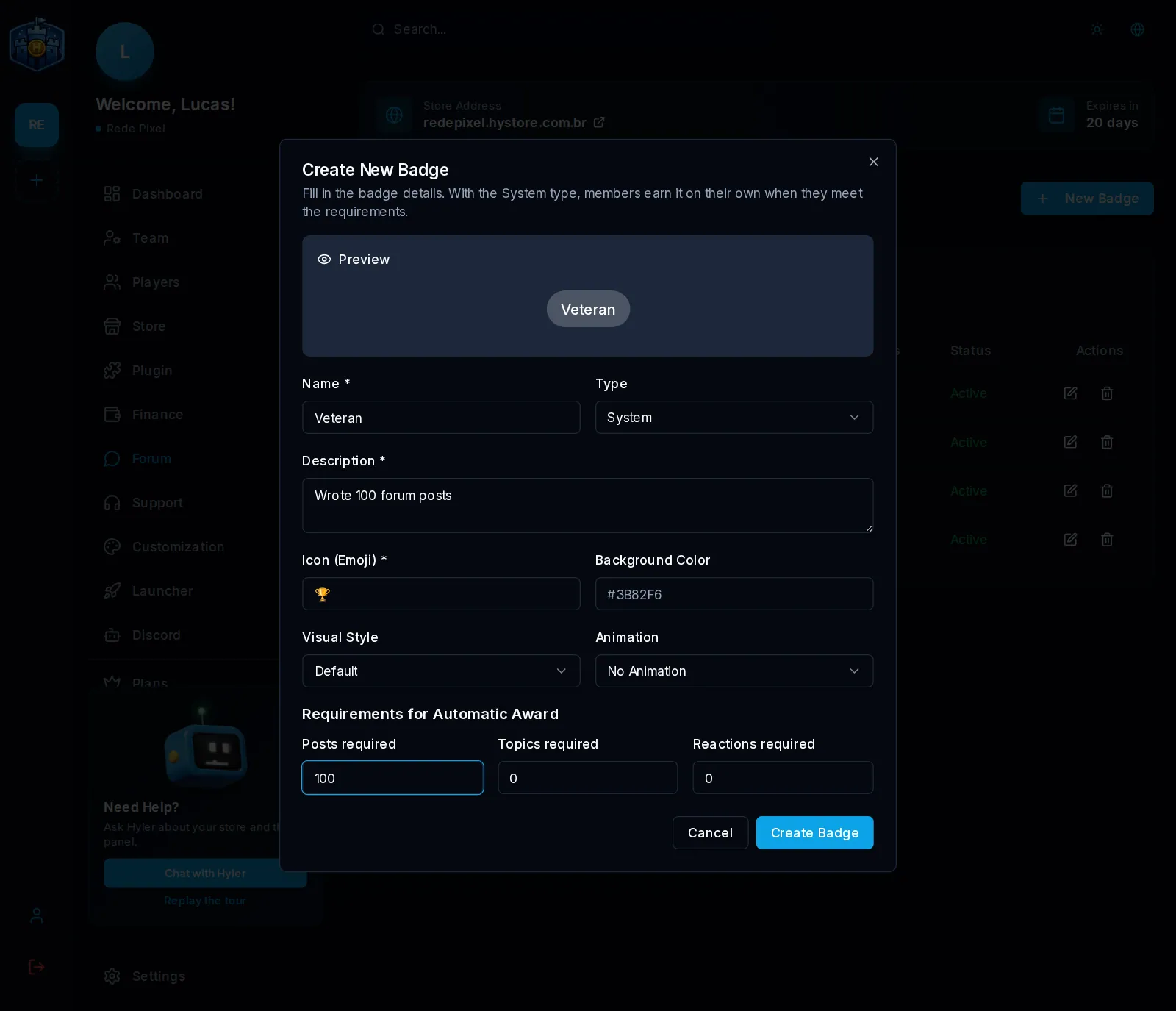
Name: Veteran
Description: Wrote 100 forum posts
Type: System
Posts required: 100
If you fill in more than one requirement, the member must meet all of them. A field with 0 does not count. The check runs when the member creates a topic, replies or reacts.
Moderate
Moderation happens on the store itself, by players with a team role that has the forum permissions. They can pin, lock, move and delete topics, and edit or delete posts. See Player roles.
