
Forms
Forms take applications and sign-ups: joining the team, suggestions, a tournament
entry. You build the questions in Support > Forms, the player answers on the store,
at /formularios, and you approve or reject each response.
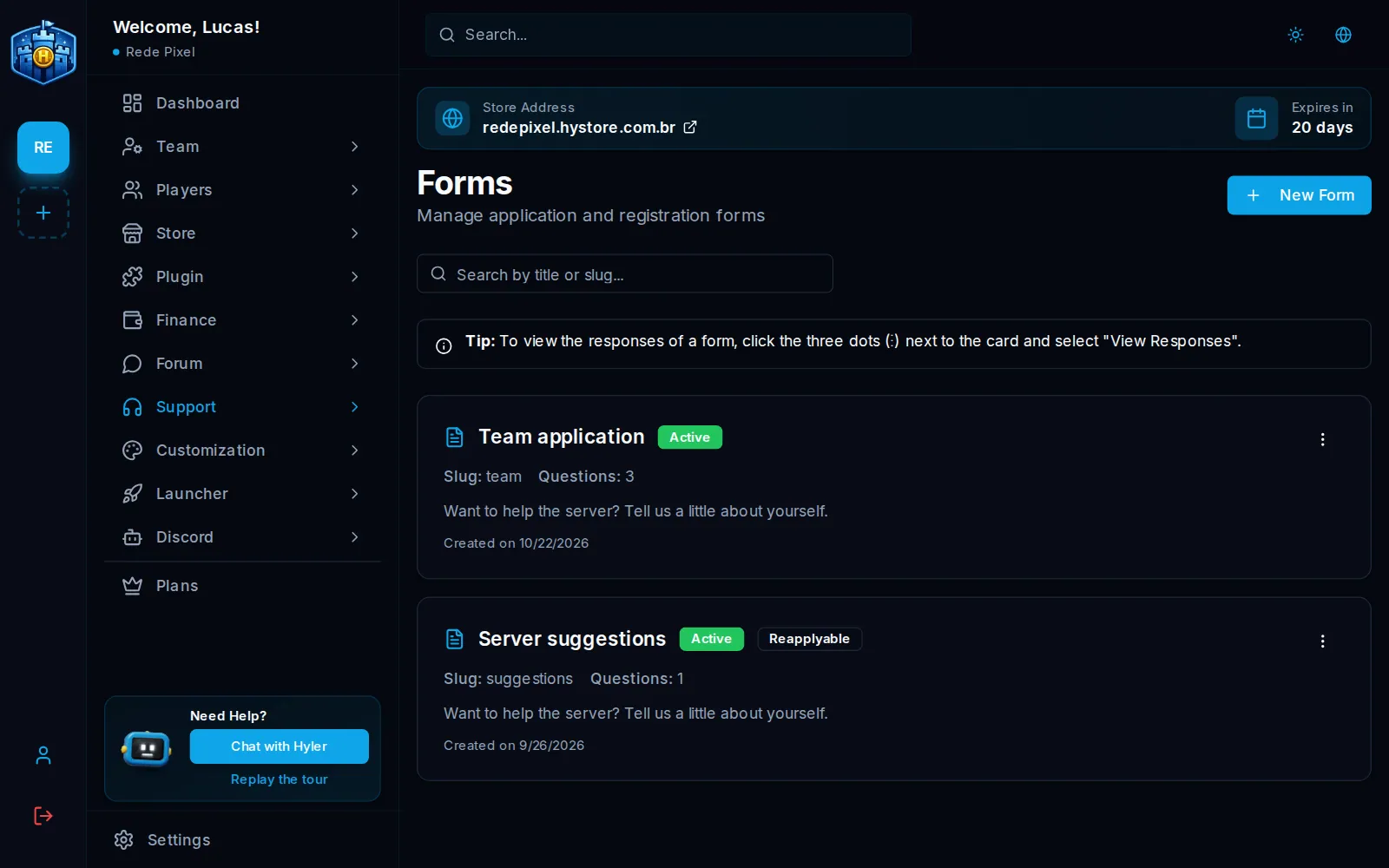
Create a form
- In Support > Forms, click New Form.
- Under Basic Information, fill in Title and Slug, the part of the form's address, and the Description if you want.
- Click Add Question for each question and fill it in as in the box below.
- Click Create Form.
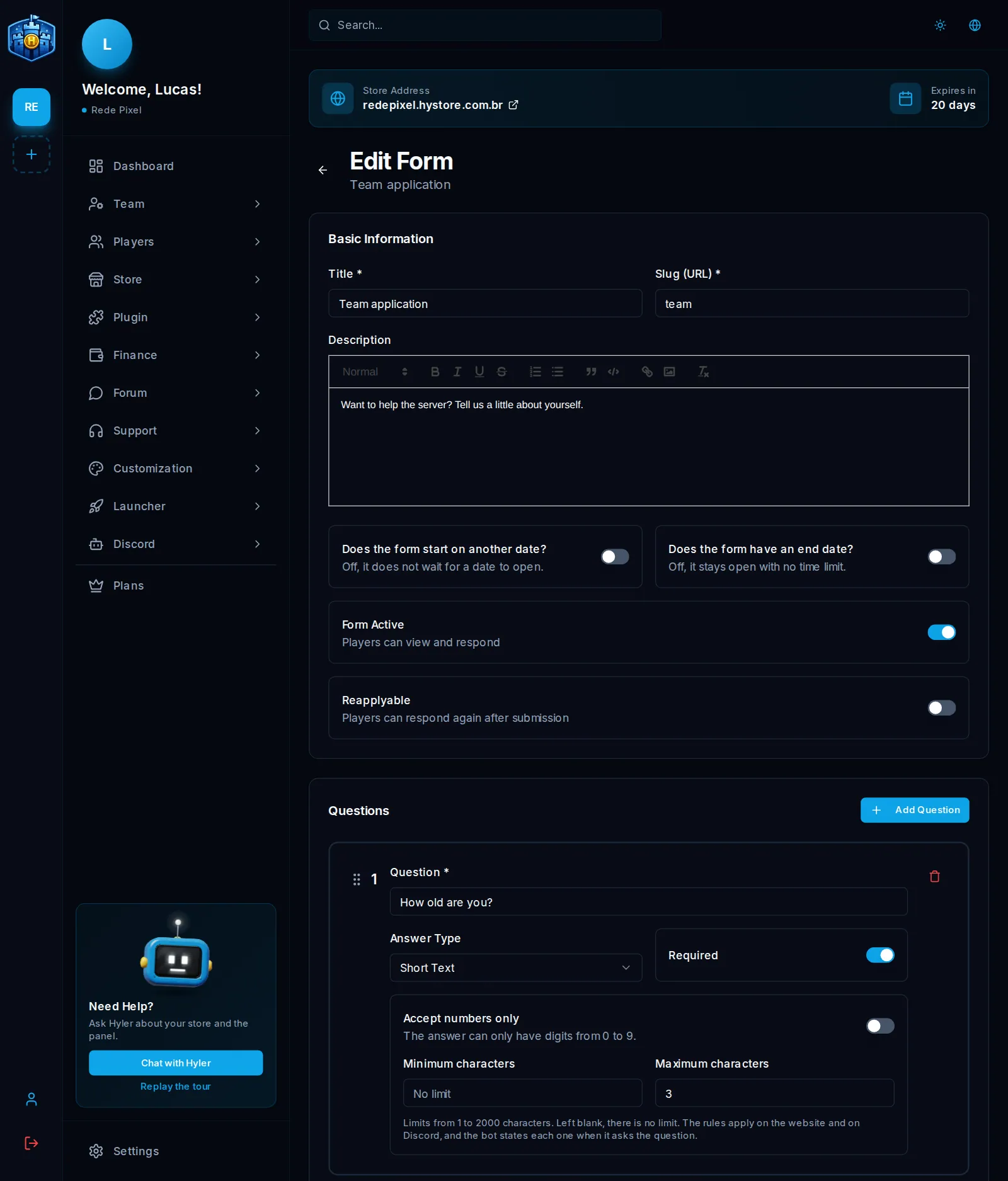
Title: Team application
Slug: team (it lives at /formularios/team)

1. How old are you?                    Short text, numbers only, maximum 3
2. Why do you want to join the team?   Long text
3. What time do you play?              Single choice: Morning, Afternoon, Night
Question types
| Type | The player answers with |
|---|---|
| Short text | One line. Good for age, nick or Discord |
| Long text | A paragraph |
| Single choice | One option from the list. Needs at least 2 options |
| Multiple choice | One or more options from the list. Needs at least 2 options |
On each question, Required blocks sending without an answer. On text questions, Accept numbers only takes digits only, and Minimum characters and Maximum characters limit the size, from 1 to 2000. Blank means no limit.
When and who answers
| Option | What it does |
|---|---|
| Does the form start on another date? | Off, it does not wait for a date to open |
| Does the form have an end date? | Off, it stays open with no time limit |
| Form Active | Off, players do not see it |
| Reapplyable | Lets the same player answer again after sending |
Review the responses
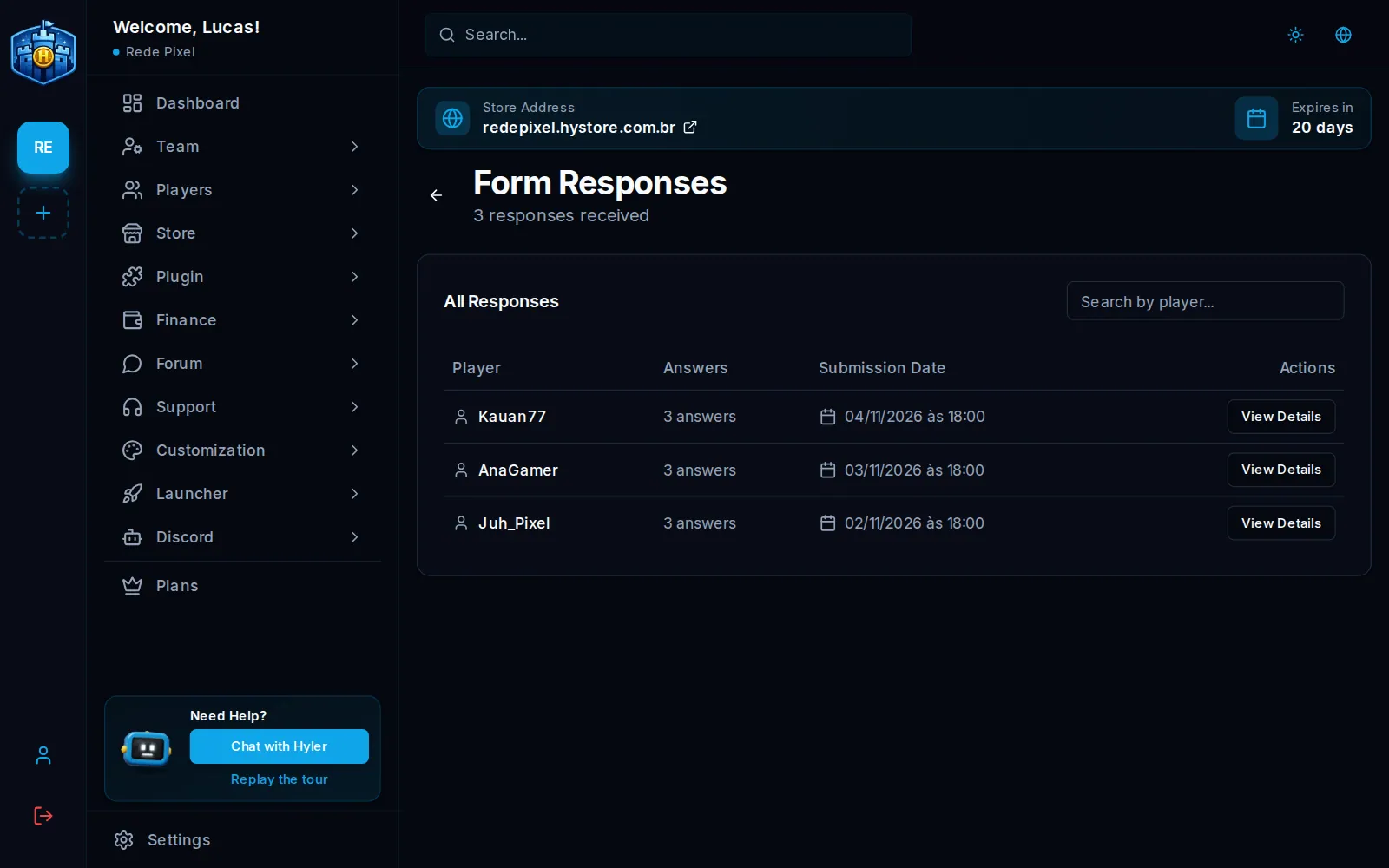
- In the list, click the three dots next to the form and View Responses.
- Click View Details on the response you want to read.
- If you want, write an Observation, which the player reads.
- Click Approve or Reject and confirm.
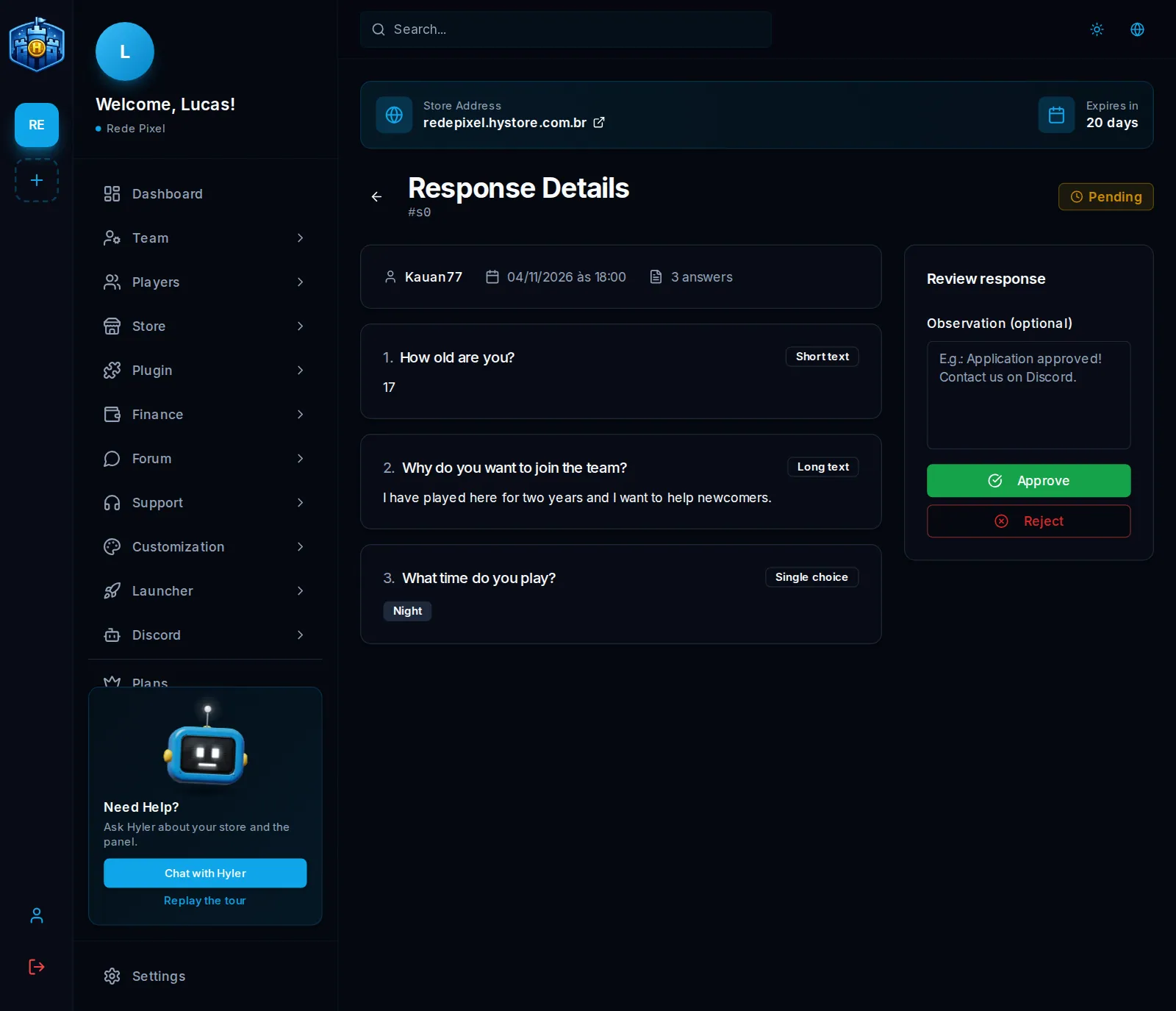
Application approved! Get in touch on our Discord.
Forms on Discord
With the bot, players can also answer on Discord, and the rules of each question apply there too. See Forms on Discord.
