
Players and roles
A player is whoever creates an account in your store to buy, open a ticket or join the forum. The Players group in the menu has two screens: Players, with every account, and Roles, with the players' roles (VIP, staff and others).
In a digital product store, the group is called Customers, and customers log in with their email, without a nick.
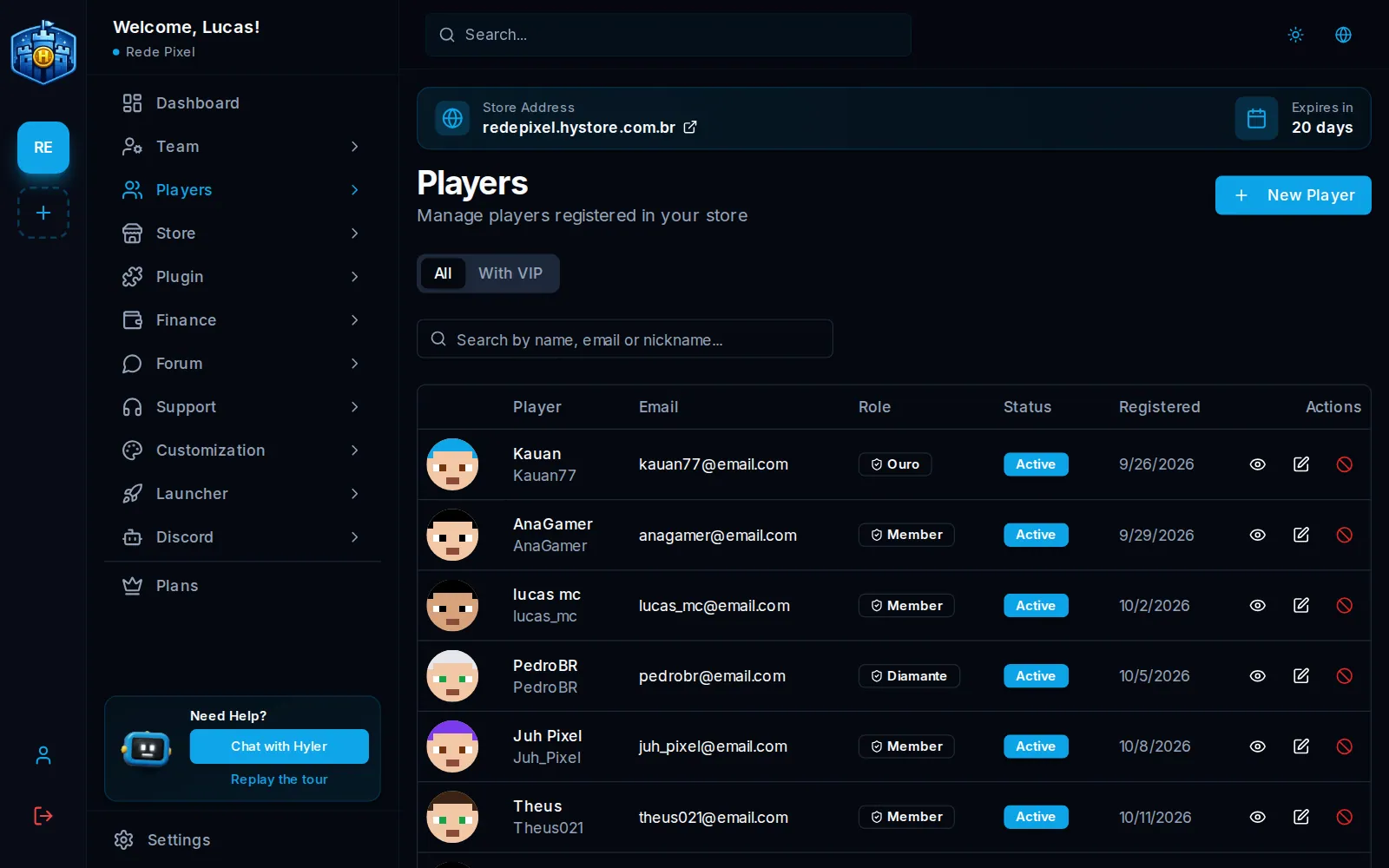
Find and create players
- The search accepts name, email or nickname.
- New Player creates an account by hand, with name, email, password and nickname. Without picking a role, the default role applies. In a digital store, the new customer form does not ask for a nick: it comes from the email.
The player's profile
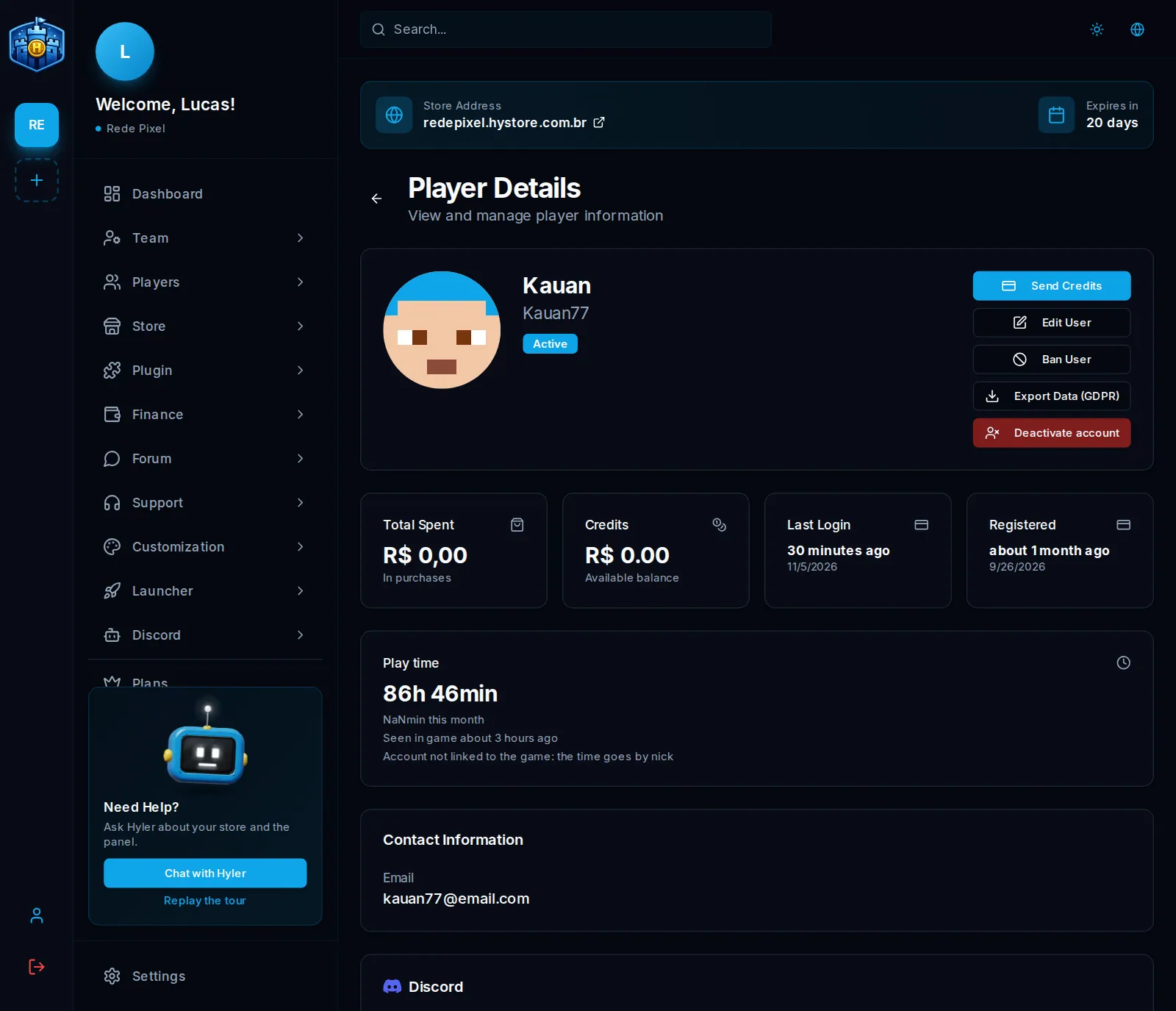
Open a player to see the total spent, the credits, the last login, the sign-up date, the orders, the tickets, the cart, the redeemed gifts and the Discord link. On the profile:
- Send Credits adds balance to their account; the history is in Credits History;
- Edit User changes name, email, nickname and role;
- Ban User and Unban User;
- Deactivate account blocks logging in and buying, but keeps the orders and the credits;
- Export Data (GDPR) downloads everything the store keeps about that player, to answer a data request.
Player VIPs
On the With VIP tab, in Players, are all the store's VIPs. Search by nick or email and filter by status (active, stored, paused, frozen, ended, removed) and by VIP.
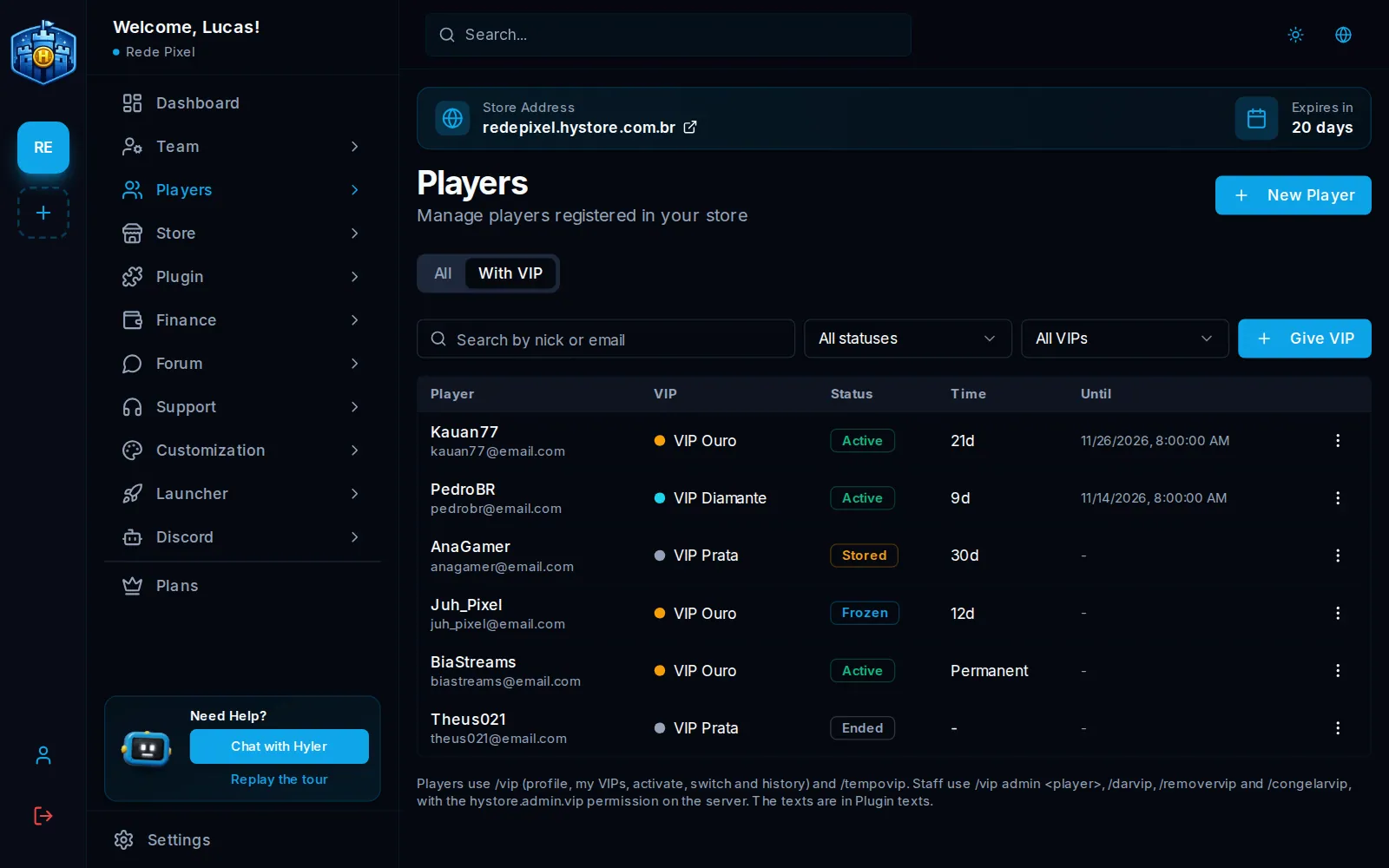
- Give VIP asks for the nick, the VIP and the days, or forever. It adds to the VIP the player already has, or creates it.
- In each row's menu: Add 7 days, Change time (a negative number removes time; removing everything ends the VIP), activate (for stored or paused), Freeze (stops the clock and removes the VIP on the server; Unfreeze brings it back), Remove and History.
Every action goes to the VIP history, with the email of whoever did it, and to
the store audit. In the game, staff with the hystore.admin.vip permission use:
/vip admin <player>
/darvip <player> <vip> <days>
/removervip <player> <vip>
/congelarvip <player> <vip>
Player roles
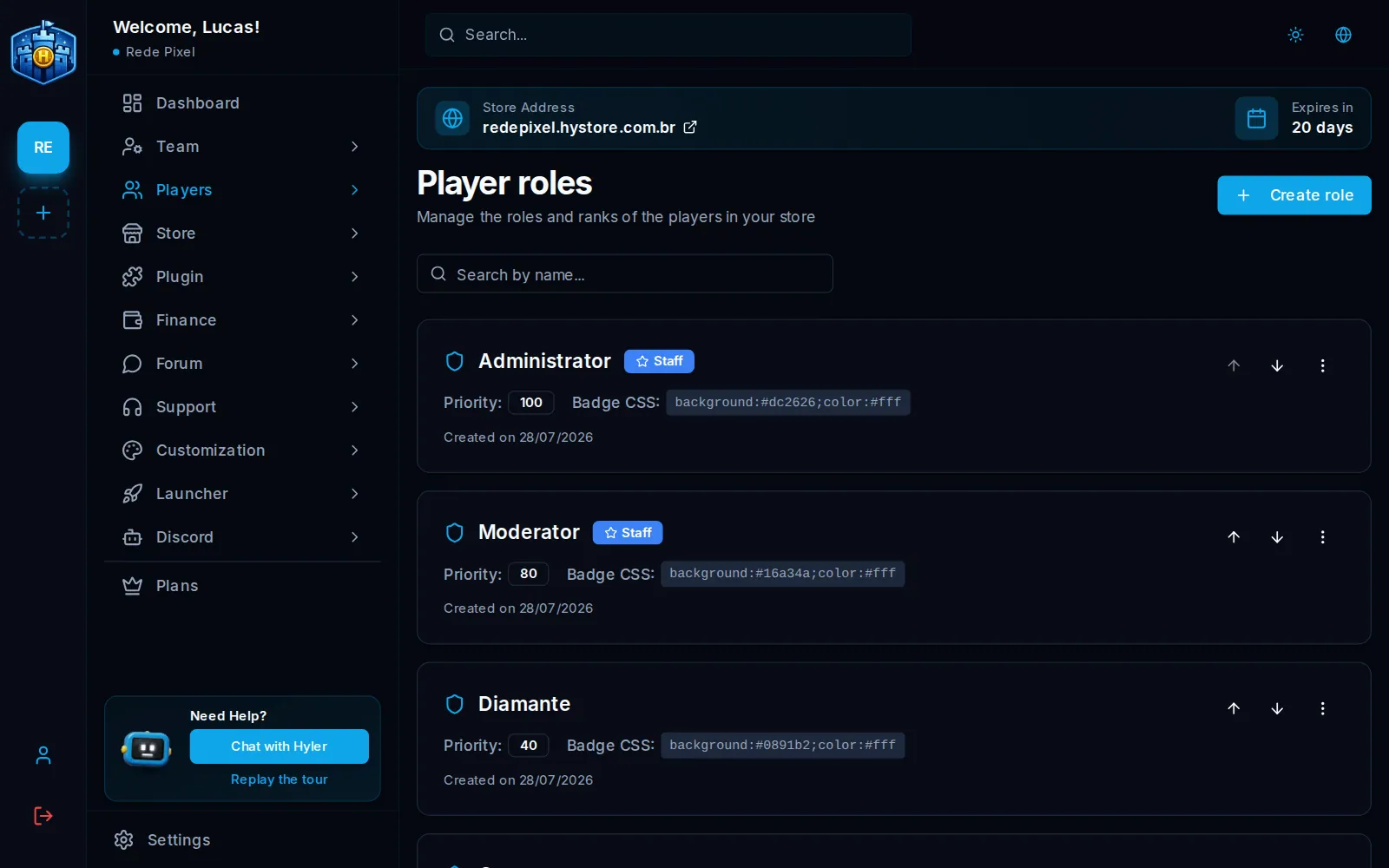
Players > Roles holds the roles players have in the store and the forum, like Member, Gold VIP, Moderator and Administrator.
- Click Create role.
- Enter the Role name and the Priority: a higher number sits higher in the hierarchy. The arrows in the list change the order.
- Check This is a staff role only for the server team. A staff role cannot be sold.
- In Visual customisation, the User CSS and the Badge CSS change the player's name and badge in the forum.
- Save.
background: #d97706;
color: #ffffff;
font-weight: 700;
The Default role is the one every new player gets. A product can give a role to the buyer (see Products), and, with the Discord bot, the role can be linked to a role in the Discord server (see Linking and roles).
