
Controls and Discord
This page covers the buttons for those who play on the phone and what shows on the Discord profile of those who play.
Phone controls
In Launcher > Phone controls you set up the Android app buttons. It reaches players the next time they open the game, without building a new app.
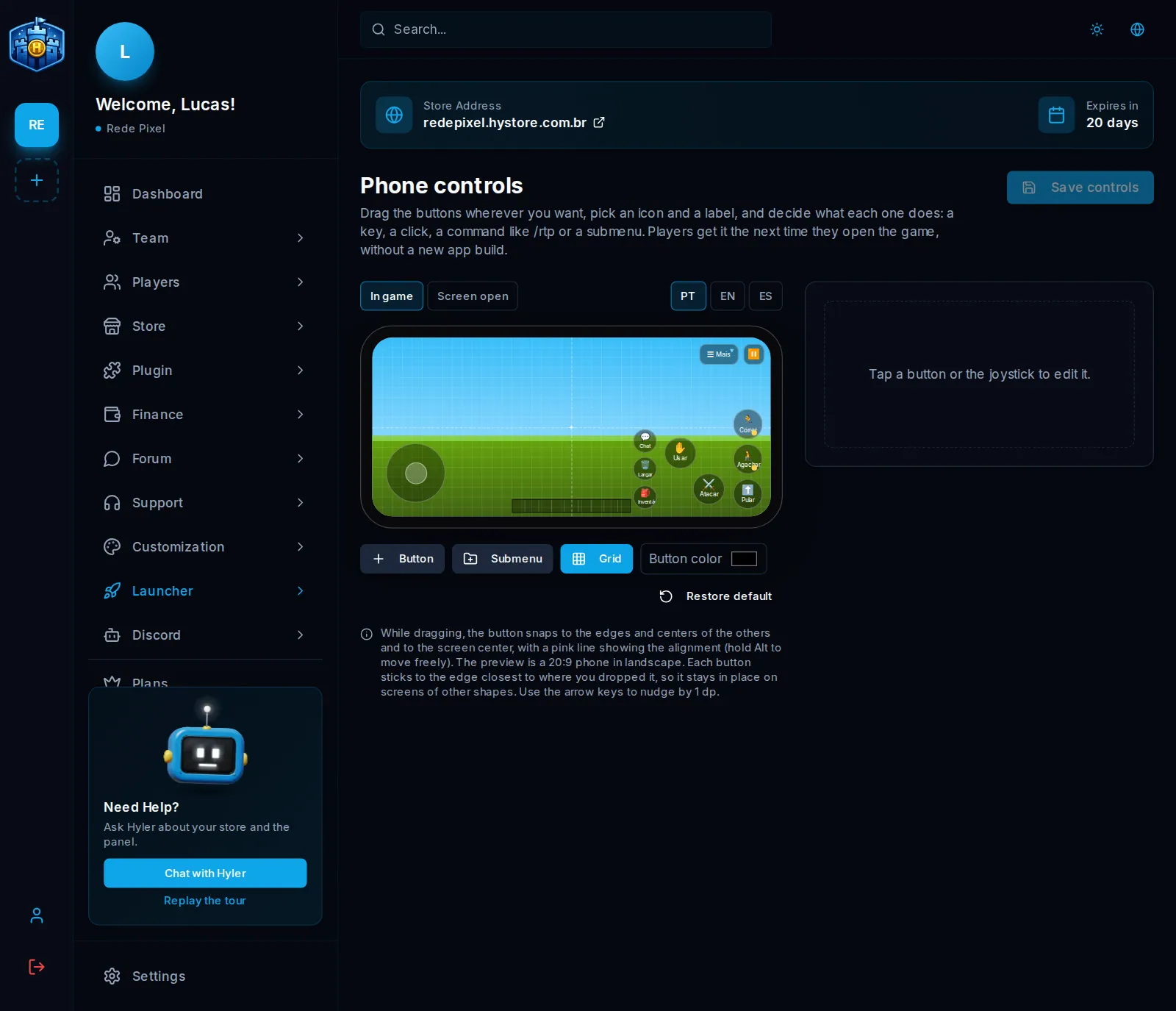
- Drag the buttons on the preview wherever you want. They snap to the edges and the center, with a line showing the alignment. Hold Alt to drop freely.
- Click a button to pick the icon, the text and what it does.
- Use Button and Submenu to add, and In game and Screen open to edit each moment.
- Click Save controls.
Each button can:
- press a key;
- send a command, like
/rtp; - open a submenu;
- work as an on and off switch, good for crouching and running.
The text follows the phone's language. Blank, Portuguese applies. Restore default puts everything back in the factory place, and nothing changes for players until you save.
Discord Rich Presence
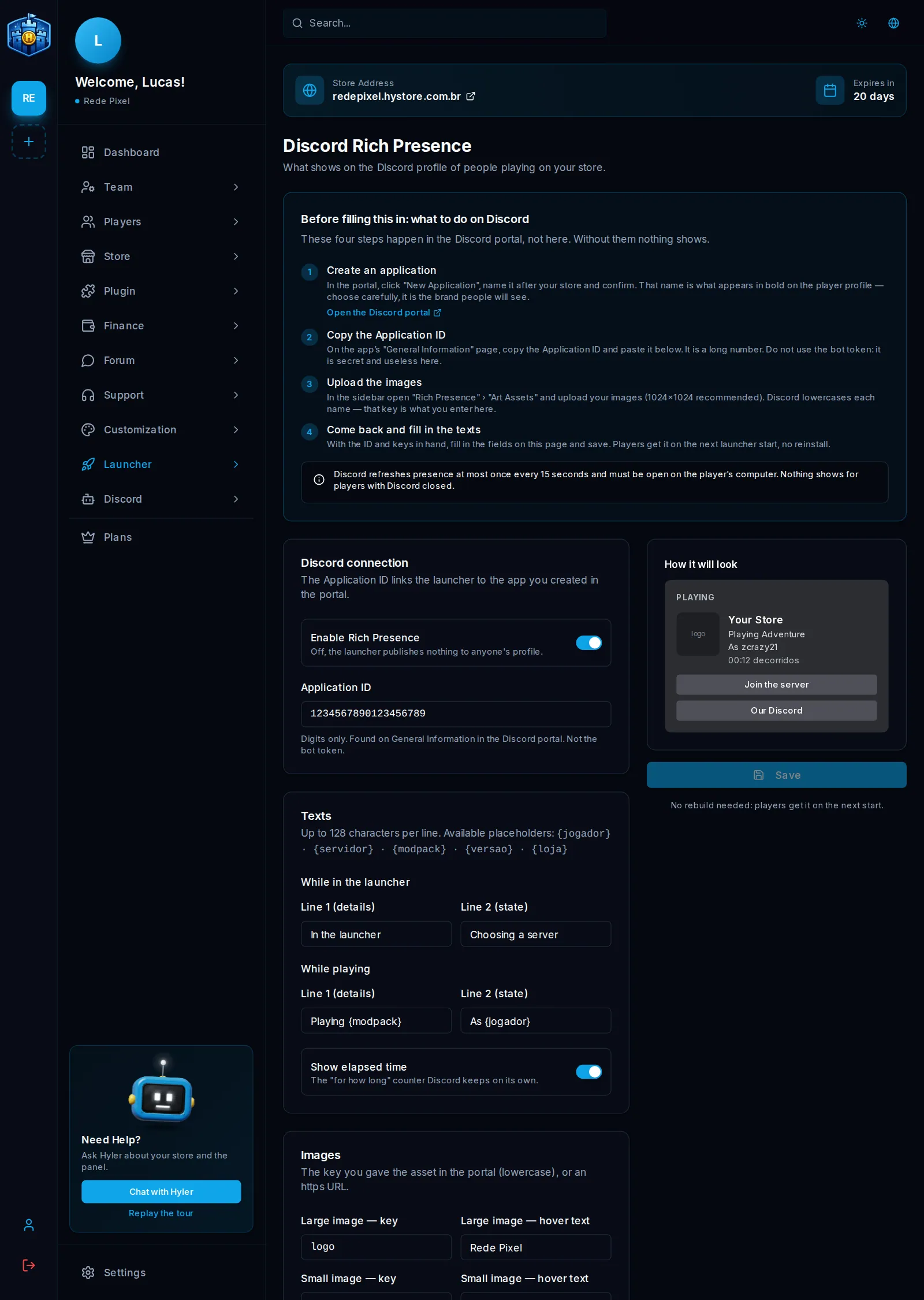
Shows on the Discord profile of those who play what the person is doing, with your store's name and image. No build needed: players get it on the next start.
On the Discord portal
- On the developer portal, click New Application and give it your store's name. That name shows in bold on the player's profile.
- In General Information, copy the Application ID. Numbers only, and it is not the bot token.
- In Rich Presence > Art Assets, upload the images and name each one. The recommended size is 1024x1024.
On the dashboard
In Launcher > Rich Presence:
- Paste the Application ID and turn on Enable Rich Presence.
- Write the two lines of each moment, up to 128 characters per line.
- Under Images, use the name you gave on the portal, in lowercase, or an
httpslink. - If you want, add up to two Buttons, with a label and a link.
- Click Save.
While in the launcher
  Line 1: In the launcher
  Line 2: Choosing a server

While playing
  Line 1: Playing {modpack}
  Line 2: As {jogador}
The available markers show on the screen, above the fields.
