
Mercado Pago
Mercado Pago takes Pix, card and boleto, with the money going to your Mercado Pago account. It is the gateway most used by stores in Brazil.
You need a Mercado Pago account (personal or business). The step by step is also on the Mercado Pago card, in Settings > Payments, under How to set up Mercado Pago, step by step.
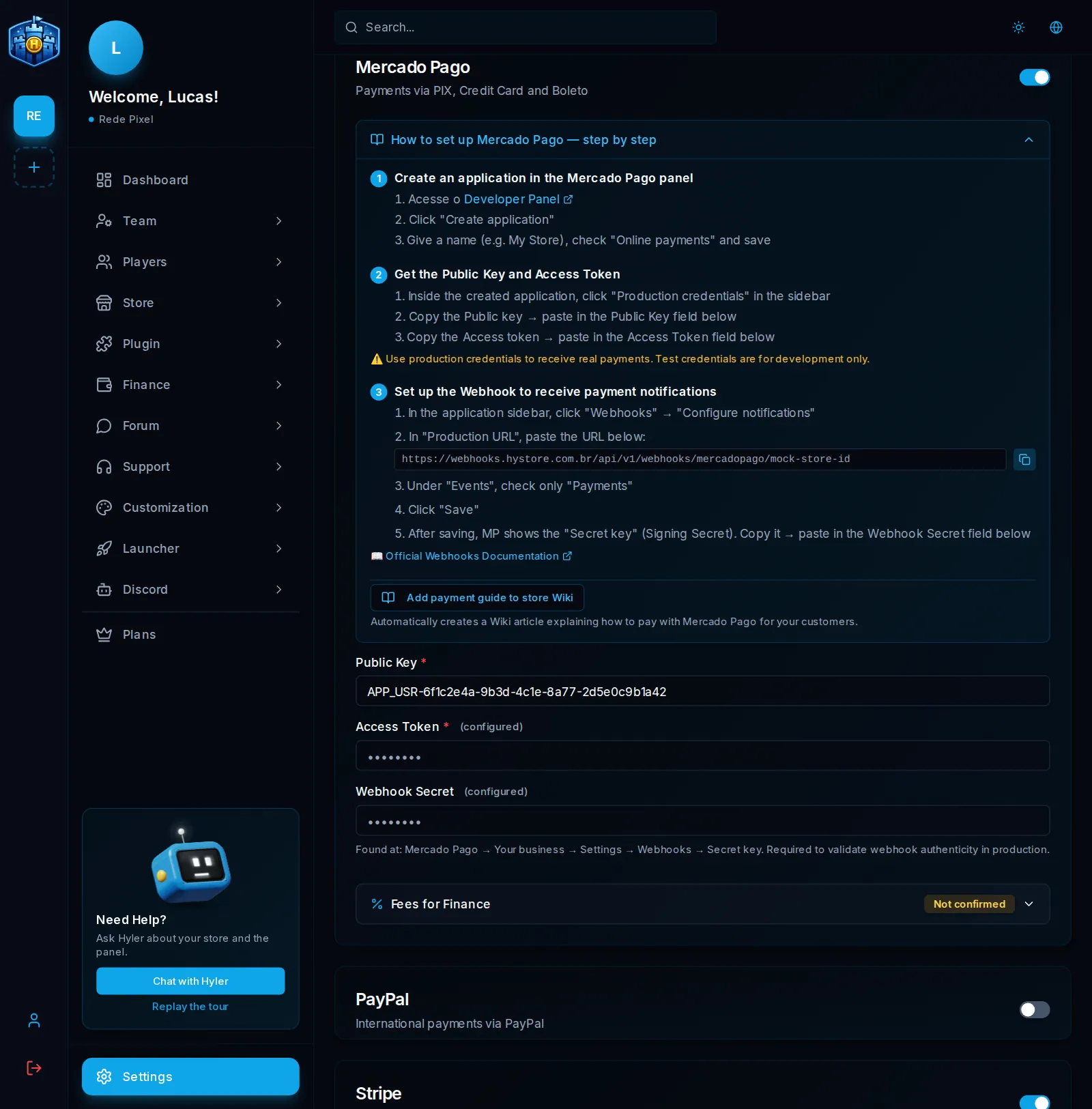
1. Create the application
- Open the Mercado Pago Developer Panel and log in with your account.
- Click Create application (Criar aplicação).
- Give it a name (for example,
Rede Pixel), check Online payments (Pagamentos online) and save.
2. Copy the Public Key and the Access Token
- Inside the application, open Production credentials in the side menu.
- Copy the Public key and paste it into the Public Key field of the dashboard.
- Copy the Access token and paste it into the Access Token field.
3. Set up the webhook
-
In the application's side menu, open Webhooks > Configure notifications.
-
In Production URL, paste the URL the dashboard shows (Copy URL button). It looks like this:
Webhook URL https://webhooks.hystore.com.br/api/v1/webhooks/mercadopago/<your store id> -
In Events, check only Payments.
-
Click Save.
-
Mercado Pago shows the Secret key (Signing Secret). Copy it and paste it into the Webhook Secret field of the dashboard.
4. Turn it on and save
Turn on the Mercado Pago card's switch and save. Done: Pix, card and boleto show up for the player at checkout.
Common problems
| What happens | What to do |
|---|---|
| The order stays Pending after the Pix is paid | Check the webhook production URL and that the Payments event is checked |
| Error on save: Public Key or Access Token | Both fields are required and must be production ones, from the same application |
| Test payments do not show in the account | Test credentials only simulate; switch to production ones |
Mercado Pago fees in Finance: see Gateway fees.
