
PayPal
PayPal takes payments from players all over the world, with a PayPal account or a card, and the money goes to your PayPal account.
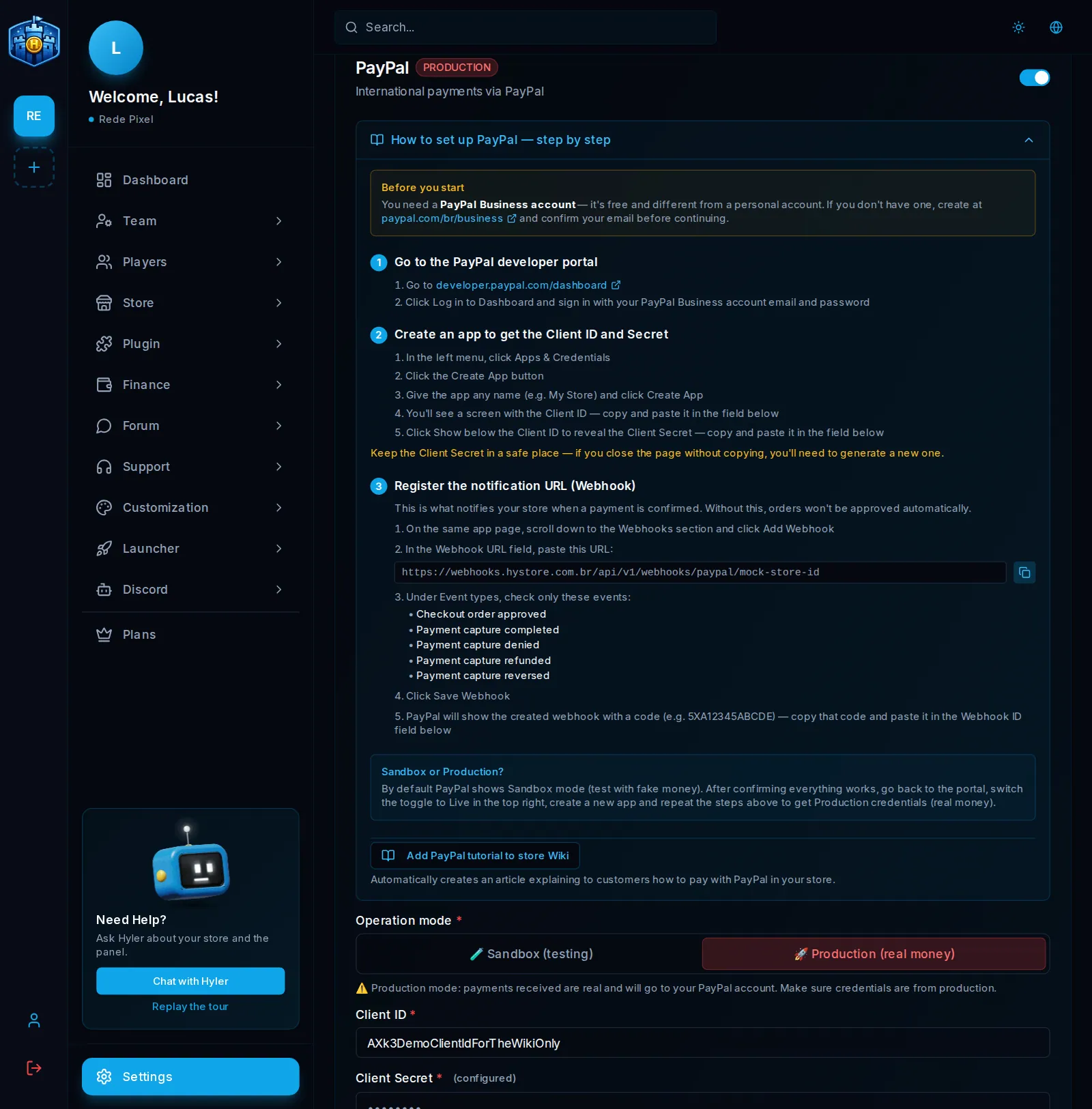
You need a PayPal Business account: it is free and different from a personal account. If you do not have one, create it at paypal.com and confirm the email before going on.
1. Log in to the developer portal
- Go to developer.paypal.com.
- Click Log in to Dashboard and log in with the Business account email and password.
2. Create the app and copy the credentials
- In the left menu, click Apps & Credentials.
- Click Create App, give it a name (for example,
Rede Pixel) and click Create App. - Copy the Client ID and paste it into the dashboard field.
- Click Show, below the Client ID, to reveal the Client Secret. Copy it and paste it into the dashboard field.
3. Register the webhook
-
On the same app page, scroll to Webhooks and click Add Webhook.
-
In Webhook URL, paste the URL the dashboard shows. It looks like this:
Webhook URL https://webhooks.hystore.com.br/api/v1/webhooks/paypal/<your store id> -
In Event types, check only these events:
Webhook events Checkout order approved Payment capture completed Payment capture denied Payment capture refunded Payment capture reversed -
Click Save Webhook.
-
PayPal shows the new webhook with a code, like
5XA12345ABCDE. Copy it and paste it into the Webhook ID field of the dashboard.
4. Sandbox or production
The PayPal portal starts in Sandbox mode (testing with fake money). Make a test purchase. When everything works, go back to the portal, switch to Live at the top, and repeat steps 2 and 3 to get the production credentials and Webhook ID. In the dashboard, the PayPal card shows PRODUCTION or SANDBOX.
Guide for players
The Add payment guide to store Wiki button creates in your store's wiki an article explaining to players how to pay with PayPal, step by step.
