
Stripe
Stripe takes cards from all over the world, with the money going to your Stripe account. It is the choice for selling to players outside Brazil.
You need a Stripe account activated for payments (with the company details and the bank account filled in on the Stripe Dashboard).
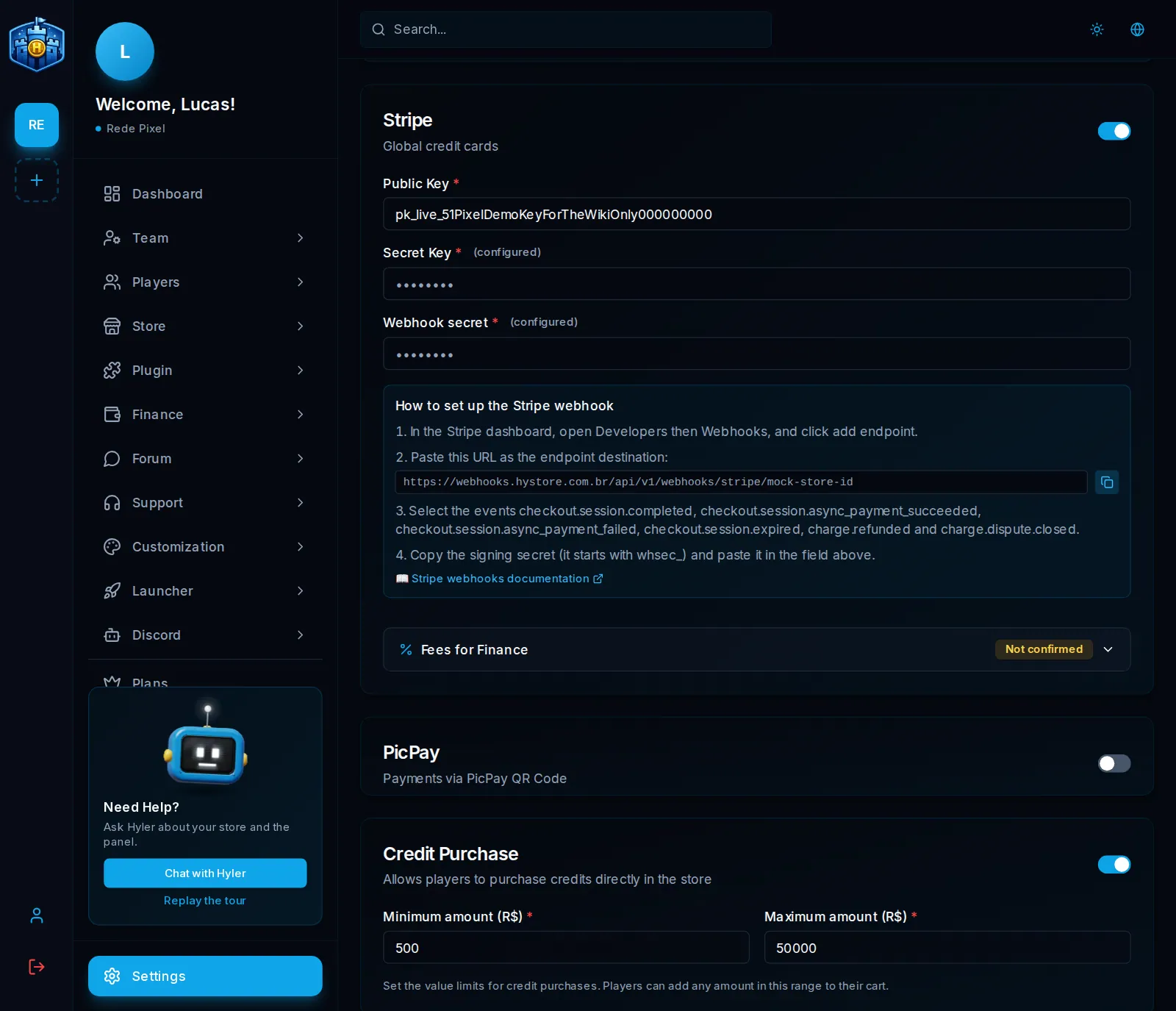
1. Copy the API keys
- On the Stripe Dashboard, open Developers > API keys.
- Switch to live mode (test mode off).
- Copy the publishable key, which starts with
pk_live_, and paste it into the Public Key field of the dashboard. - Reveal and copy the secret key, which starts with
sk_live_, and paste it into Secret Key. Stripe shows the secret key only once: keep it somewhere safe.
2. Create the webhook
-
On the Stripe Dashboard, open Developers > Webhooks and click add endpoint.
-
Paste as the destination the URL the dashboard shows. It looks like this:
Webhook URL https://webhooks.hystore.com.br/api/v1/webhooks/stripe/<your store id> -
Select these events:
Webhook events checkout.session.completed checkout.session.async_payment_succeeded checkout.session.async_payment_failed checkout.session.expired charge.refunded charge.dispute.closed -
Save the endpoint and copy the signing secret, which starts with
whsec_. -
Paste it into Webhook secret, in the dashboard.
3. Turn it on and save
Turn on the Stripe card's switch and save. The player pays on a secure Stripe page and comes back to the store with the order approved.
Refunds and disputes
With the charge.refunded and charge.dispute.closed events, a refund and a lost
dispute on Stripe mark the order as Refunded on their own: deliveries that had
not gone out are cancelled. See Orders.
