Entries and bills
Day-to-day Finance lives in four screens: Entries, Bills to pay, Recurring expenses and Categories.
Entries
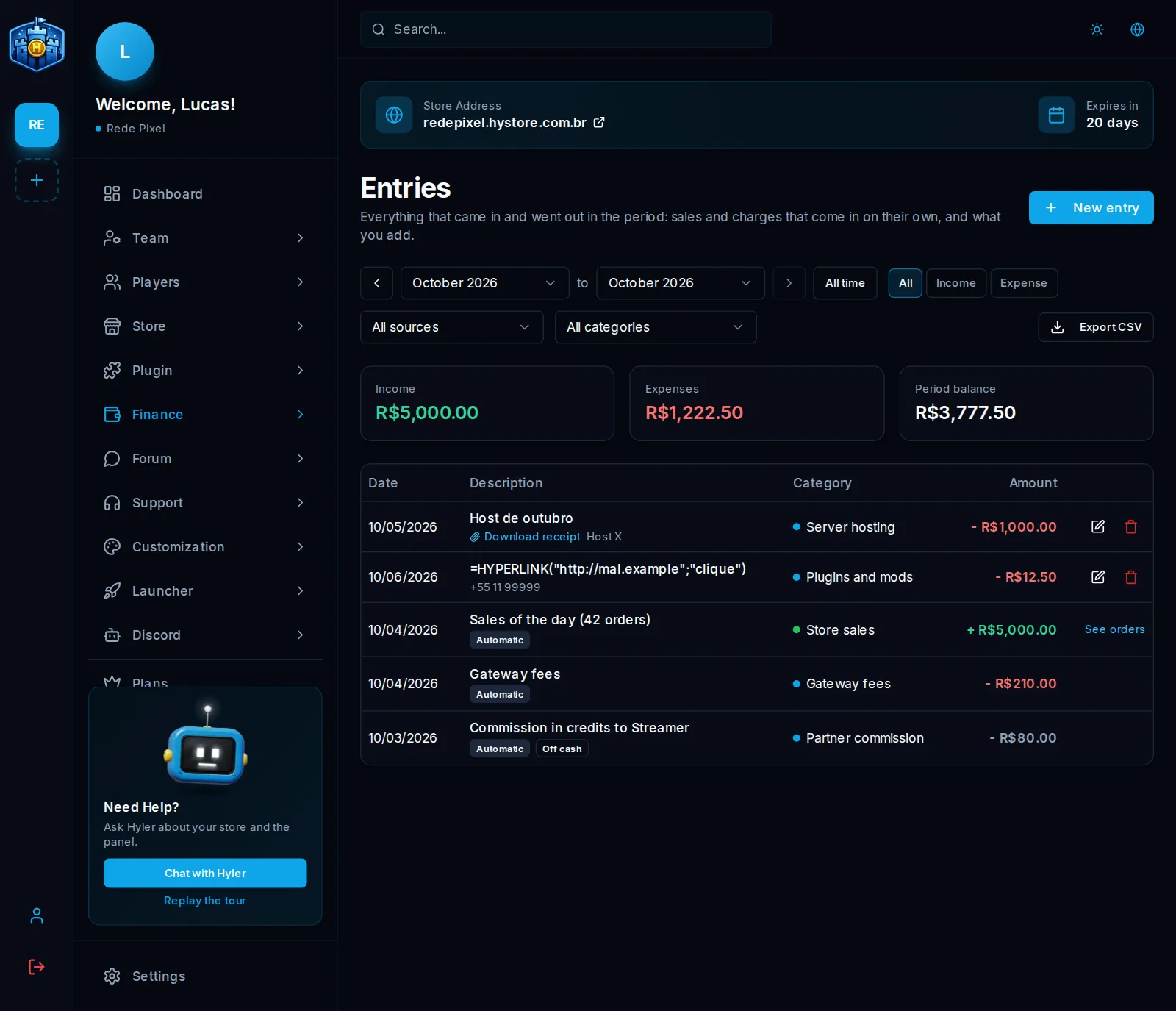
Finance > Entries has everything that came in and went out, with the automatic lines (each day's sales and fees, refunds, subscription and commissions, with the Automatic badge) and your own entries.
Enter an expense or an income
- Click New entry.
- Pick expense or income, the category, the description, the amount and the due date. These are required (they have an asterisk).
- If you like, fill in the payee, the payment method, the server, the campaign, the note and the receipt.
- With Already paid on, enter the payment day (it cannot be after today). Off, the entry goes to Bills to pay.
- Save.
The amount field only takes numbers: the thousands separator and the cents go in
on their own. Type 1234,5 and it becomes 1.234,50 (in the store's number
format).
The Receipt accepts PDF, PNG, JPG or WebP up to 2 MB. It stays with the entry, and only people with access to the store's Finance can download it.
Only manual entries have Edit and Delete. Commission paid in credits shows with the Off cash badge and is not added to the totals.
Export for the accountant
Export CSV downloads the period with the screen's filters, to open in Excel or send to the accountant. Filter by type, source and category before exporting.
Bills to pay and to receive
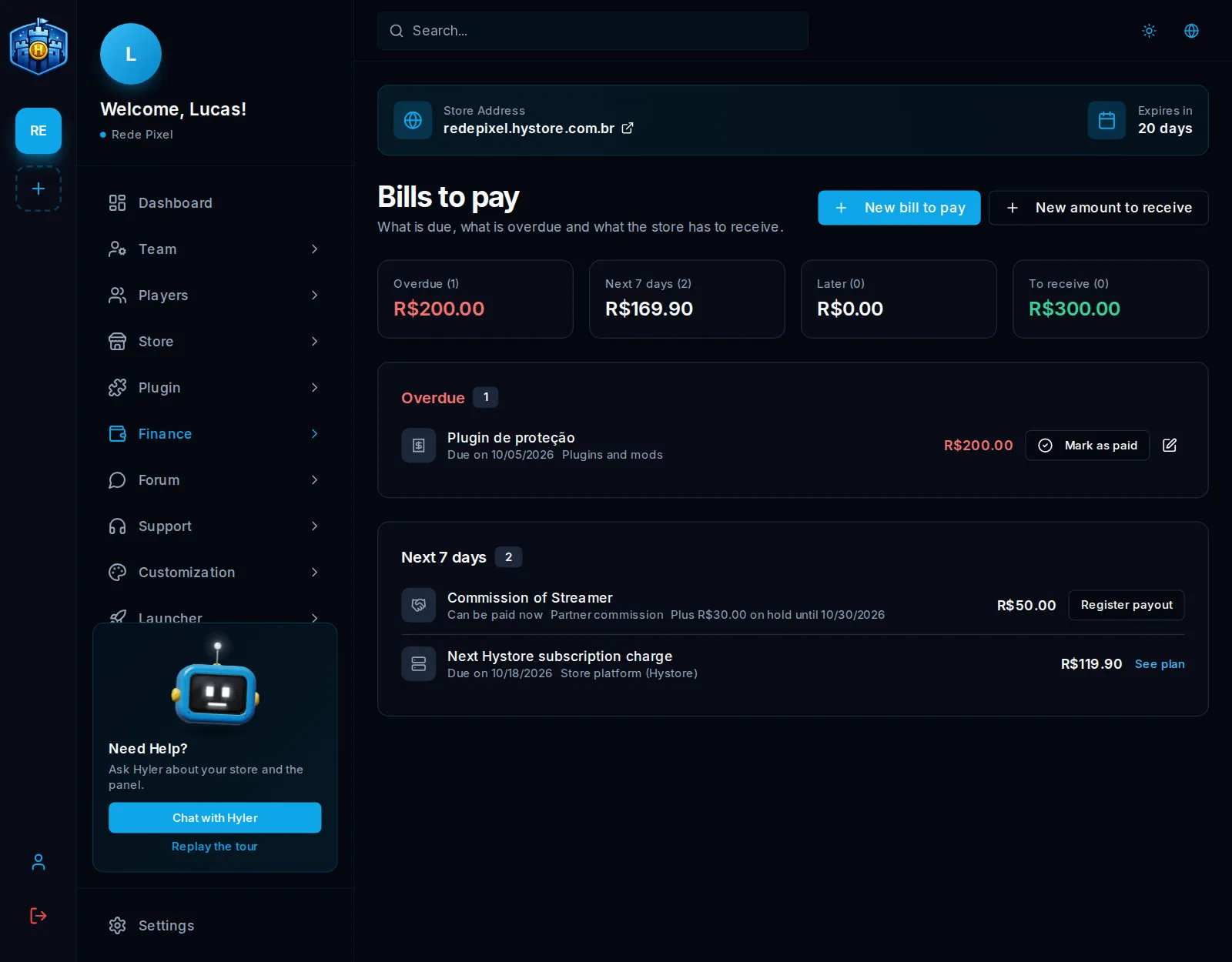
Finance > Bills to pay has the open bills, split into Overdue, Next 7 days and After:
- entries with no payment date yet;
- partner commission already past its hold (Record payout opens the same record as the Partners screen);
- the next Hystore subscription charge (See plan goes to Plans).
Mark as paid records the payment with today's date, in the store time zone. Pending income is under To receive, with Mark as received. The New bill to pay and New amount to receive buttons create the entry already pending.
Recurring and installment expenses
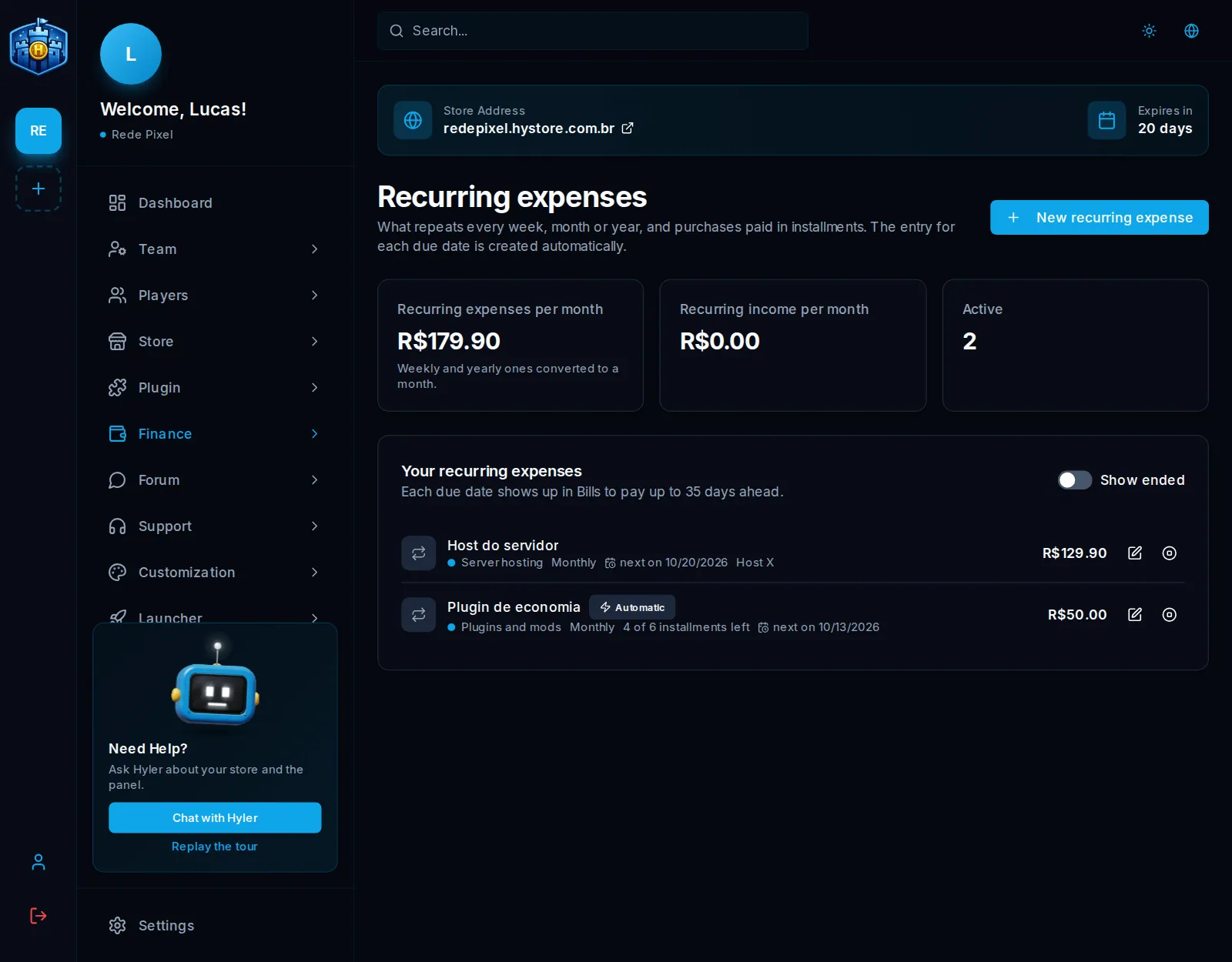
Finance > Recurring expenses holds what repeats (host, domain, team) or was split into installments.
- Click New recurring expense.
- Pick the category, the description, the amount of each charge, the frequency (weekly, monthly or yearly) and the first due date.
- In Until when, pick No end, Installments (2 to 120) or Until a date.
- Turn on Automatic debit if the bill is charged on its own: the entry comes in already paid on the due date.
- Save.
The entry for each due date is created on its own and shows in Bills to pay up to
35 days before. In installments, the description carries the installment number,
like (3/6).
Edit changes the amount, category and texts of pending entries from today on; what is already paid stays as it is. To change the frequency or the dates, end it and add another one. End stops generating and removes from bills to pay the pending entries that would fall after today.
Categories
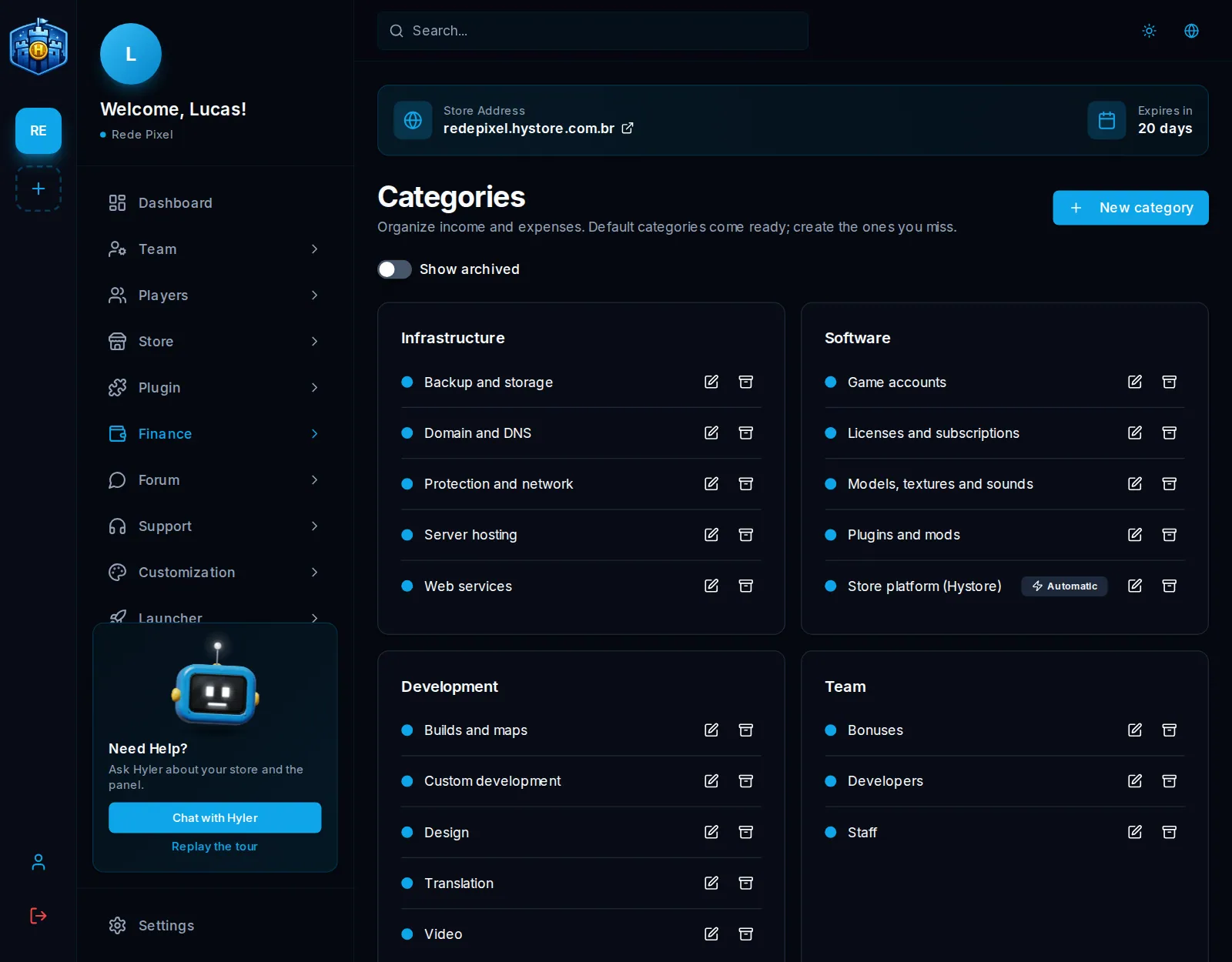
Finance > Categories holds the income and expense categories. The store starts with the default ones:
| Category | Examples |
|---|---|
| Infrastructure | Server hosting, protection and network, domain and DNS, backup |
| Software | Plugins and mods, licenses, the Hystore platform, game accounts |
| Development | Custom work, builds and maps, design, video, translation |
| Team | Staff, developers, bonuses |
| Marketing | Ads, content creators, partner commission, giveaways |
| Fees and taxes, Other | The rest of the expenses |
Income ones include sales, sponsorship, donations, content monetization, sales outside the site and owners' contributions. New category creates one with a name and a color; the pencil renames it or changes the color. Archive removes the category from the choices without touching old entries, and Show archived lets you bring it back.