
Get to know the dashboard
The dashboard lives at app.hystore.com.br. It is where you run the whole store: products, orders, players, look, plugin, Discord and the rest. This page shows where everything is.
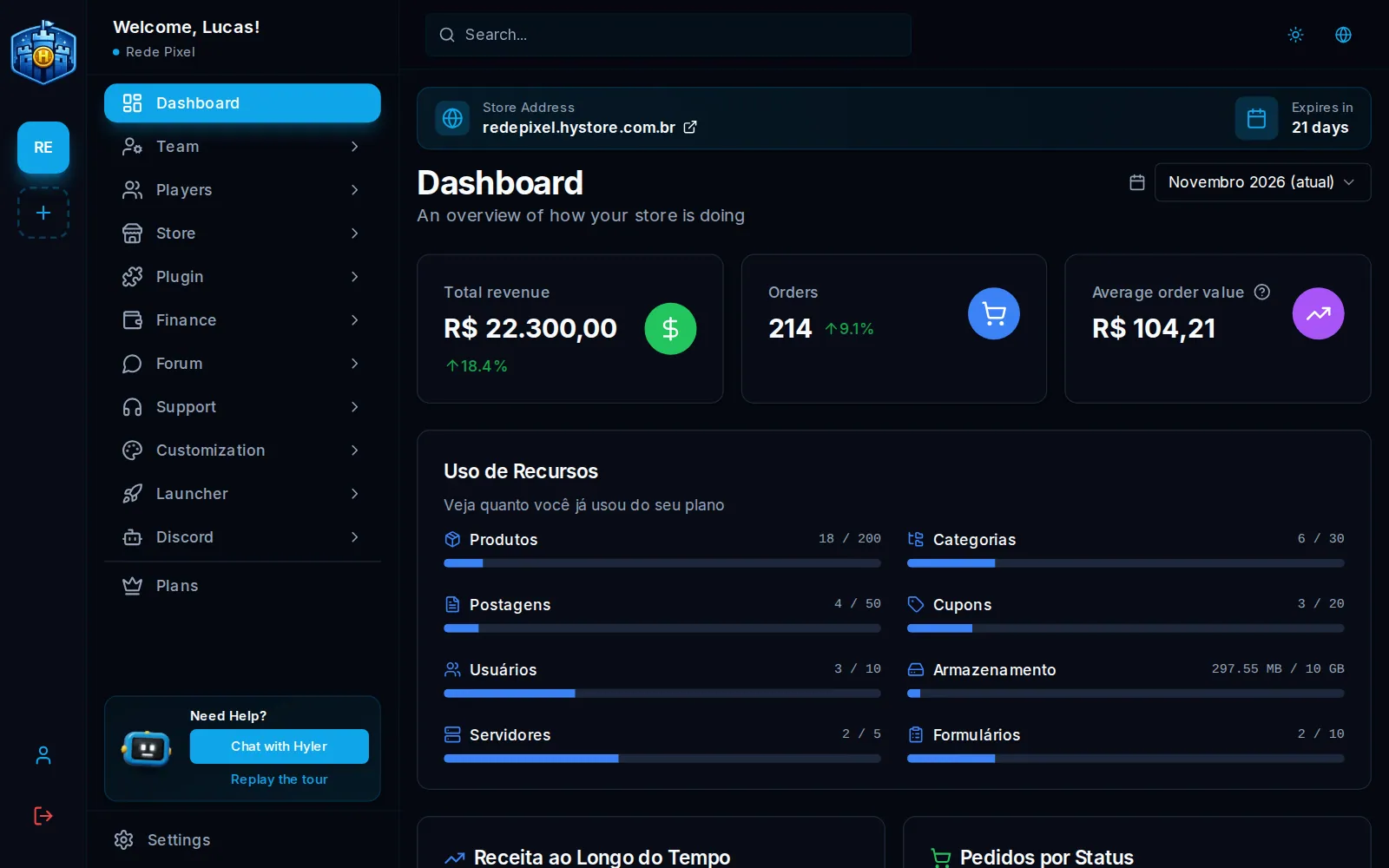
The three columns
Store bar (the thin column on the left):
- each store of the account shows as a square with the initials of its name; click to switch stores;
- the + creates another store (see Create the account and the store);
- at the bottom are My Profile (the person icon) and Logout;
- Hystore partners also see the handshake icon, which opens the partner area.
Store menu (the middle column), in groups that open and close:
| Group | What it has |
|---|---|
| Dashboard | The month's numbers |
| Team | Sub-users, access roles and audit logs |
| Players | The store's players and their roles (Customers, in a digital store) |
| Store | Products, categories, coupons, partners, gifts, month goal, servers and orders |
| Plugin | How it works, permissions and commands, what's new, in-game store, announcements and texts |
| Finance | Entries, bills, budgets, reports and Hyler review |
| Forum | Forum categories, boards and badges |
| Support | Tickets, news, wiki and forms |
| Customization | Store appearance, widgets, code theme, theme access and emails |
| Launcher | The store launcher for Windows and Android |
| Discord | The store bot in your Discord server |
Below the groups come Plans and, at the end of the menu, Settings.
Content (the big area on the right). At the top of every screen are the Store Address, which opens the storefront in a new tab, and how many days are left until the plan renews or expires.
Theme, language and Hyler
- In the top right corner, the sun or the moon switches between the light and the dark theme, and the globe switches the dashboard language between Portuguese, English and Spanish. The choice is kept in the browser.
- Each screen with content shows the Tip for this screen, with three tips from Hyler. If you close it, click Hyler on the Need Help? card to bring it back.
- On the same card, Chat with Hyler opens the help chat: ask in English, Portuguese or Spanish, like "where do I create a coupon?", and he answers with the path and the link to the screen.
- Replay the tour shows again, screen by screen, where everything is.
The Dashboard
The first screen of the menu shows how the store is doing in the month:
- Total revenue, Orders and Average order value (revenue divided by orders), compared with the previous month;
- Resource Usage: how much of the plan is already used in products, categories, posts, coupons, team users, storage, servers and forms;
- the charts of revenue over the month, orders by status and sales by category;
- the summary of partners and tickets, and the latest orders.
The month picker, at the top right, changes every number at once.
Useful to know
- Switching stores loses nothing: each store keeps its own products, orders, settings and plan.
- The Store Address link uses the primary address. If you connected your own domain, it shows there. See Address and custom domain.
