
Plan and subscription
Plans, in the menu, holds the store's plan, the features it includes, the charges and everything that happened to the subscription. Only the store owner sees this screen.
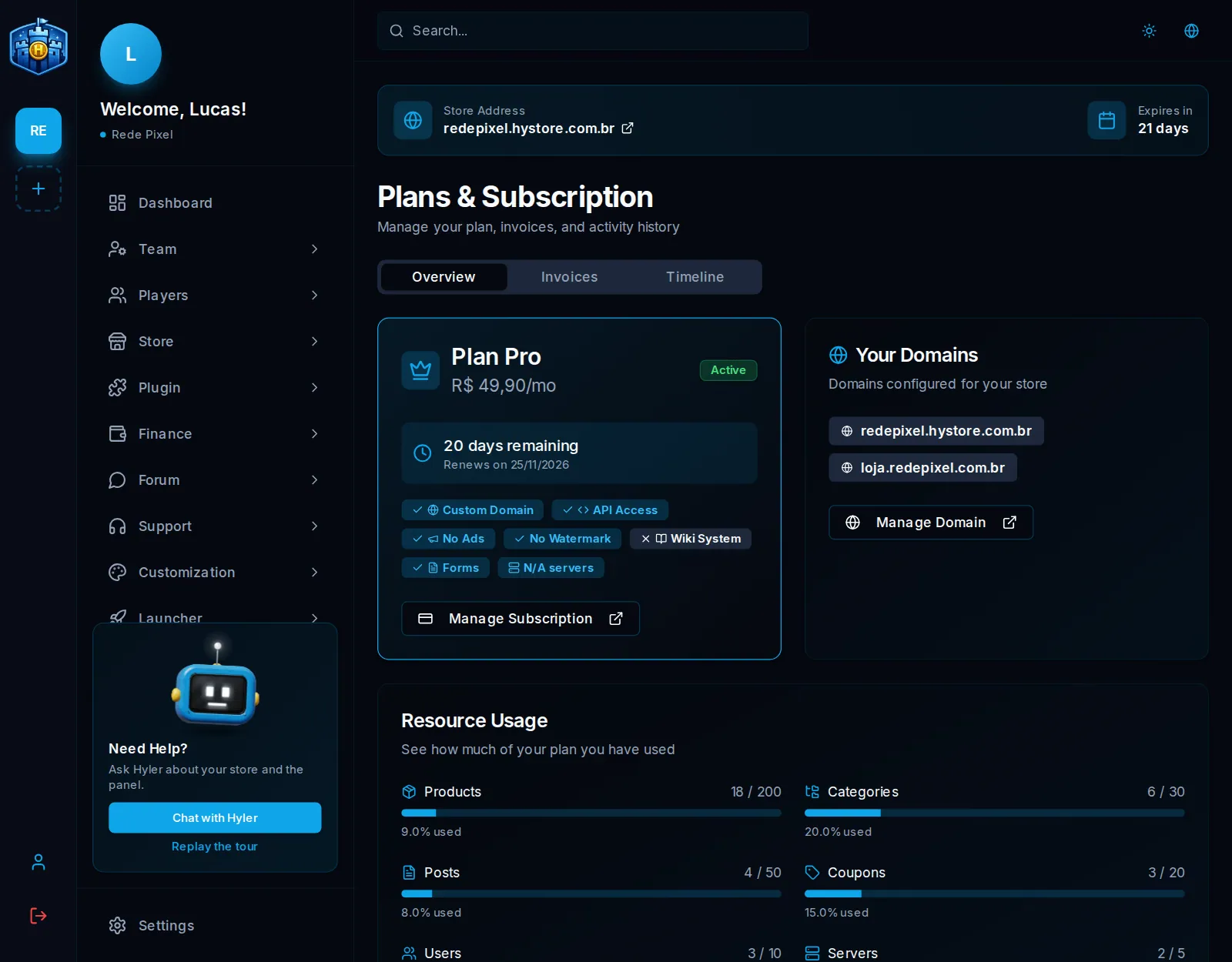
The three tabs
| Tab | What it shows |
|---|---|
| Overview | The current plan, how many days are left, the renewal date, the included features, the domains and the available plans |
| Invoices | Every charge, by card and by Pix, with the summary (total paid, last payment, next charge and open issues) and filters |
| Timeline | Everything that happened, newest first: payments, attempts, plan changes and store changes |
Plans are separate per store type (Minecraft, Hytale and digital products). A store can only switch to a plan of its own type.
Change the plan
- In Available Plans, pick the new plan.
- Check the amount and the payment method.
- Confirm. The new plan applies as soon as the payment is approved.
To change or cancel a subscription that already exists, use Manage Subscription, on the current plan card.
Payment methods
In a store priced in Brazilian reais, the payment method is chosen at checkout:
- Credit card: a recurring charge. The first charge happens right away and the next ones happen on their own, on the same card, every plan period, until you cancel in Plans. The payment screen shows the amount and how often before you confirm.
- Pix and Automatic Pix, when Hystore turns Pix on: with Pix, each payment is worth one period, and the renewal arrives by email and shows in Plans with the QR code; with Automatic Pix, you authorize once in your bank app and each monthly payment is debited on its own.
Stores priced in US dollars pay by card, through Stripe.
Invoices and invoice PDF
On the Invoices tab:
- Use the filters by payment method and by status (paid, open, with a problem or refunded).
- Click Details to see the summary of a charge.
- Click Invoice PDF to download the Hystore invoice in the dashboard language. The receipts that exist, from the card or from Pix, are attached at the end of the same PDF.
A failed card charge shows why it was declined, the attempts and when the next one happens, with the button to pay now.
Cancel and ask for a refund
- Up to 7 days after subscribing, canceling refunds the last charge and ends the plan right away. This works once per store. On a card, the money comes back within 10 business days; with Pix, it goes back to the account that paid.
- After 7 days, canceling takes effect at the end of the period already paid, without refunding part of it.
When the plan ends by refund, the store moves right away to the free plan of the same type, if there is one and the store fits all its limits (products, categories, posts, coupons, forms, servers, team and storage). If it does not fit, the store is suspended and deleted 10 days later. The owner gets an email in both cases.
The full rules are in the Refund Policy.
When a payment fails or the plan expires
- Hystore warns you by email, with the deadline: 3 days from the warning (or until the end of the paid period, if that is later) to sort it out.
- After the deadline, the store moves to the free plan of the same type, if it fits all its limits. If the free plan has no custom domain, the domain is turned off and the store stays on the Hystore address.
- If it does not fit, the store is suspended (it goes offline for players) and is deleted 20 days later, with email warnings 15, 10, 5 and 1 day before.
On a card, a reminder email also arrives 3 days before each charge, with the amount, the date and the card.
Free plan and ads
On a plan with ads, like the free one, the storefront may show Hystore ads, always with the Ad label and at most two per page. Cart, payment, profile, support, forms and legal pages never have ads. For a store without ads, subscribe to a paid plan (the free trial of a paid plan has no ads either).
Hystore coupon
The Hystore coupon gives a discount on the store's plan. It can come from a Hystore partner or from a promotion, and it goes in the summary when the store is created, in Got a coupon? Type it here. While the coupon is active, the Plans screen shows a strip with the code and how many payments still get the discount.
That coupon is for the Hystore plan. The coupons your store gives players are in Store > Coupons; see Coupons.
