
Store settings
Settings, at the end of the menu, holds the store details, the time zone, the social networks, the terms shown in the storefront and the modules that are on. The screen has five tabs: General, Domains, Payments, Modules and Terms. Domains and Payments have pages of their own: Address and custom domain and Payment methods.
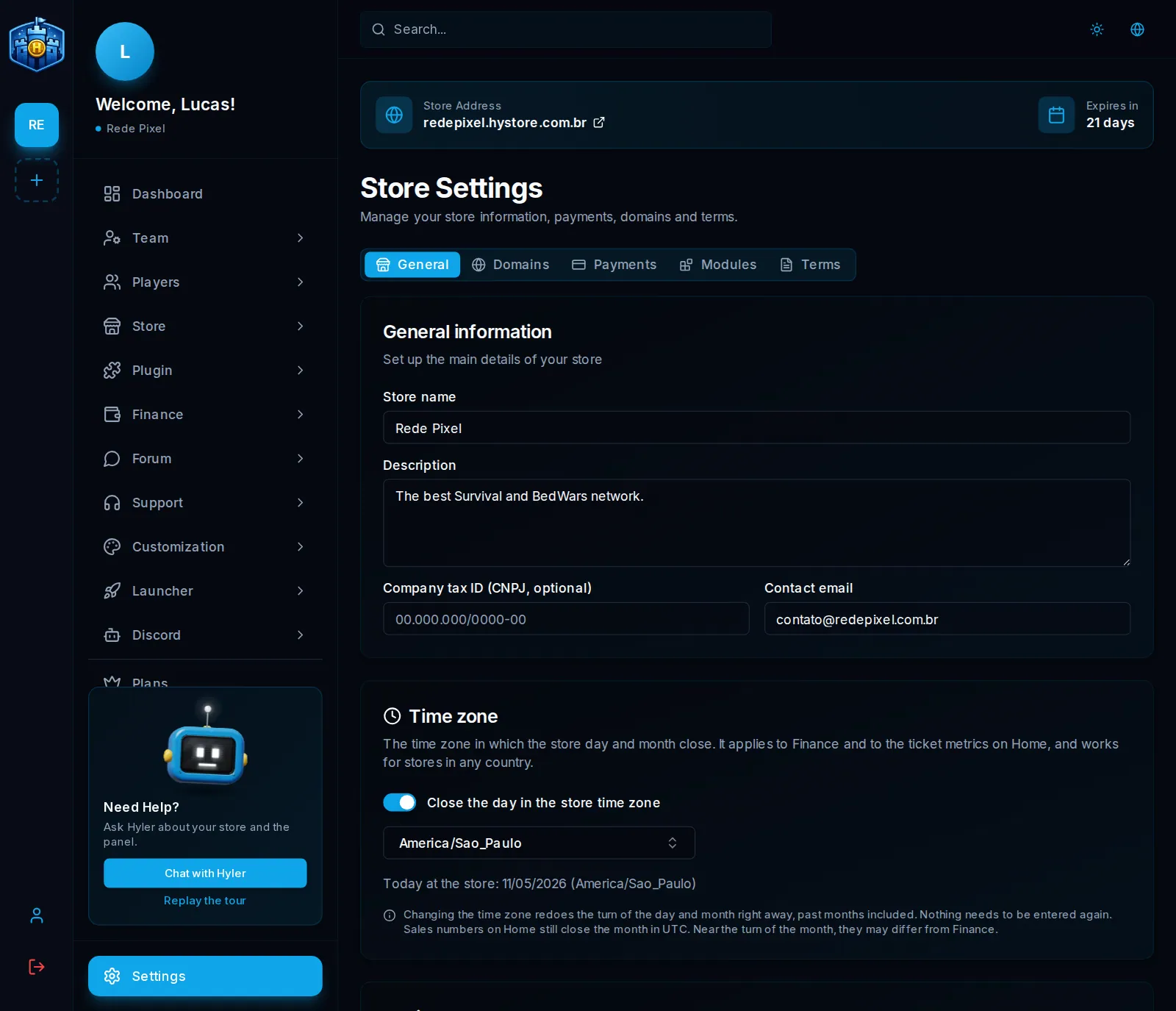
General
The General information card holds the main details:
| Field | What it is for |
|---|---|
| Store name | The store's name, as players and the dashboard see it |
| Description | A short summary of what the store sells |
| Company tax ID (CNPJ, optional) | Your Brazilian company number, if you have one |
| Contact email | The store's contact email |
After changing anything, click Save changes, at the end of the tab.
Time zone
The time zone decides at what time the store's day and month close. It applies to Finance and to the ticket metrics on the Dashboard.
- On the Time zone card, turn on Close the day in the store time zone.
- Pick the time zone in the list. You can search, for example
Sao_PauloorNew_York. - Click Save changes.
The sales numbers on the Dashboard still close the month in UTC, so near the turn of the month they can be a little different from Finance.
Social networks
On the Social networks card, paste the link of each profile: Instagram,
Discord, Twitter / X, TikTok, Telegram and WhatsApp. Links must start with
https://, for example https://discord.gg/yourinvite or
https://wa.me/15551234567. An empty field does not show in the store.
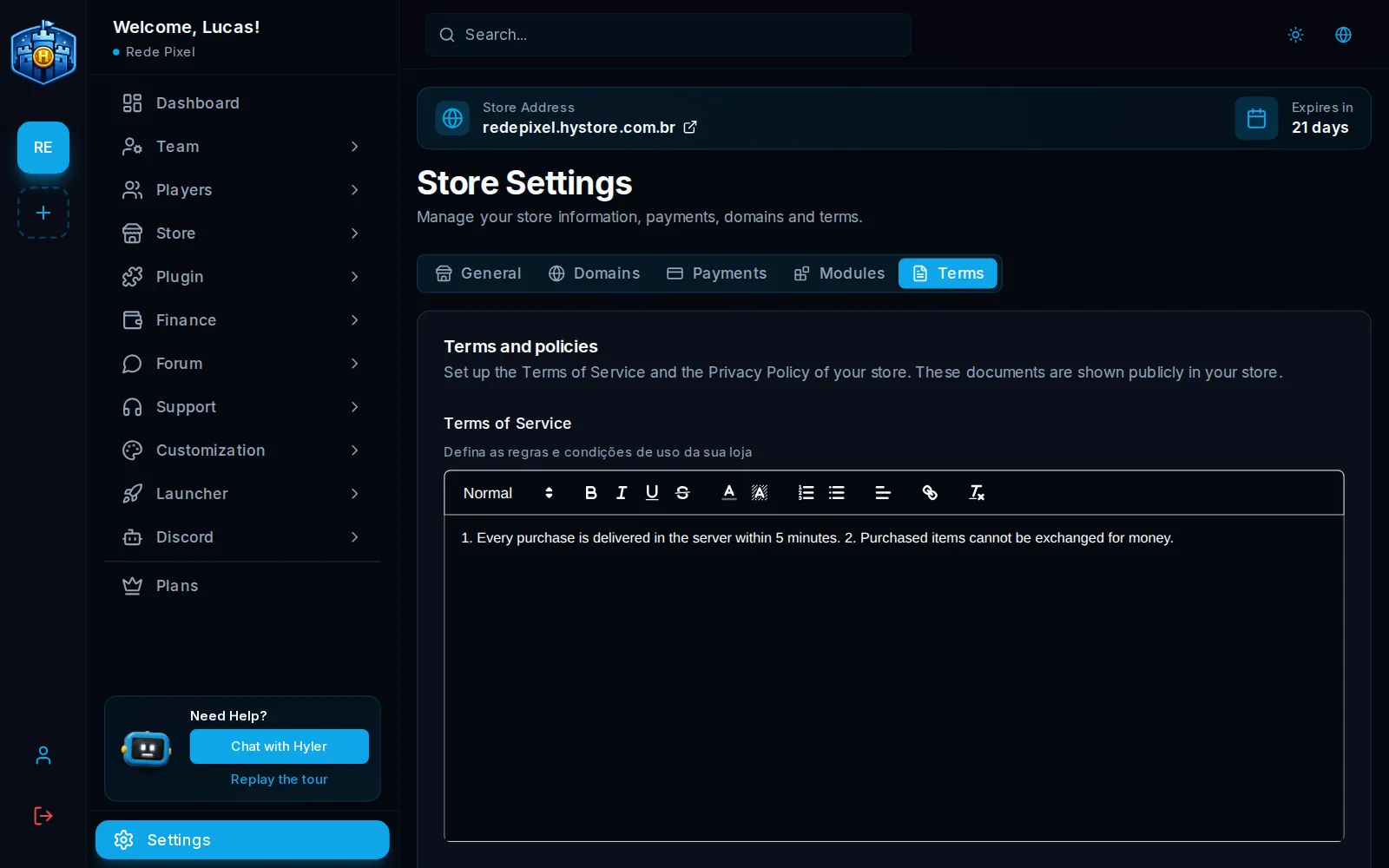
Terms
The Terms tab holds the legal texts shown in the storefront:
- Terms of Service: the purchase rules of your store;
- Privacy Policy: how the store handles player data;
- Server rules: the rules of conduct in the game;
- Data collection: the text that explains which data the store collects.
Write each text and click Save terms.
Modules
The Modules tab turns parts of the store on and off: Forum, Wiki, Support (tickets), Forms, Launcher, Widgets, Emails, Discord, Finance, VIP and Code theme.
- Find the module in the list.
- Use the switch on the right to turn it on or off. The change applies right away and the menu group shows up or goes away.
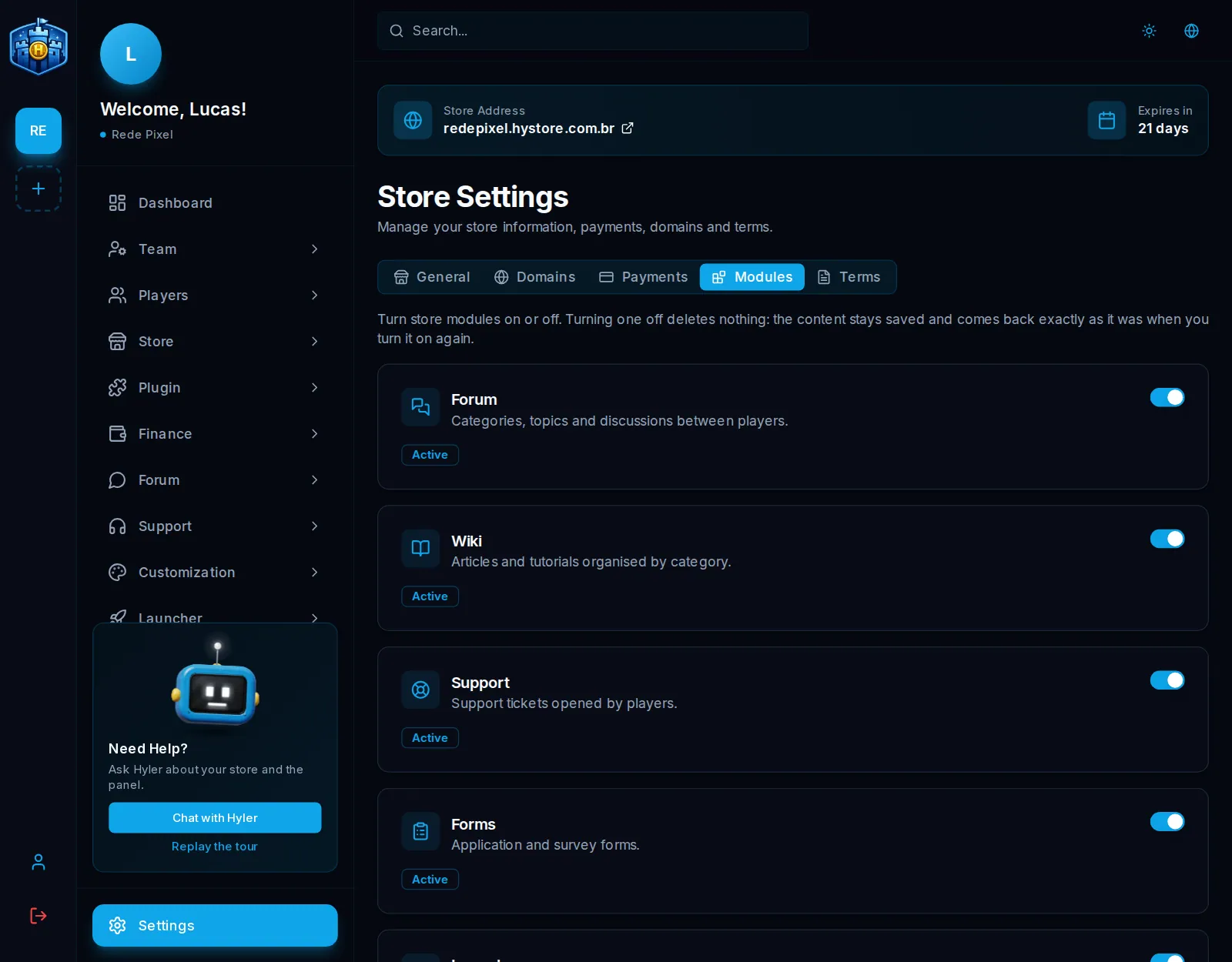
Turning a module off deletes nothing: the content stays saved and comes back exactly as it was when you turn it on again. A module the plan does not include shows as locked, with the See plans button.
